> ## Documentation Index
> Fetch the complete documentation index at: https://docs.aftersell.com/llms.txt
> Use this file to discover all available pages before exploring further.
# 내 업셀이 표시되지 않는 이유는 무엇인가요?
> 이 문서에서는 업셀 제품이 카트 드로어에 표시되지 않을 때 문제를 해결하는 방법을 설명해요.
# 개요
Upcart의 업셀은 올바르게 표시되기 위해 여러 Shopify 및 앱별 조건에 의존해요. 업셀이 스토어프론트에 표시되지 않는다면, 이 가이드에서 문제를 파악하고 해결하는 모든 단계를 안내해요.
***
## 업셀이 누락되는 일반적인 원인
업셀이 표시되지 않는 가장 흔한 이유는 다음과 같아요:
* Shopify의 재고 문제 또는 제품 상태
* 잘못된 제품 또는 채널 구성
* Upcart의 업셀 모듈 설정(트리거 또는 제한 등)
* AI 추천 업셀을 위한 컬렉션 관계 누락
각 항목을 자세히 살펴볼게요.
***
## Shopify 제품 구성
## 재고 설정
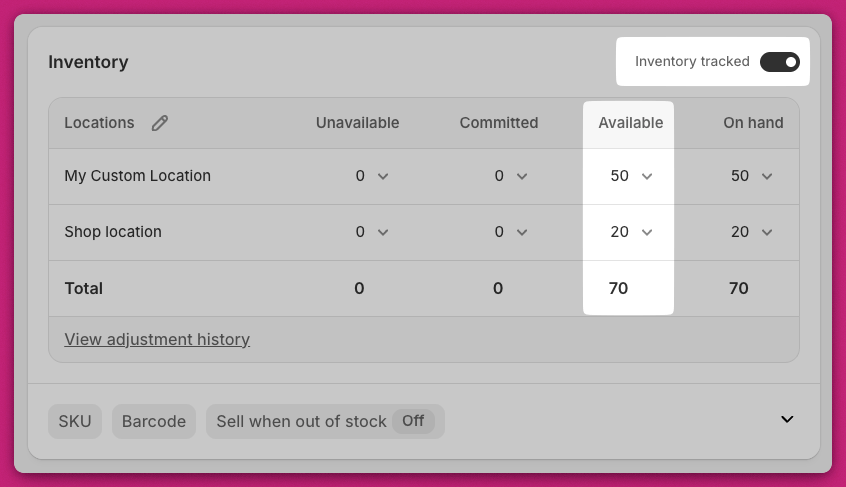
제품 표시에 영향을 주는 두 가지 재고 설정이 있어요:
* **Track quantity:** 활성화된 경우, 제품이 표시되려면 사용 가능한 재고가 있어야 해요.
* **Track quantity**가 비활성화된 경우, 제품이 품절되지 않으며 재고 수준과 관계없이 업셀이 표시돼요.
💡 **확인 방법:**
1. **Shopify 관리자 > Products > Inventory**로 이동하세요.
2. 단일 변형 제품의 경우 **Inventory** 섹션으로 스크롤하세요.
3. 다중 변형 제품의 경우 **Variants**로 스크롤하여 각 변형의 재고를 확인하세요.
 📘 자세히 알아보기: Shopify 재고 관리 문서
***
📘 자세히 알아보기: Shopify 재고 관리 문서
***
## 제품 상태: Active와 Draft
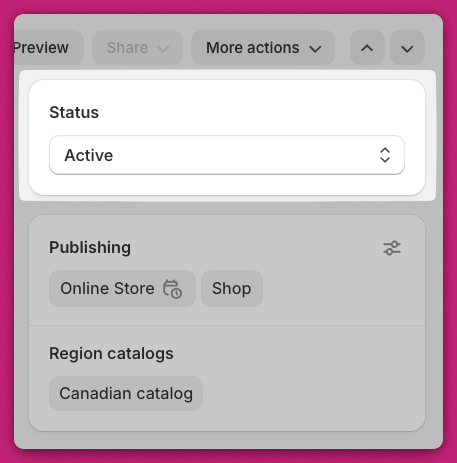
업셀 제품이 **Draft**가 아닌 **Active**로 표시되어 있는지 확인하세요.\
임시 저장(draft) 제품은 카트 드로어에 표시되지 않아요.
💡 **확인 방법:**
* **Shopify 관리자 > Products**로 이동하거나 제품을 열고 오른쪽 상단의 상태 배지를 확인하세요.
 📘 추가 정보: Shopify 제품 상태 문서
***
📘 추가 정보: Shopify 제품 상태 문서
***
## 판매 채널: Online Store
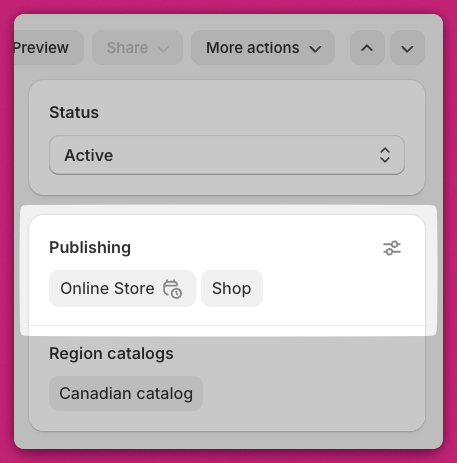
업셀 제품은 **Online Store** 판매 채널에 게시되어 있어야 해요.
💡 **확인 방법:**
1. Shopify에서 제품을 여세요.
2. **Publishing** 섹션을 찾아 **Online Store**가 선택되어 있는지 확인하세요.
3. 없다면 **점 세 개 메뉴 > Manage sales channels**를 클릭하고 **Online Store**를 체크한 다음 저장하세요.
## 제품 유형 제한 사항
Upcart는 특정 제품 유형을 업셀로 지원하지 않아요:
* ❌ 구독 전용 제품
* ❌ 번들 제품(표준 Shopify 제품으로 만들어진 경우 제외)
***
## Upcart 모듈 설정
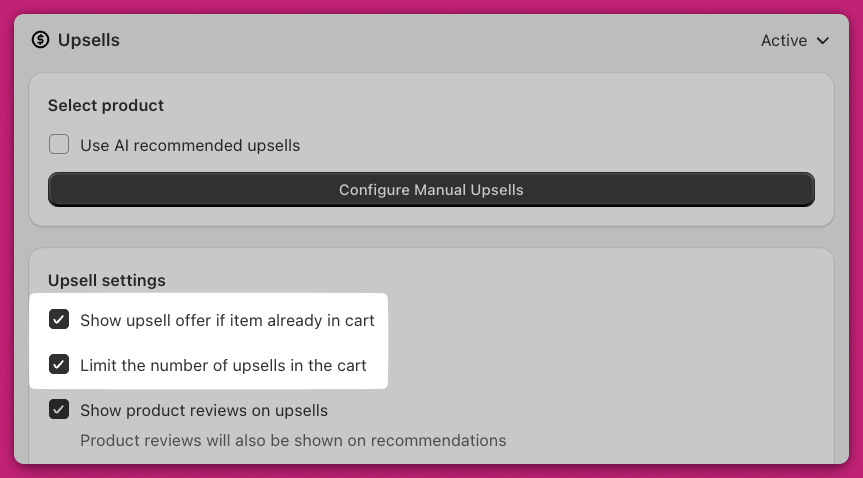
## "Show upsell offer if item already in cart"
이 설정은 제품이 이미 장바구니에 있을 때 업셀 표시 여부를 결정해요.
* ✅ **체크됨:** 업셀이 항상 표시돼요.
* ❌ **체크 해제됨:** 제품이 이미 장바구니에 있으면 업셀이 숨겨져요.
***
## "Limit the number of upsells in the cart"
이 설정을 활성화하면 **Maximum number of upsells to display** 필드가 표시되며 해당 개수만큼만 업셀이 표시돼요.
업셀 모듈은 목록을 **위에서 아래로** 읽어요.\
장바구니에 이미 최대 개수의 업셀이 포함되어 있으면 우선순위가 낮은 업셀은 표시되지 않아요.
🧠 **예시:**\
최대 업셀 개수가 **2**로 설정되어 있고 처음 두 개의 업셀이 트리거되면, 추가 업셀은 (유효하더라도) 표시되지 않아요.
 ***
***
## 업셀 트리거
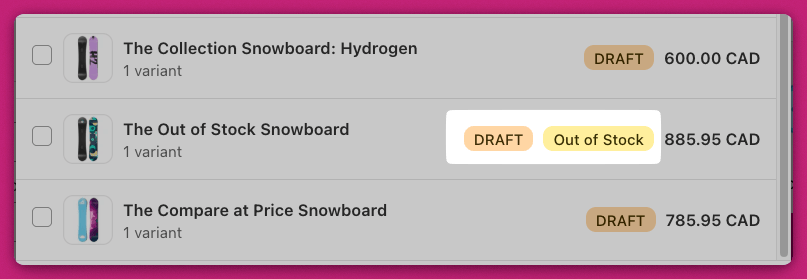
수동 업셀이 작동하려면 **트리거 제품**이 필요해요.
✅ 트리거 제품은 다음 조건을 충족해야 해요:
* 재고 있음
* Active 상태
* **Online Store** 채널에 게시됨
✅ **업셀 설정**에서 최소 하나의 트리거 제품이 선택되어 있어야 해요.
⚠️ 트리거 제품 목록이 비어 있으면 다른 모든 조건이 충족되더라도 업셀이 표시되지 않아요. 제품의 마지막 변형을 체크 해제하면 제품이 목록에서 완전히 제거된다는 점에 유의하세요 — 변형이 체크되지 않은 채 제품이 남아 있는 경우가 아니라 이 상태를 주의해야 해요.
변형 제한이 없는 트리거는 해당 제품의 **모든** 변형과 일치하므로, 범위를 좁히려는 경우가 아니라면 변형을 개별적으로 체크할 필요가 없어요.
또한 업셀 제품 자체도 동일한 기준을 충족하는지 확인하세요.
 ***
***
# AI 추천 업셀
**AI 추천 업셀**을 사용하는 경우 확인해야 할 특정 조건이 있어요:
## 관련(Related) 알고리즘
업셀은 장바구니 상품이 스토어의 다른 제품과 **컬렉션**을 공유하는 경우에만 표시돼요.
✅ **해결 방법:** 두 제품을 동일한 Shopify 컬렉션에 추가하세요.
## 보완(Complementary) 알고리즘
이 업셀은 **Shopify의 구매 행동 데이터**를 기반으로 해요.
* Shopify가 제품 조합을 식별할 수 있을 만큼 충분한 데이터가 있어야 해요.
* 스토어의 데이터 설정이 AI 기반 추천을 허용하는지 확인하세요.
📘 보완 업셀 설정 방법 알아보기:\
[Shopify 보완 제품 가이드](https://help.shopify.com/en/manual/online-store/themes/customizing-themes/common-customizations/add-product-recommendations#complementary-products)
***
## 요약
업셀이 표시되지 않는다면 다음을 확인하세요:
* 업셀 제품이 **Active** 상태이고, **재고가 있으며**, **Online Store** 채널에 **게시**되어 있는지.
* **업셀 모듈 설정**이 올바르게 구성되어 있는지(표시를 막는 제한 조건이 없는지).
* **트리거 제품**과 업셀 제품이 Shopify 표시 요건을 충족하는지.
* AI 기반 업셀의 경우 컬렉션과 AI 구성이 올바르게 설정되어 있는지.
***
## 도움이 필요하세요?
이 단계를 확인한 후에도 업셀이 여전히 표시되지 않으면 앱 내 채팅을 통해 **Upcart 지원팀**에 문의하세요. 다음을 포함해 주세요:
* 업셀 제품 이름
* 모듈 설정 스크린샷
* 문제에 대한 간단한 설명
저희 팀이 문제를 신속하게 파악하고 해결하도록 도와드릴게요.
***
## 업셀 설정에 도움이 필요하세요?
전체 설정 안내와 모범 사례는 [업셀 모듈 가이드](/ko/upcart/upsells_module)를 참고하세요.