> ## Documentation Index
> Fetch the complete documentation index at: https://docs.aftersell.com/llms.txt
> Use this file to discover all available pages before exploring further.

# 업셀 모듈: 설정

> 이 문서에서는 장바구니 내 업셀 동작을 세밀하게 조정하는 방법을 안내해요

<div id="overview">
  # 개요
</div>

Upcart 업셀 섹션에서 업셀 제품을 선택했다면, 이제 의도한 방식대로 표시되는지 확인할 차례예요. 이 문서에서는 **Cart Editor > Upsells > Upsell Settings** 아래의 각 기능을 설명하며, 이전 [**업셀 모듈**](/ko/upcart/upsells_module) 문서의 두 번째 파트예요.
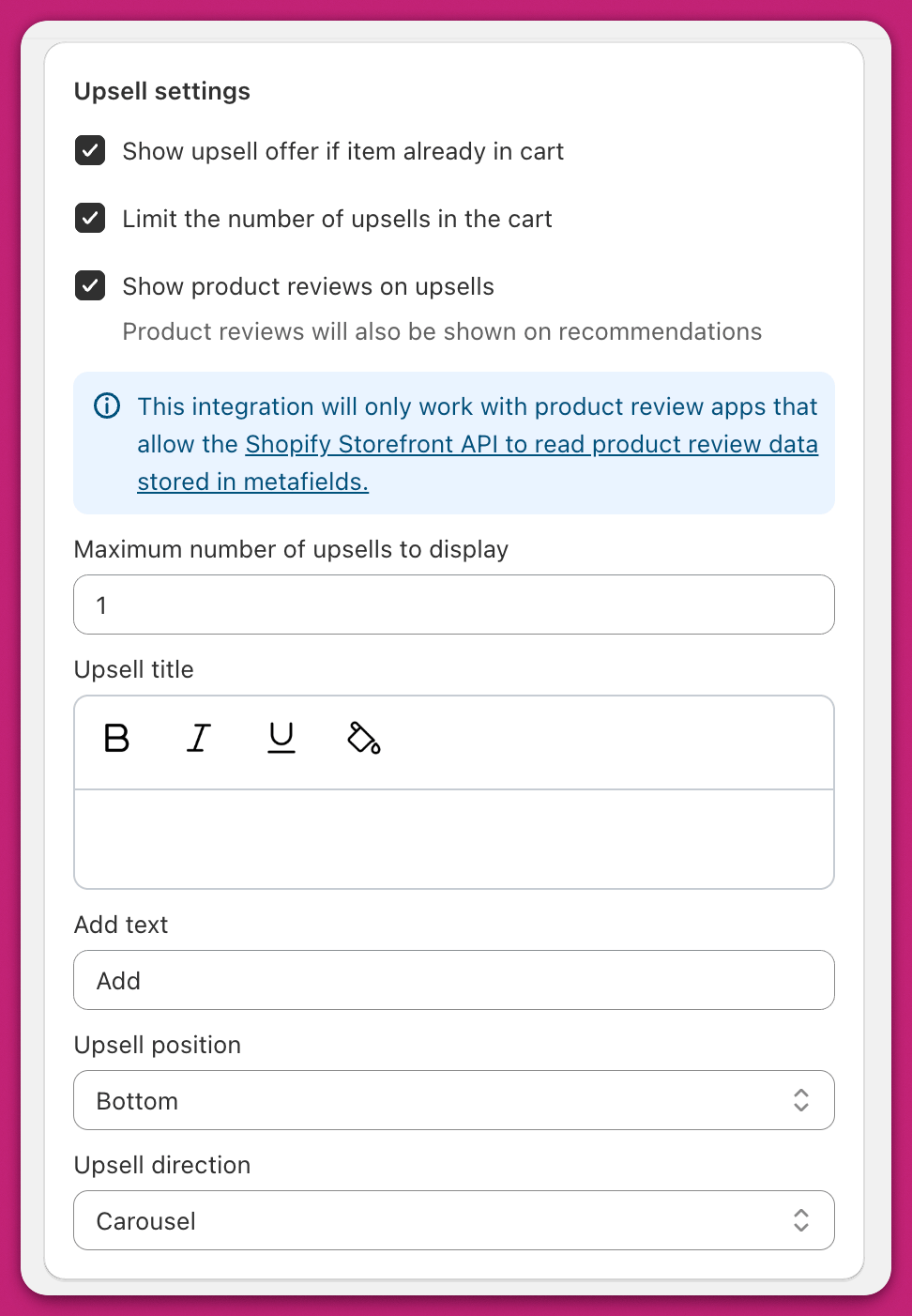
<img src="https://mintcdn.com/aftersell/uVGuDiyXpd6WOLO4/images/upcart/upsells-settings-upsell-panel-checkboxes-title.png?fit=max&auto=format&n=uVGuDiyXpd6WOLO4&q=85&s=eb98ed62162dff23ecbcdab36ecbb0e8" alt="체크박스, 업셀 제목, 위치, 방향 옵션이 있는 Upcart Upsell Settings 패널" width="500" data-path="images/upcart/upsells-settings-upsell-panel-checkboxes-title.png" />

<div id="show-upsell-offer-if-item-already-in-cart">
  ## Show Upsell Offer If Item Already In Cart
</div>

이 설정을 활성화하면 업셀 제품이 이미 장바구니에 있어도 업셀 오퍼가 계속 표시돼요.
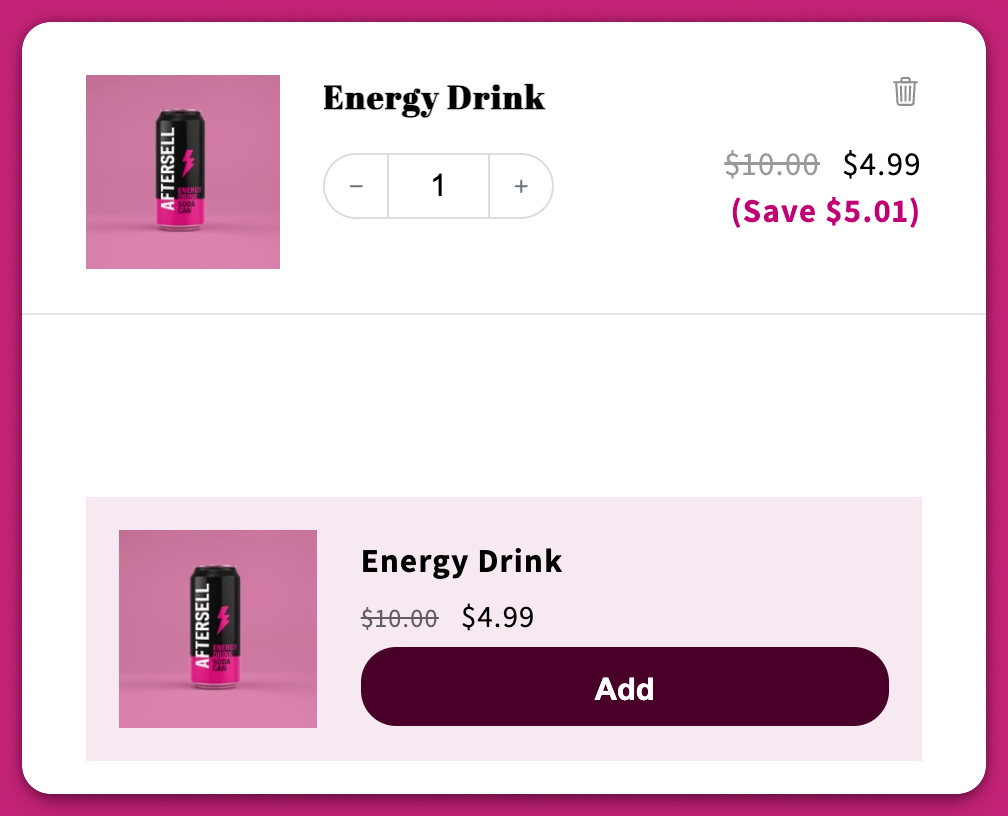
<img src="https://mintcdn.com/aftersell/uVGuDiyXpd6WOLO4/images/upcart/upsells-settings-energy-drink-already-in-cart.png?fit=max&auto=format&n=uVGuDiyXpd6WOLO4&q=85&s=2862077a2d8f4be4dc558f35b0ee3358" alt="동일한 상품이 이미 장바구니에 있어도 계속 제안되는 Energy Drink 업셀" width="500" data-path="images/upcart/upsells-settings-energy-drink-already-in-cart.png" />

<div id="limit-the-number-of-upsells-in-the-cart">
  ## 장바구니에 표시되는 업셀 개수 제한하기
</div>

한 번에 표시할 수 있는 업셀 개수에 제한을 설정할 수 있어요. 체크하면 **Maximum number of upsells to display** 숫자 필드가 표시돼요(최소 1):
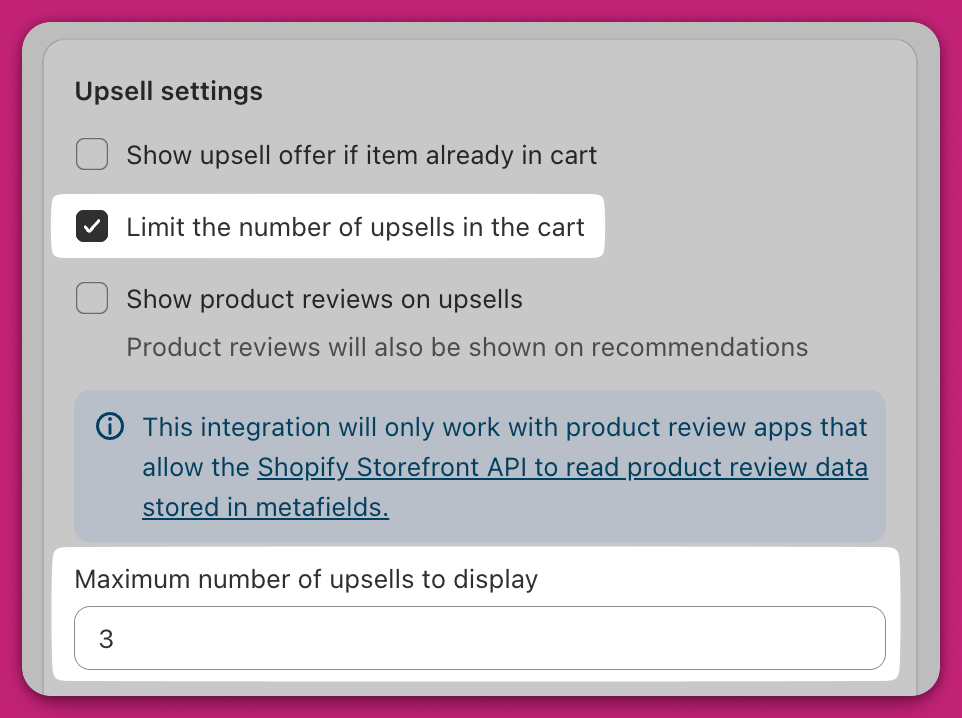
<img src="https://mintcdn.com/aftersell/uVGuDiyXpd6WOLO4/images/upcart/upsells-settings-limit-number-checkbox-enabled.png?fit=max&auto=format&n=uVGuDiyXpd6WOLO4&q=85&s=ab01338f54b9001414e6dc422ee564d3" alt="최대 표시 개수가 3으로 설정되고 업셀 개수 제한 체크박스가 활성화된 모습" width="500" data-path="images/upcart/upsells-settings-limit-number-checkbox-enabled.png" />

<div id="upsell-title">
  ## 업셀 제목
</div>

이는 **업셀 모듈 위**에 표시되는 텍스트예요.

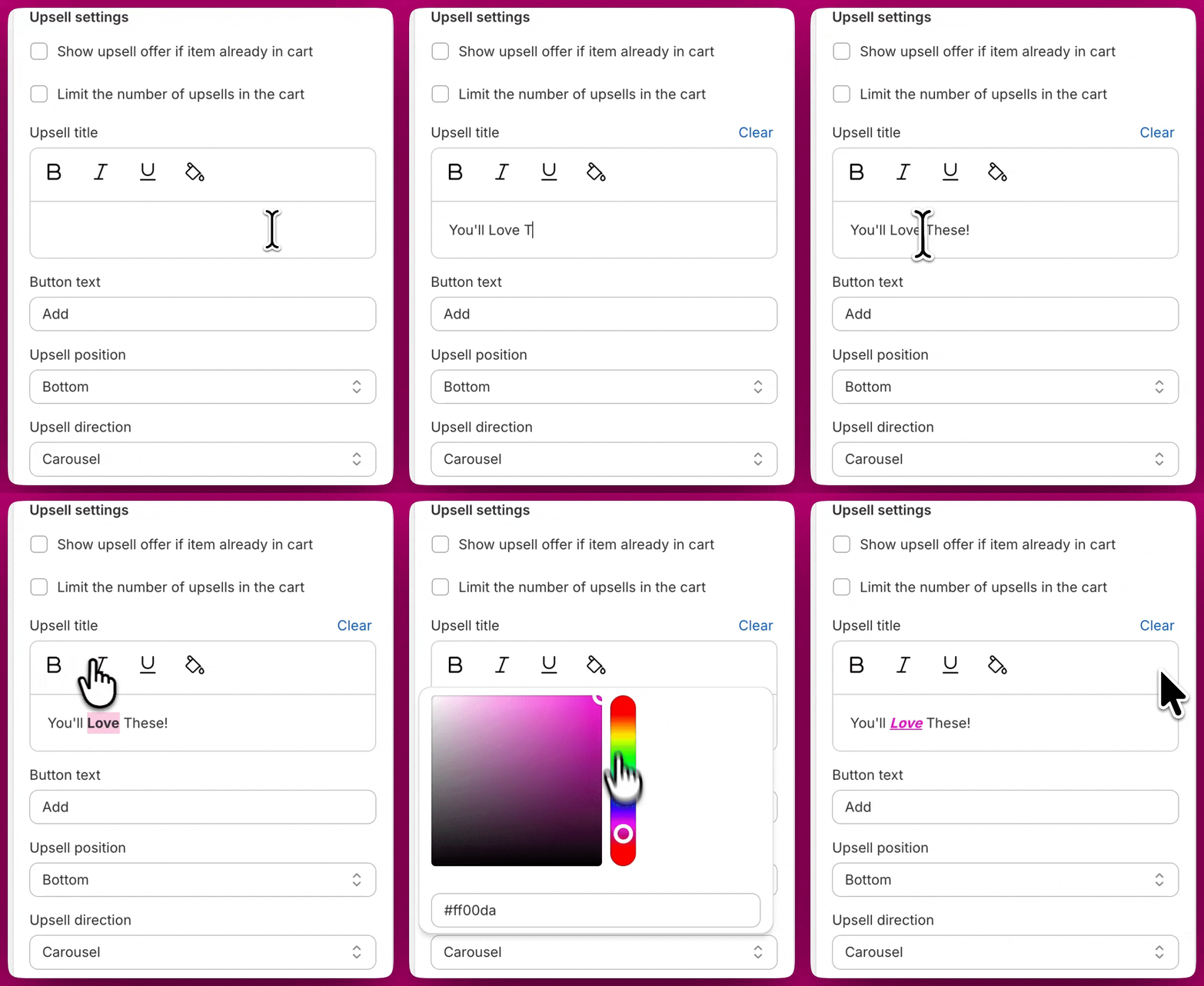
스타일을 지정하려는 텍스트를 선택한 다음, 텍스트 필드 위의 버튼을 사용하여 **굵게, 기울임꼴, 밑줄** 및 **색상**을 적용할 수 있어요:
<img src="https://mintcdn.com/aftersell/uVGuDiyXpd6WOLO4/images/upcart/upsells-settings-title-formatting.gif?s=9639dc015283db1f756af205ef68dcad" alt="텍스트에 굵게, 기울임꼴, 색상 서식을 적용하여 업셀 제목을 편집하는 모습" width="880" height="1080" data-path="images/upcart/upsells-settings-title-formatting.gif" />

<div id="button-text">
  ## 버튼 텍스트
</div>

업셀 장바구니 담기 버튼에 표시되는 텍스트를 원하는 문구나 언어로 사용자 지정할 수 있어요.

<div id="upsell-position">
  ## 업셀 위치
</div>

이 드롭다운에서 업셀을 장바구니 상단에 배치할지 하단에 배치할지 선택할 수 있어요.

[블록](#block) 업셀 방향을 사용하는 경우, 고객의 제품이 잘 보이도록 일반적으로 하단(Bottom)을 선택하는 것을 권장해요.

<div id="upsell-direction">
  ## 업셀 방향
</div>

이 드롭다운에서 **업셀 모듈의 스타일**을 변경할 수 있어요.

현재 두 가지 옵션이 있어요:

<div id="carousel">
  ## 캐러셀
</div>

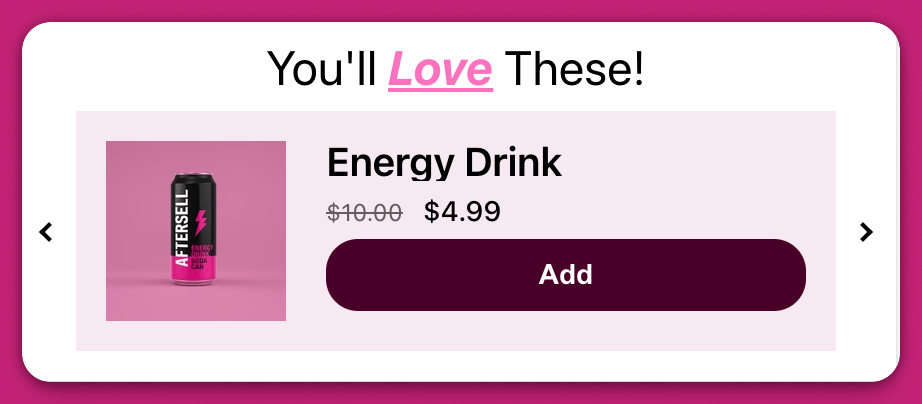
캐러셀은 모든 업셀 제품을 좌우 슬라이더로 표시해요.

이 슬라이더에는 왼쪽과 오른쪽에 화살표가 있어 고객이 제품을 전환할 수 있어요.
<img src="https://mintcdn.com/aftersell/uVGuDiyXpd6WOLO4/images/upcart/upsells-settings-carousel-layout-arrows.png?fit=max&auto=format&n=uVGuDiyXpd6WOLO4&q=85&s=1c3a0c5d0f4c150e2db07d5c0553ca6f" alt="좌우 탐색 화살표와 함께 제품 하나를 표시하는 캐러셀 업셀 레이아웃" width="500" data-path="images/upcart/upsells-settings-carousel-layout-arrows.png" />

<div id="block">
  ## 블록
</div>

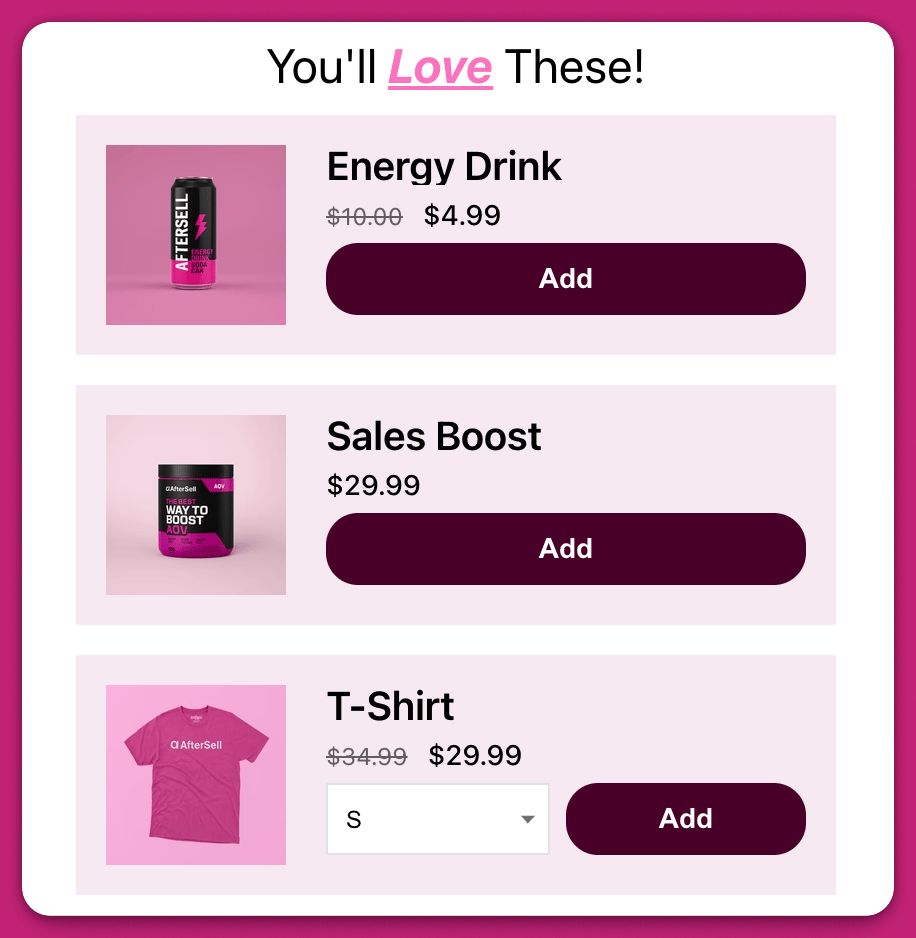
블록은 모든 업셀 제품을 세로로 쌓아서 표시해요:

<img src="https://mintcdn.com/aftersell/uVGuDiyXpd6WOLO4/images/upcart/upsells-settings-block-layout-three-products.png?fit=max&auto=format&n=uVGuDiyXpd6WOLO4&q=85&s=a22d3a82a9f1e03148d65c08922debcd" alt="장바구니에 세 개의 제품이 세로로 쌓인 블록 업셀 레이아웃" width="500" data-path="images/upcart/upsells-settings-block-layout-three-products.png" />

이 스타일은 더 많은 공간을 차지하지만, 고객이 모듈과 먼저 상호작용하지 않아도 모든 업셀을 볼 수 있다는 장점이 있어요.