> ## Documentation Index
> Fetch the complete documentation index at: https://docs.aftersell.com/llms.txt
> Use this file to discover all available pages before exploring further.
# 업셀 모듈
> 이 가이드에서는 Upcart에서 업셀 모듈을 구성하는 방법을 안내해요
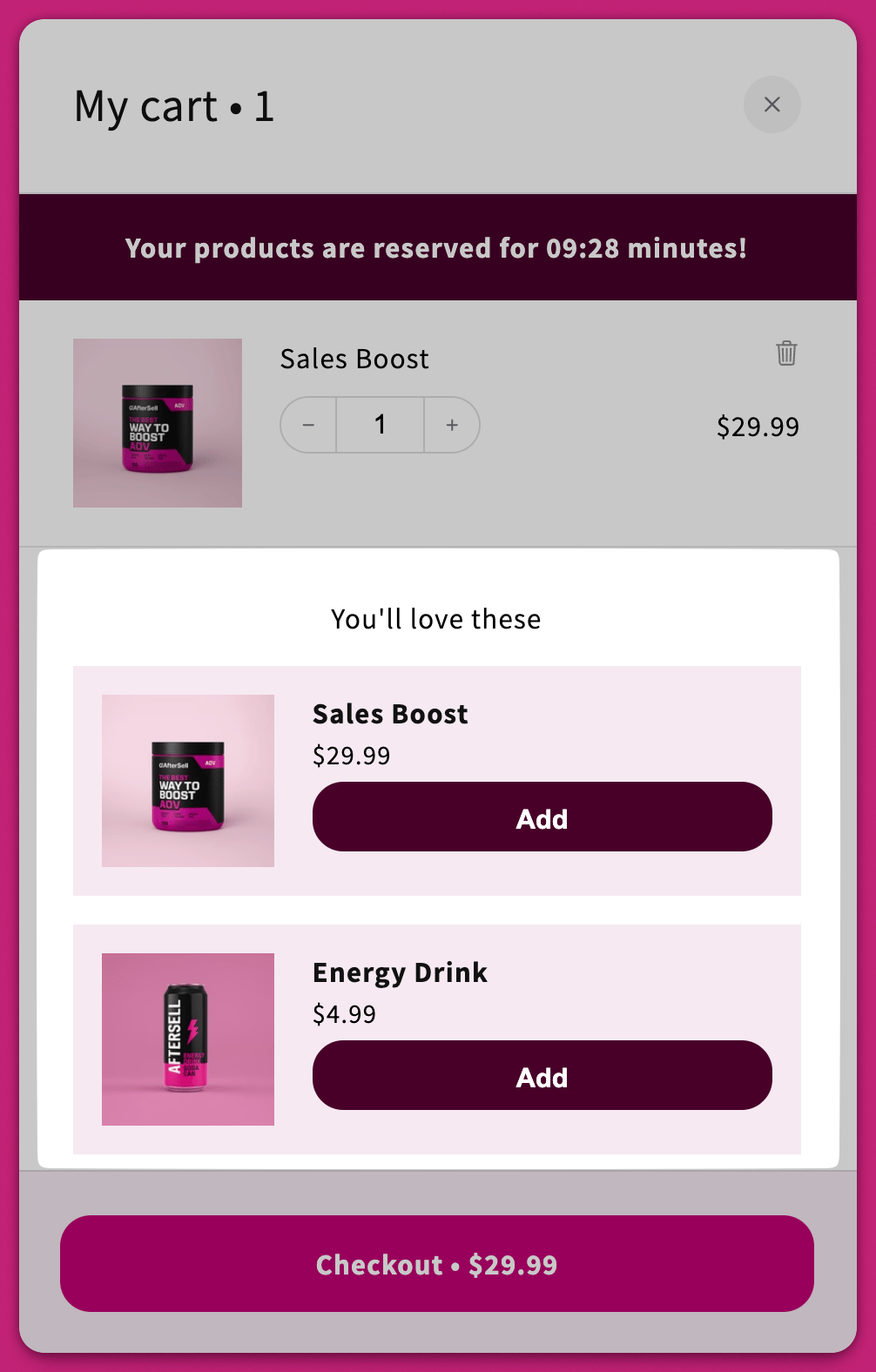
업셀 모듈을 사용하면 고객이 클릭 한 번으로 관련 제품이나 보완 제품을 장바구니에 추가할 수 있어요.
# 제품 선택
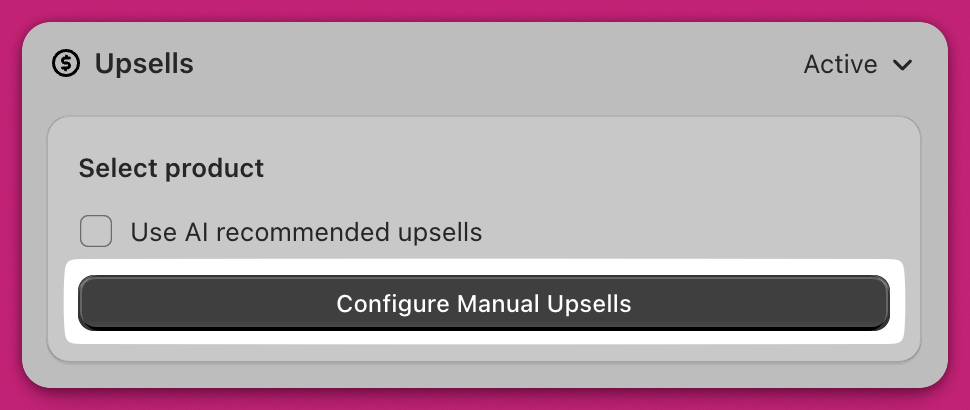
## AI 추천 업셀
이 설정을 활성화하면 [Shopify의 제품 추천 알고리즘](https://shopify.dev/docs/themes/product-merchandising/recommendations)을 사용하여 업셀을 자동으로 제안해요.
### 추천 알고리즘
이 옵션은 AI 추천이 활성화된 경우에만 표시돼요. 원하는 \*\*추천 의도(Recommendation Intent)\*\*를 선택하세요: [Recommendation Intent](https://shopify.dev/docs/themes/product-merchandising/recommendations#recommendation-intents).
의도(intent)는 Shopify가 반환하는 제품이 *무엇인지*를 변경할 뿐, 섹션 제목은 변경하지 않아요. 어떻게 설정하든 업셀은 **업셀 제목**(기본값 "You'll love these") 아래에 표시돼요.
#### **관련 제품**
유사하거나 대체 가능한 제품을 표시해요.
* **중요:** 제품이 "관련"으로 간주되려면 같은 컬렉션에 속해 있어야 해요.
#### **보완 제품**
애드온이나 액세서리를 표시해요.
* **참고:** 보완(Complementary) 의도는 [Shopify Search & Discovery 앱](https://apps.shopify.com/search-and-discovery)에서 수동으로 구성해야 해요. 알고리즘은 "관련(Related)" 제품에 대해서만 자동 생성해요.\
자세한 내용은 [Shopify 문서](https://help.shopify.com/en/manual/online-store/search-and-discovery/product-recommendations)에서 알아보세요.
## 스마트 변형 매칭
이 체크박스는 **Use AI recommended upsells**가 켜져 있고 **동시에** 추천 알고리즘이 **Related**로 설정된 경우에만 표시돼요. 수동 업셀이나 Complementary 의도에서는 사용할 수 없어요.
활성화하면 Upcart가 목록의 첫 번째 변형을 기본값으로 사용하는 대신, 고객이 이미 장바구니에 담은 것과 일치하는 업셀 제품의 변형을 미리 선택해요.
예를 들어, 고객이 검은색 셔츠를 장바구니에 담으면 업셀에서 함께 제안되는 바지 제품의 검은색 변형이 자동으로 미리 선택돼요. 대신 파란색 셔츠를 담았다면 파란색 변형이 미리 선택돼요.
스마트 변형 매칭은 제품 간 옵션 이름이 동일하지 않아도 작동해요. 일치하는 변형이 없으면 고객이 직접 선택할 수 있어요.
## 수동 업셀 구성
수동 업셀은 **AI 추천 업셀**이 비활성화된 경우에만 설정할 수 있어요.
**Configure Manual Upsells**를 클릭하세요.
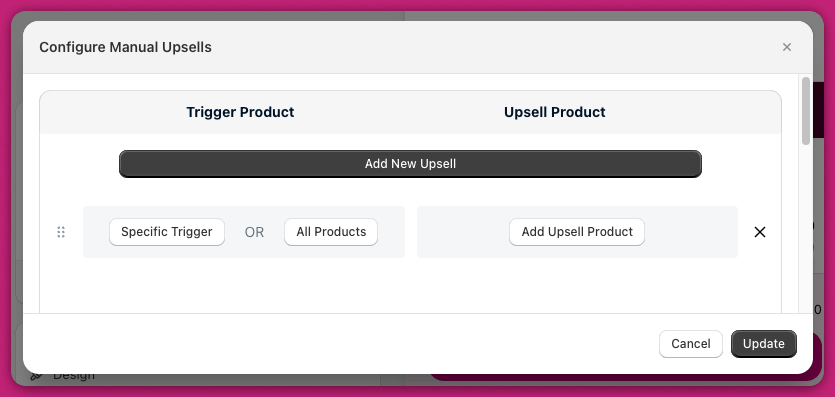
 **Add New Upsell**을 클릭하여 다음 항목이 있는 행을 추가하세요:
1. **트리거**\
**Specific Trigger:** 장바구니에 있어야 하는 제품을 하나 이상 선택하세요.\
**Collection:** 장바구니 상품 중 하나라도 선택한 컬렉션에 속하면 트리거가 작동해요 — 선택 모달의 **Collection** 탭에서 선택하세요.\
**All Products:** 장바구니에 *어떤* 제품이든 있으면 업셀을 표시해요.
2. **업셀**\
트리거가 일치할 때 표시할 제품을 선택하세요 — 또는 **컬렉션**을 선택하면 해당 컬렉션의 제품이 포함돼요.
**Add New Upsell**을 클릭하여 다음 항목이 있는 행을 추가하세요:
1. **트리거**\
**Specific Trigger:** 장바구니에 있어야 하는 제품을 하나 이상 선택하세요.\
**Collection:** 장바구니 상품 중 하나라도 선택한 컬렉션에 속하면 트리거가 작동해요 — 선택 모달의 **Collection** 탭에서 선택하세요.\
**All Products:** 장바구니에 *어떤* 제품이든 있으면 업셀을 표시해요.
2. **업셀**\
트리거가 일치할 때 표시할 제품을 선택하세요 — 또는 **컬렉션**을 선택하면 해당 컬렉션의 제품이 포함돼요.
## 업셀 표시 순서
업셀은 위에서 아래로 평가돼요. 행의 우선순위를 정렬하려면 Cart Editor의 **Configure Manual Upsells** 섹션에서 드래그 앤 드롭하세요. 시스템은 Cart Editor에서의 위에서 아래 배열에 따라 업셀을 표시해요.
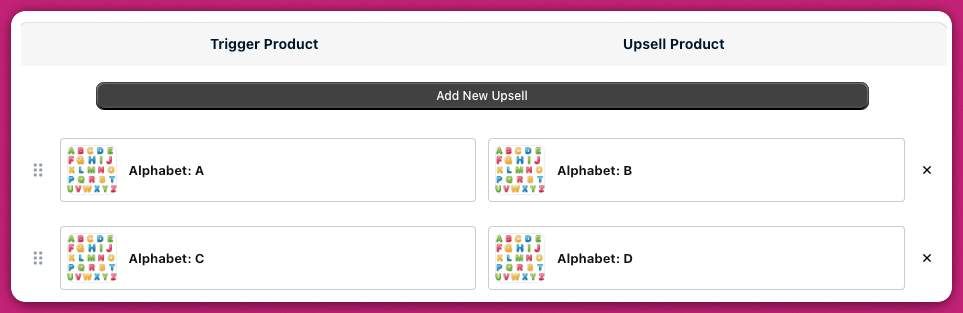 제품 A와 C가 장바구니에 있고 각각에 대해 업셀을 설정했다면, B와 D가 모두 표시돼요.
하나의 업셀 행에서 여러 업셀 제품을 선택한 경우, 제품 선택 순서에 따라 장바구니에서 위에서 아래로 표시되는 순서가 결정돼요.
***
제품 A와 C가 장바구니에 있고 각각에 대해 업셀을 설정했다면, B와 D가 모두 표시돼요.
하나의 업셀 행에서 여러 업셀 제품을 선택한 경우, 제품 선택 순서에 따라 장바구니에서 위에서 아래로 표시되는 순서가 결정돼요.
***
## 리뷰 표시하기
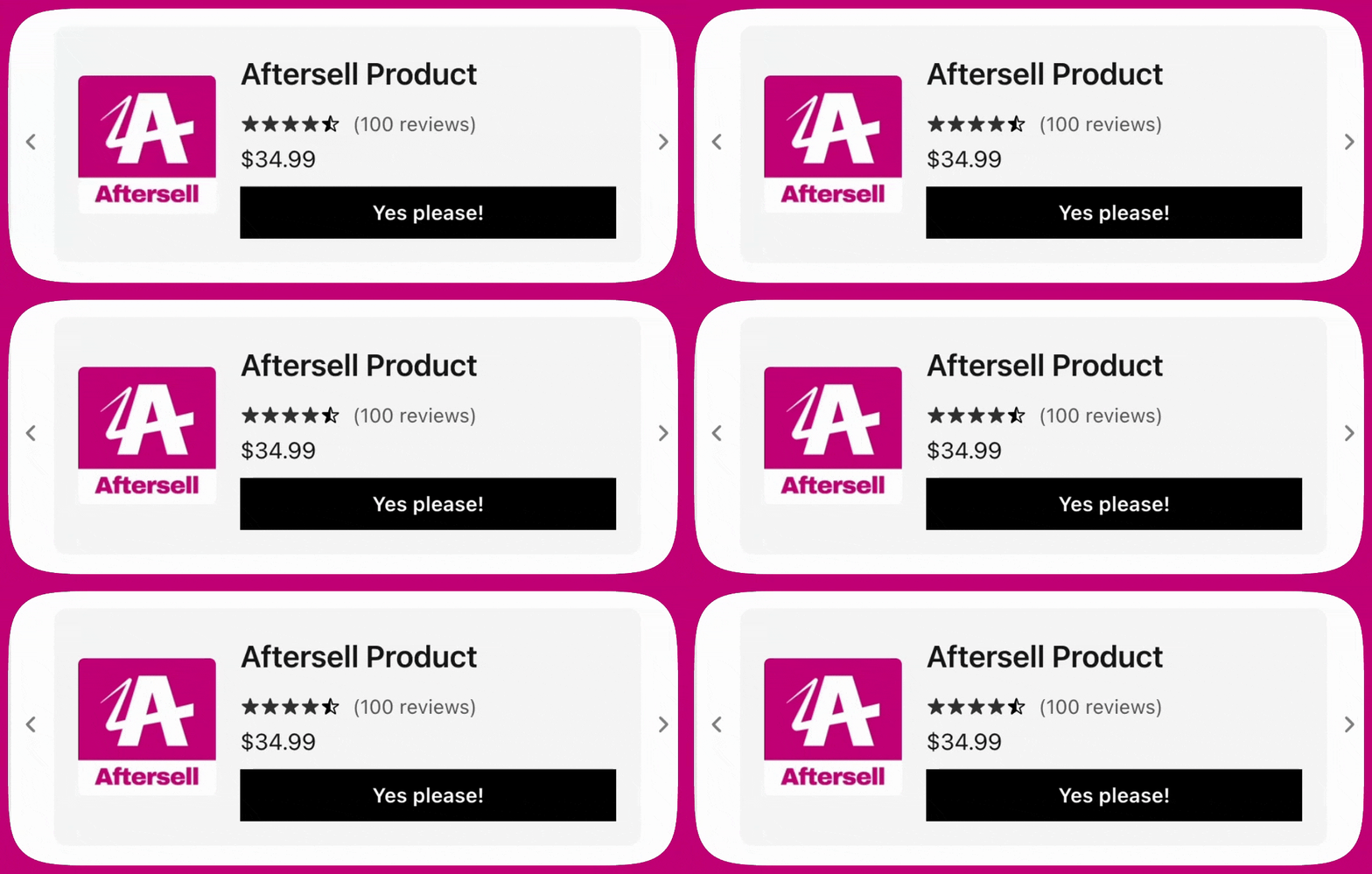
Upcart는 고객이 정보에 기반한 구매 결정을 내릴 수 있도록 **업셀 및 제품 추천**에 제품 리뷰를 표시할 수 있어요. 리뷰는 일반 장바구니 상품 항목에는 표시되지 않아요.
Upcart는 \*\*[Shopify Storefront API](https://shopify.dev/docs/storefronts/headless/building-with-the-storefront-api/products-collections/metafields)\*\*를 사용하여 제품 메타필드에 저장된 리뷰 데이터를 읽어요. 따라서 리뷰 앱이 Storefront API가 접근할 수 있는 형식으로 제품 리뷰 데이터를 노출하는 경우에만 리뷰가 표시돼요.
### 지원되는 리뷰 앱
현재 Upcart는 다음 앱의 리뷰를 지원해요:
1. **Shopify Product Reviews**\
[https://apps.shopify.com/product-reviews](https://apps.shopify.com/product-reviews)
2. **Junip**\
[https://apps.shopify.com/junip](https://apps.shopify.com/junip)
3. **Okendo**\
[https://apps.shopify.com/okendo-reviews](https://apps.shopify.com/okendo-reviews)
4. **Growave**\
[https://apps.shopify.com/growave](https://apps.shopify.com/growave)
5. **Fera**\
[https://apps.shopify.com/fera](https://apps.shopify.com/fera)
6. **Yotpo**
7. **Stamped**
8. **Loox**
9. **REVIEWS.io**
10. **Automizely**
11. **Judge.me**
12. **Ali Reviews**
13. **Trustoo**
14. **Rivo**
15. **Rivyo**
16. **Vitals**
리뷰가 표시되지 않으면 지원되는 앱 중 하나를 사용하고 있는지, 그리고 업셀이나 추천에 표시되는 제품에 리뷰가 있는지 확인하세요.
***
## 문제 해결
업셀이 표시되지 않는다면 [FAQ](/ko/upcart/adding_code_to_your_shopify_theme_for_accelerated_checkout_buttons)의 ["내 업셀이 표시되지 않는 이유는 무엇인가요?"](/ko/upcart/why_isnt_my_upsell_showing) 문서에서 일반적인 해결 방법을 확인해 보세요.
#### **다음 단계**
카트 드로어에서 업셀의 동작을 세밀하게 조정하려면 다음 가이드로 계속 진행하세요:
[**업셀 모듈: 설정**](https://aftersell.mintlify.app/upcart/upsells_module_settings#upsells-module-settings)