> ## Documentation Index
> Fetch the complete documentation index at: https://docs.aftersell.com/llms.txt
> Use this file to discover all available pages before exploring further.
# Upcart x PageFly 랜딩 페이지 빌더
> 이 문서에서는 PageFly를 Upcart와 함께 사용할 때 장바구니 페이지 리디렉션을 방지하는 방법을 설명해요.
## 해결 방법
**Add to Cart** 버튼이 Upcart와 올바르게 작동하도록 다음 단계를 따르세요:
1. Shopify 관리자에서 **PageFly** 앱을 여세요.
2. **Add to Cart** 버튼 설정으로 이동하세요.
3. **After add to cart action**이라는 섹션을 찾으세요.
4. **Stay on the same page** 옵션을 선택하세요.
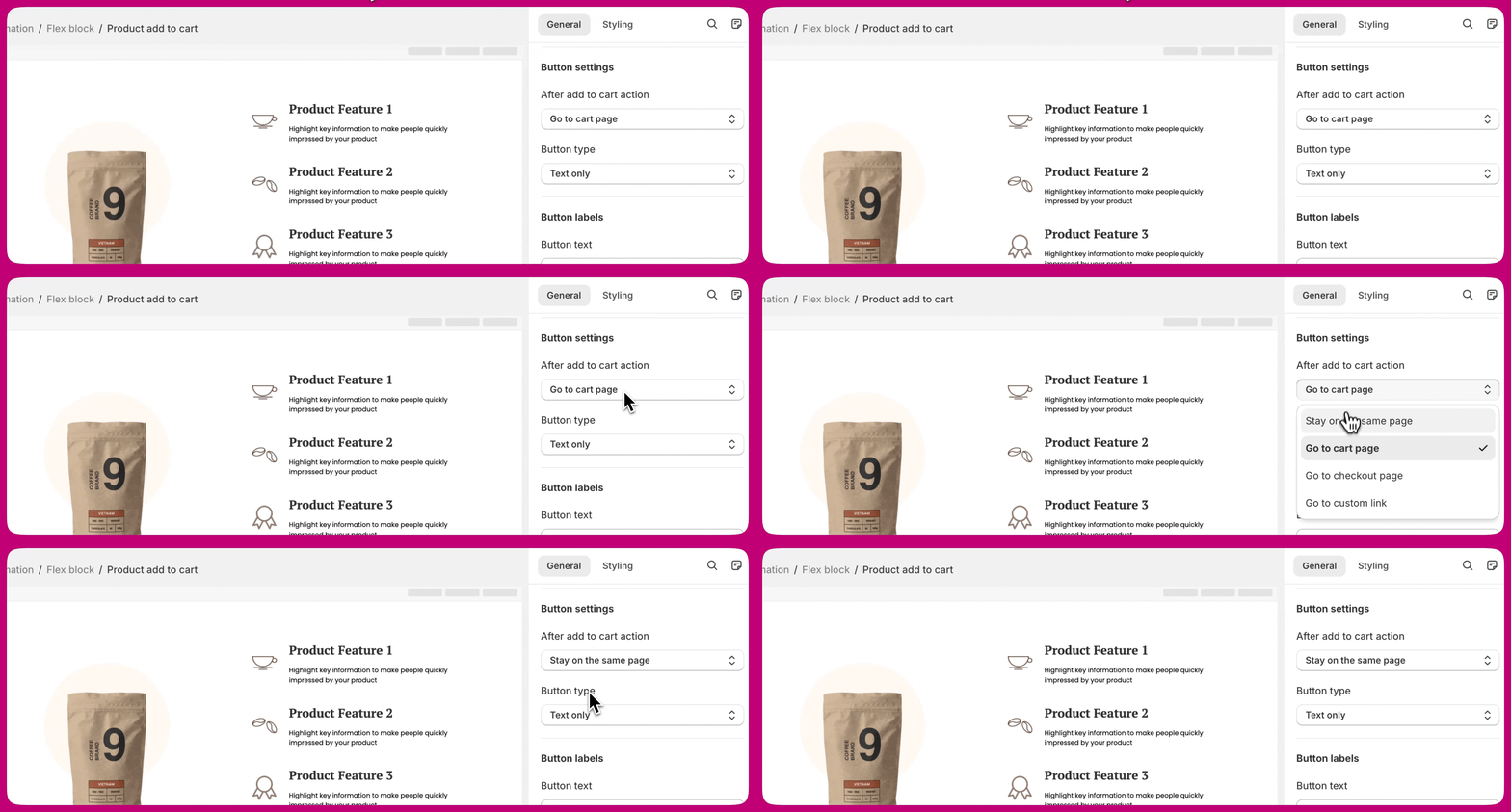 이렇게 하면 제품을 장바구니에 담은 후에도 고객이 같은 페이지에 머물고 **Upcart 드로어**가 올바르게 열려요.
***
이렇게 하면 제품을 장바구니에 담은 후에도 고객이 같은 페이지에 머물고 **Upcart 드로어**가 올바르게 열려요.
***
## 더 알아보기
이 설정에 대한 자세한 내용은 **Add to Cart** 버튼 구성에 대한 \*\*[PageFly 문서](https://help.pagefly.io/manual/shopify-elements-product-add-to-cart/)\*\*를 참고하세요.