> ## Documentation Index
> Fetch the complete documentation index at: https://docs.aftersell.com/llms.txt
> Use this file to discover all available pages before exploring further.
# Upcart가 열리지 않거나 장바구니 페이지로 리디렉션되는 문제 해결
> 드로어가 열리지 않음, 장바구니 페이지로 리디렉션, 장바구니 두 개가 동시에 표시됨, 장바구니가 로드되지 않음, 상품을 담을 때 Upcart가 반응하지 않음 등 Upcart의 카트 드로어 문제 해결 가이드예요.
고객이 상품을 장바구니에 담을 때 Upcart가 열리지 않거나, 열렸다가 장바구니 페이지로 리디렉션되거나, 장바구니가 두 개 표시되거나, 아예 표시되지 않는다면 이 가이드가 문제를 파악하고 해결하는 데 도움이 될 거예요.
## 어떤 문제를 겪고 계신가요?
여기에서 시작해 바로 알맞은 해결책으로 이동하세요:
* [**Upcart가 잠깐 열렸다가 장바구니 페이지로 리디렉션돼요**](#issue-1--2-upcart-redirecting-to-the-cart-page)
* [**고객이 Upcart 대신 장바구니 페이지로 바로 이동해요**](#issue-1--2-upcart-redirecting-to-the-cart-page)
* [**장바구니 두 개가 동시에 표시돼요(Upcart와 테마 장바구니)**](#3-change-theme-cart-type-to-page)
* [**Upcart가 아예 열리지 않아요**](#issue-4-upcart-is-not-opening-at-all)
어느 경우에 해당하는지 잘 모르겠다면, 특정 문제로 들어가기 전에 [1단계](#step-1-make-sure-upcart-is-fully-active)에서 Upcart가 완전히 활성화되어 있는지 먼저 확인하세요.
대부분의 Upcart 카트 드로어 문제는 다음이 원인이에요:
* Upcart가 완전히 활성화되지 않음
* 테마 장바구니 설정이 Upcart와 충돌함
* Enhanced AJAX API Compatibility 구성
* 서드파티 앱이 장바구니 동작을 덮어씀
* 테마의 카트 드로어가 Upcart와 충돌함
아래 단계를 순서대로 따라 하고 각 변경 후에 테스트하세요.
***
## 1단계: Upcart가 완전히 활성화되어 있는지 확인하세요
다른 문제를 해결하기 전에 Upcart가 제대로 활성화되어 있는지 먼저 확인하세요.
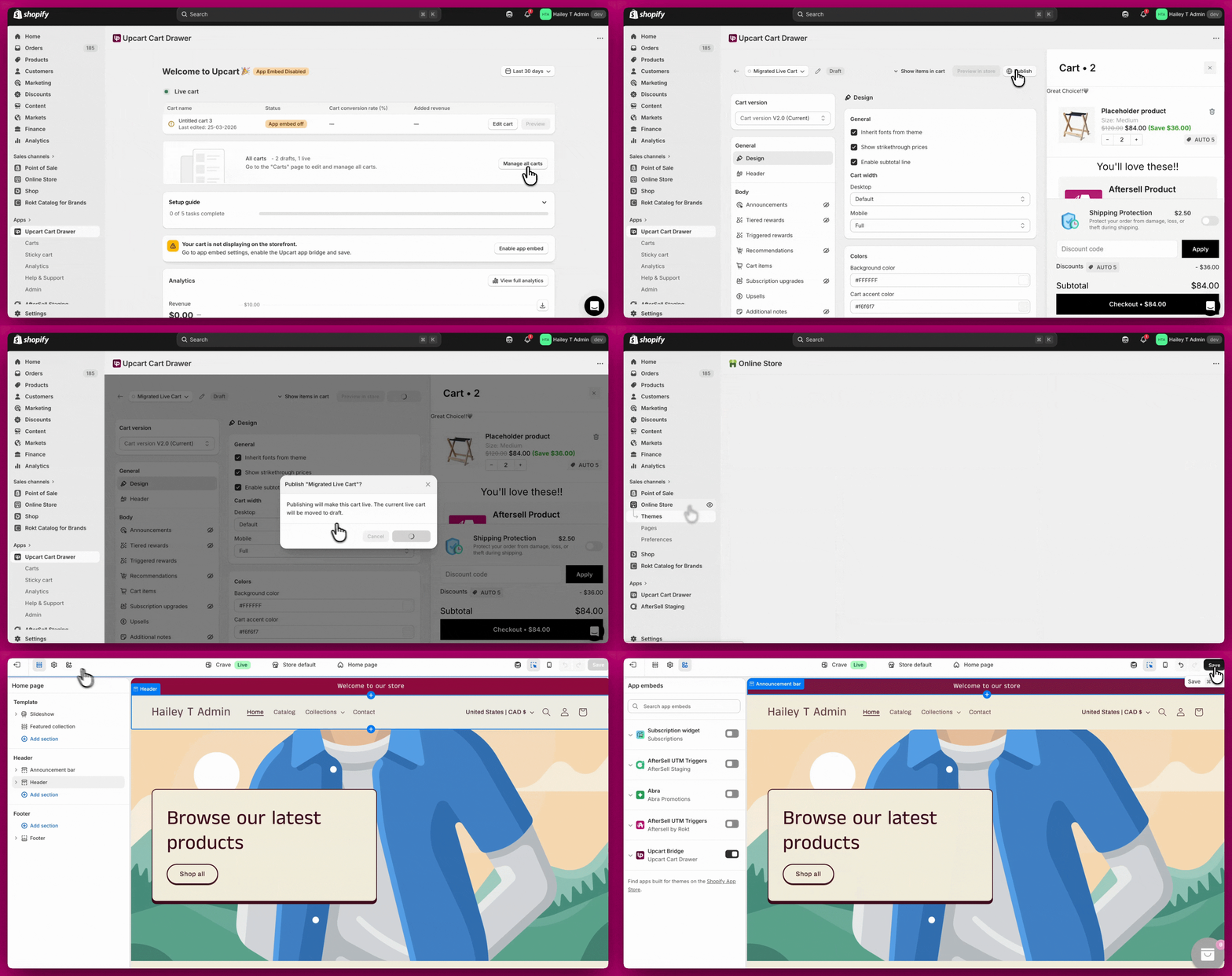
### 1. 장바구니가 활성화되어 있는지 확인하세요
Upcart 편집기에서 장바구니가 비활성화되어 있으면 스토어프런트에 표시되지 않아요.
* Upcart를 여세요
* **Manage all carts**로 이동하세요
* 장바구니가 게시되어 있는지 확인하세요
### 2. 앱 임베드를 활성화하세요
앱 임베드가 비활성화되어 있으면 Upcart가 로드되지 않아요.
* **Shopify Admin > Online Store > Themes > Customize**로 이동하세요
* **App Embeds**를 여세요
* **Upcart**를 **ON**으로 전환하세요
* 저장하세요
이 설정을 활성화한 후 장바구니를 테스트하세요.
 ***
***
## 문제 1 & 2: Upcart가 장바구니 페이지로 리디렉션되는 경우
Upcart가 잠깐 열렸다가 리디렉션되거나 고객이 장바구니 페이지로 바로 이동한다면, 보통 다음 중 하나가 원인이에요. 각 단계를 차례대로 진행하고 매번 변경 후 테스트하세요.
### 1. Upcart의 결제 버튼 설정을 확인하세요
고객이 Checkout을 클릭했을 때 장바구니 페이지로 이동한다면:
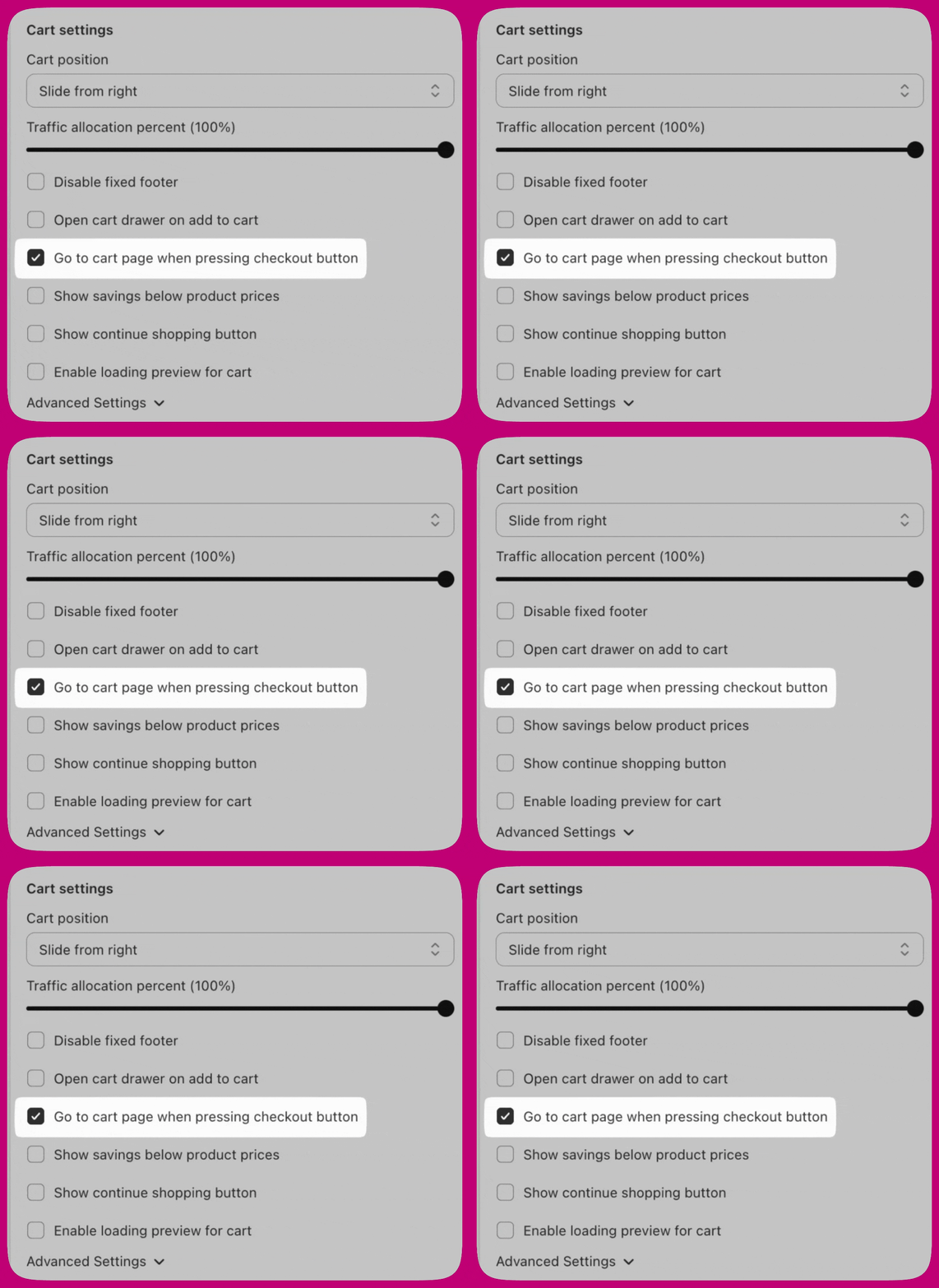
1. **Upcart > Cart Editor > Settings > Cart settings**로 이동하세요
2. \*\*"Go to cart page when pressing checkout button"\*\*을 찾으세요
3. 이 설정을 **OFF**로 전환하세요
4. 저장하고 테스트하세요
이 설정이 활성화되어 있으면 결제 버튼이 결제로 진행하는 대신 장바구니 페이지로 강제 리디렉션돼요.
### 2. Enhanced AJAX API Compatibility를 확인하세요
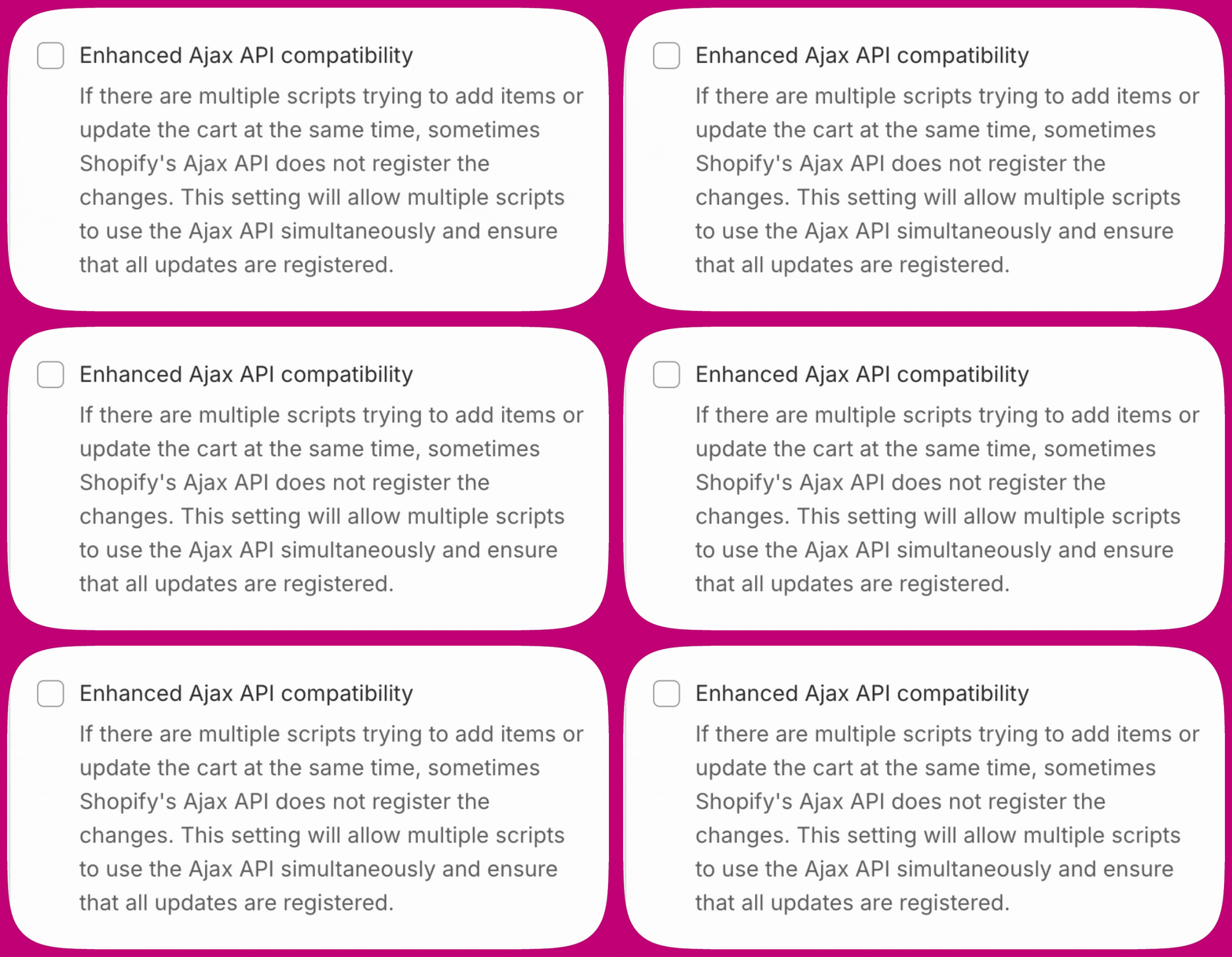
**Upcart > Cart Editor > Settings > Cart settings**로 이동해 **Advanced Settings**를 펼치고 **Enhanced AJAX API Compatibility**를 찾으세요.
이 설정은 Upcart가 Add to Cart 이벤트를 처리하는 방식을 바꿔요:
* **비활성화(대부분의 스토어에 권장)** - Upcart가 Add to Cart 호출을 가로채 리디렉션을 방지해요
* **활성화** - Upcart가 Add to Cart 호출을 가로채지 않아, 다른 앱이 리디렉션을 포함한 장바구니 동작을 제어할 수 있게 돼요
이 설정은 **기본적으로 비활성화**되어 있어요. 스토어가 비표준 AJAX 장바구니 API를 사용하고 Upcart가 장바구니 담기 이벤트를 가로채지 못하는 경우에만 활성화하세요. 이 설정을 활성화한 뒤 리디렉션이 발생한다면 비활성화하고 대신 수동 Upcart API(`upcartRegisterAddToCart`)를 사용하세요.
전체 가이드는 [Enhanced AJAX API Compatibility](/ko/upcart/enhanced_ajax_api_compatibility)를 참고하세요.
### 3. 테마 장바구니 유형을 "Page"로 변경하세요
테마의 카트 드로어나 팝업이 Upcart를 덮어쓰고 있을 수 있어요.
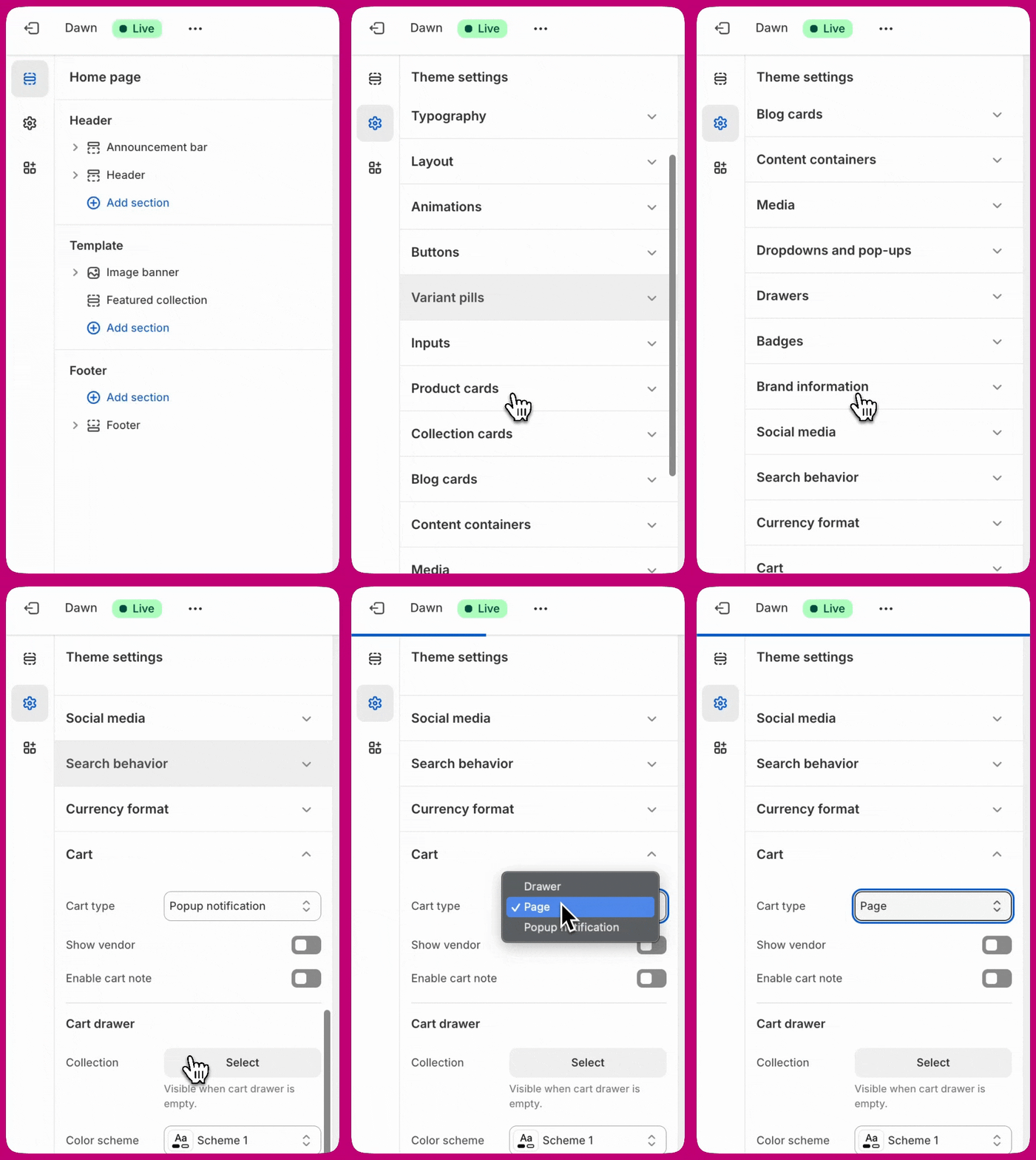
1. **Shopify Admin > Online Store > Themes**로 이동하세요
2. **Customize**를 클릭하세요
3. **Theme Settings > Cart**를 여세요
4. **Cart Type**을 **Page**로 변경하세요
5. 저장하고 테스트하세요
장바구니를 "Page"로 설정하면 Upcart 대신 테마의 기본 드로어가 열리는 것을 방지할 수 있어요.
 테마에 "Cart Type"(또는 이에 상응하는) 설정이 없다면 테마 개발자에게 문의해 올바른 옵션을 찾거나 추가해 달라고 요청하세요. Upcart는 테마 설정을 직접 수정할 수 없어요.
### 4. 테마의 장바구니 리디렉션 설정을 비활성화하세요
일부 테마는 상품을 추가한 후 고객을 자동으로 장바구니 페이지로 리디렉션해 Upcart를 완전히 건너뛰어요.
1. **Shopify Admin > Online Store > Themes > Customize**로 이동하세요
2. **Theme Settings > Products**(또는 Cart)를 여세요
3. 다음과 같은 설정을 찾으세요:
* Enable cart redirection
* Redirect to cart after add
* Go to cart after add
4. 이 설정들을 **OFF**로 전환하고 저장한 뒤 테스트하세요
### 5. 다른 앱과의 충돌을 확인하세요
많은 서드파티 앱이 장바구니 동작을 덮어써요. 장바구니 관련 앱의 설정을 열고 다음과 같은 옵션을 찾으세요:
* Redirect to cart
* Go to cart after add
* Automatically open cart page
* Action after product is added
이 옵션들을 **Stay on page** 또는 **Do nothing**으로 변경하고 각 조정 후 테스트하세요.
**자주 발생하는 앱별 해결 방법:**
* **Globo Product Options** - "Redirect to the shopping cart page after adding a product"를 비활성화하세요
* **Zepto Product Personalizer** - Zepto > Settings > Add to Cart Settings로 이동해 "Action after a product is added to the cart"를 "Stay on the product page and show a success message"로 변경하세요
* **PageFly** - PageFly 설정에서 장바구니 리디렉션 관련 규칙을 모두 비활성화하세요
* **Replo** - 카트 드로어가 열릴 수 있도록 "go to page" 설정을 조정하세요
어느 앱이 충돌을 일으키는지 확실하지 않다면, 장바구니 관련 앱을 하나씩 비활성화하고 매번 테스트하며 Upcart가 작동할 때까지 반복하세요.
***
## 문제 4: Upcart가 아예 열리지 않는 경우
고객이 장바구니에 상품을 담거나 장바구니 아이콘을 클릭해도 아무 일이 일어나지 않는다면, 보통 테마 충돌이거나 Upcart가 올바른 버튼을 감지하지 못하는 것이 원인이에요.
### 테마의 기본 카트 드로어를 비활성화하세요
1. **Shopify Admin > Online Store > Themes > Customize**로 이동하세요
2. **Theme Settings > Cart**를 여세요
3. 장바구니 유형을 **Page**로 설정하세요
4. 저장하세요
Drawer나 Popup 모드가 비활성화되어 있는지 확인하세요.
### Upcart가 버튼을 감지하지 못하나요?
일부 테마는 사용자 지정 코드를 사용해 Upcart가 Add to Cart 버튼이나 장바구니 아이콘을 자동으로 감지하지 못하게 해요. 이 경우 버튼 선택자를 수동으로 지정할 수 있어요.
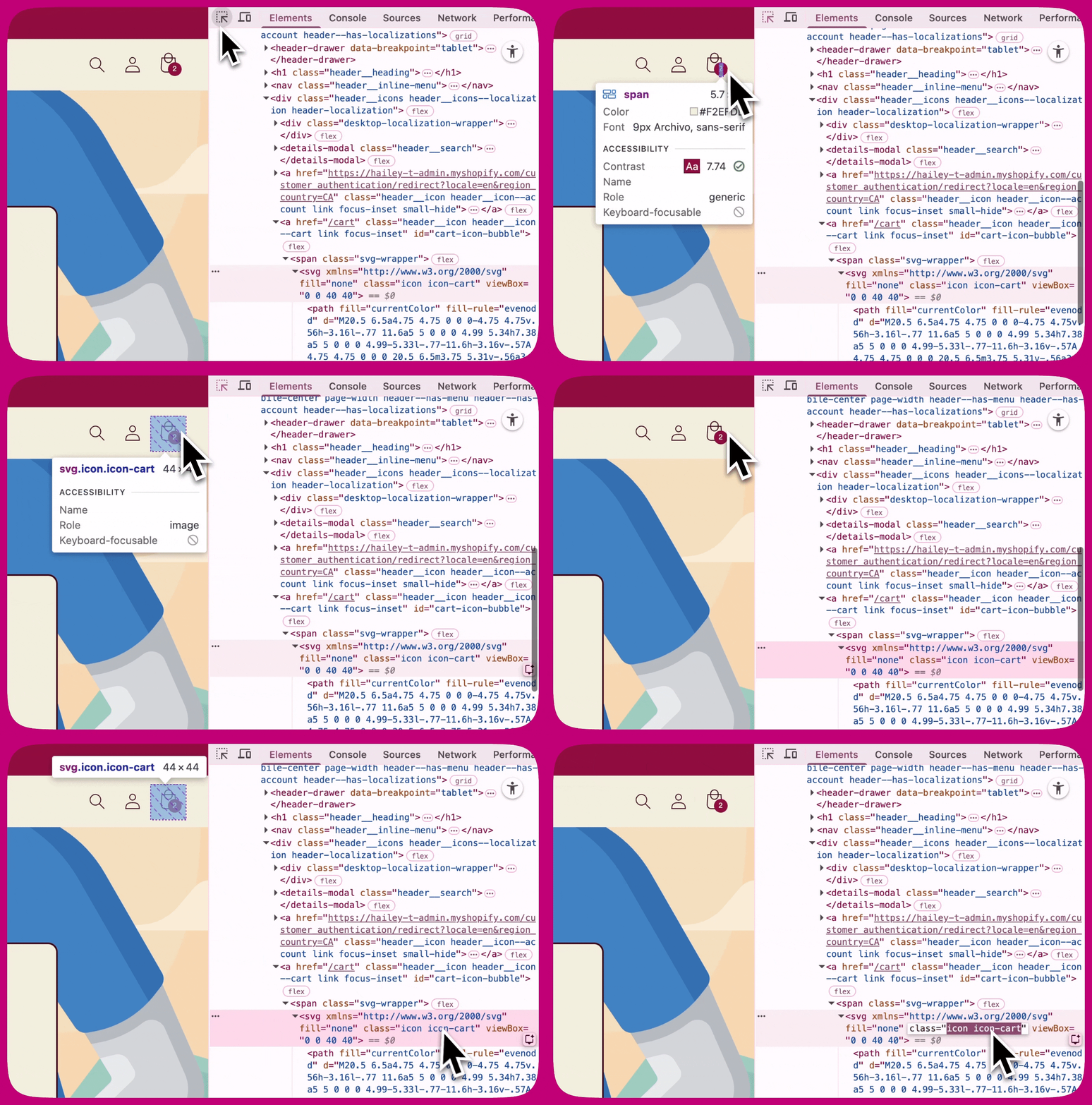
**1단계: 클래스 이름 찾기**
1. **Google Chrome**에서 스토어를 여세요
2. **Add to Cart 버튼** 또는 **장바구니 아이콘**을 마우스 오른쪽 버튼으로 클릭하세요
3. \*\*검사(Inspect)\*\*를 클릭하세요
4. 강조 표시된 코드에서 다음과 같은 부분을 찾으세요:
```text theme={"theme":{"light":"snazzy-light","dark":"github-dark"}}
class="icon icon-cart"
```
또는
```text theme={"theme":{"light":"snazzy-light","dark":"github-dark"}}
class="product-form__submit button"
```
**클래스 이름 하나만** 복사하세요(예: `icon-cart`). `class=`나 따옴표는 복사하지 마세요.
 **2단계: Upcart에 추가하기**
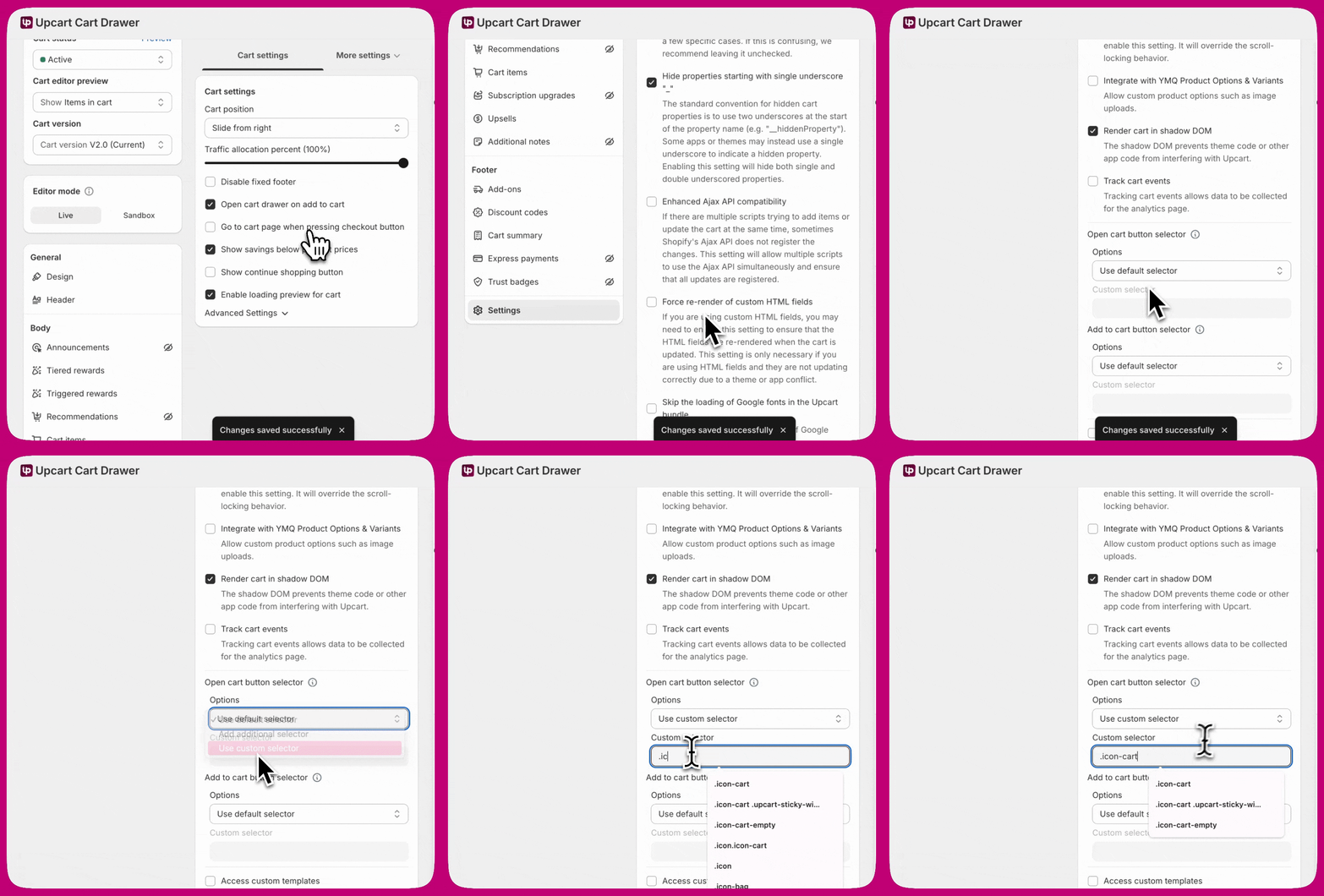
Upcart에 입력할 때는 클래스 이름 앞에 반드시 \*\*점(.)\*\*을 붙여야 해요. 예: `.icon-cart`
1. **Upcart**를 여세요
2. **Cart Editor > Settings > Cart settings**로 이동한 뒤 **Advanced Settings**를 펼치세요
3. 필요한 선택자 그룹을 찾으세요:
* **Open cart button selector** — 장바구니 아이콘용
* **Add to cart button selector** — 장바구니에 담기 버튼용
4. 해당 그룹의 **Options** 드롭다운에서 **Add additional selector**(Upcart의 자체 감지를 유지하면서 내 선택자를 추가) 또는 **Use custom selector**(내 선택자만 사용)를 선택하세요. **Use default selector**가 선택되어 있는 동안에는 **Custom selector** 필드가 비활성화 상태로 유지돼요.
5. **Custom selector**에 `.icon-cart`를 붙여넣고 저장하세요
**2단계: Upcart에 추가하기**
Upcart에 입력할 때는 클래스 이름 앞에 반드시 \*\*점(.)\*\*을 붙여야 해요. 예: `.icon-cart`
1. **Upcart**를 여세요
2. **Cart Editor > Settings > Cart settings**로 이동한 뒤 **Advanced Settings**를 펼치세요
3. 필요한 선택자 그룹을 찾으세요:
* **Open cart button selector** — 장바구니 아이콘용
* **Add to cart button selector** — 장바구니에 담기 버튼용
4. 해당 그룹의 **Options** 드롭다운에서 **Add additional selector**(Upcart의 자체 감지를 유지하면서 내 선택자를 추가) 또는 **Use custom selector**(내 선택자만 사용)를 선택하세요. **Use default selector**가 선택되어 있는 동안에는 **Custom selector** 필드가 비활성화 상태로 유지돼요.
5. **Custom selector**에 `.icon-cart`를 붙여넣고 저장하세요
 ***
***
## 추가 문제 해결
위 단계를 모두 진행한 후에도 문제가 지속된다면, 다음을 한 번에 하나씩 시도하고 각 변경 후 테스트하세요.
### Shadow DOM 전환 (ON/OFF)
일부 테마에서는 Shadow DOM 설정이 Upcart의 버튼 및 장바구니 이벤트 감지 방식에 영향을 줘요.
1. **Upcart > Cart Editor > Settings > Cart settings**로 이동한 뒤 **Advanced Settings**를 펼치세요
2. **Render cart in shadow DOM**을 찾으세요
3. **ON**으로 전환하고 저장한 뒤 테스트하세요
4. **OFF**로 전환하고 저장한 뒤 다시 테스트하세요
일관된 동작을 보이는 설정을 사용하세요.
### AJAX 설정 전환 (ON/OFF)
테마와 앱 구성에 따라 AJAX 처리를 전환했을 때 더 잘 작동하는 스토어도 있어요.
1. **Upcart > Cart Editor > Settings > Cart settings**로 이동한 뒤 **Advanced Settings**를 펼치세요
2. **Enhanced Ajax API compatibility**를 찾으세요
3. **ON**으로 전환하고 저장한 뒤 테스트하세요
4. **OFF**로 전환하고 저장한 뒤 다시 테스트하세요
이 설정은 Upcart 자체의 Add to Cart 처리도 비활성화하므로, 켜서 리디렉션이 해결됐다면 장바구니 담기가 여전히 기대대로 작동하는지 확인해 보는 것이 좋아요. [Enhanced Ajax API compatibility](/ko/upcart/enhanced_ajax_api_compatibility)를 참고하세요.
### 브라우저 캐시 삭제하기
오래된 캐시 스크립트가 이전 장바구니 동작을 유지해 Upcart가 올바르게 로드되지 못하게 할 수 있어요.
1. 브라우저 설정을 여세요
2. **개인정보 및 보안**으로 이동하세요
3. **인터넷 사용 기록 삭제**를 선택하세요
4. 캐시된 이미지, 파일, 쿠키를 삭제하세요
5. 새로 고침하고 테스트하세요
### 기본 Shopify 테마로 테스트하기
1. **Shopify Admin > Online Store > Themes**로 이동하세요
2. Dawn 같은 무료 테마를 추가하세요
3. 일시적으로 활성화하세요
4. Upcart를 테스트하세요
Dawn에서 Upcart가 작동한다면 문제는 사용 중인 커스텀 테마에 있어요. 테마 개발자에게 도움을 요청하세요.
### 앱을 하나씩 비활성화하기
1. **Shopify Admin > Apps**로 이동하세요
2. 장바구니 관련 앱을 한 번에 하나씩 비활성화하세요
3. 매번 테스트하세요
Upcart가 작동하기 시작하면 충돌을 일으키는 앱을 찾은 거예요.
### 브라우저 콘솔에서 오류 확인하기
1. 스토어를 여세요
2. **F12**를 누르세요(또는 마우스 오른쪽 버튼 클릭 > 검사)
3. **Console** 탭을 여세요
4. 상품을 장바구니에 추가하세요
5. 오류를 확인하세요. 특히 add.js나 장바구니 이벤트 관련 오류를 살펴보세요
6. 지원팀에 공유할 수 있도록 오류를 스크린샷으로 남기세요
***
## 지원팀에 문의해야 할 때
모든 단계를 완료했는데도 Upcart가 여전히 작동하지 않는다면, 다음 정보와 함께 지원팀에 문의해 주세요:
* 테마 이름과 버전
* 설치된 장바구니 관련 앱 목록
* 콘솔 오류 스크린샷
* 이미 시도해 본 단계
Upcart 지원팀은 앱 내 채팅이나 [support@upcart.app](mailto:support@upcart.app) 이메일로 연락할 수 있어요.