> ## Documentation Index
> Fetch the complete documentation index at: https://docs.aftersell.com/llms.txt
> Use this file to discover all available pages before exploring further.

# 카트 아이콘 수량/카운터가 업데이트되지 않아요

> 이 문서는 Upcart에서 카트 아이콘 수량이 업데이트되지 않을 때 해결하는 방법을 안내해요.

<div id="overview">
  # 개요
</div>

일부 테마는 아이콘을 자동으로 업데이트하지 않아요. 이 가이드는 약간의 커스텀 코드를 사용해 이를 해결하는 방법을 안내해 드릴게요. 아래 단계를 따라 모든 것이 올바르게 동기화되도록 하세요.

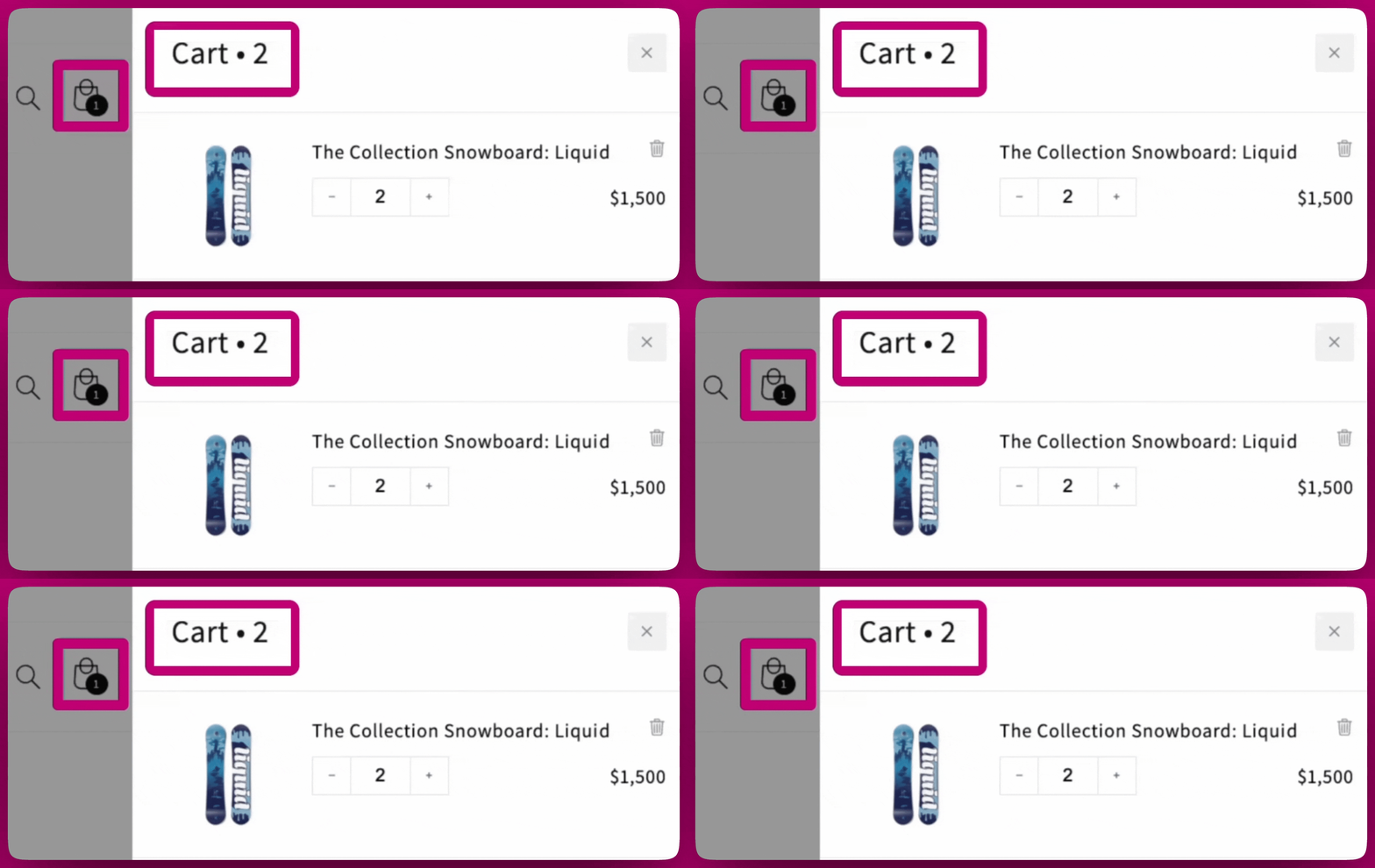
**이 불일치가 어떤 모습인지 예시를 보여드릴게요:**

<img src="https://mintcdn.com/aftersell/uxKAdY-e0h16xa48/images/upcart/cart-counter-drawer-vs-theme-icon.gif?s=2b4c08af3555b89b66d7926793bc3833" alt="Upcart 드로어에는 Cart 2가 표시되지만 테마 카트 아이콘 버블에는 여전히 1이 표시되는 모습" width="2560" height="1080" data-path="images/upcart/cart-counter-drawer-vs-theme-icon.gif" />

***

<div id="important-steps-before-you-start">
  # 시작하기 전 중요한 단계!
</div>

카트 아이콘 문제를 해결하려면 카트 아이콘의 클래스 이름을 확인해야 해요. 테마마다 다르기 때문에 이 단계를 통해 코드가 여러분의 스토어에 맞게 작동하도록 보장할 수 있어요.

<div id="1-use-chrome-developer-tools">
  ### **1. Chrome 개발자 도구 사용하기**
</div>

테마마다 다르기 때문에 Chrome 개발자 도구(검사)를 사용해 카트 아이콘의 클래스 이름을 확인해야 해요.

* Google Chrome에서 스토어프론트의 카트 아이콘을 마우스 오른쪽 버튼으로 클릭하고 **검사**를 선택하세요.
* 카트 아이콘의 HTML 요소를 찾으세요 (예: **`<span class="cart-count-bubble">`**).
* **Chrome 개발자 도구 사용에 도움이 필요하신가요?** 단계별 안내는 [이 가이드](https://developer.chrome.com/docs/devtools/overview/)를 확인하세요.

<div id="2-reach-out-for-help-optional">
  ### **2. 도움 요청하기 (선택 사항)**
</div>

카트 아이콘 클래스를 찾을 수 없거나 막혔다고 느껴도 걱정하지 마세요! 다음과 같은 선택지가 있어요:

* **테마 개발자에게 문의하기:** 테마를 가장 잘 아는 사람들이라 올바른 클래스를 찾는 데 도움을 줄 수 있어요.
* **Shopify Expert 고용하기:** 추가 지원이 필요하다면 Shopify에는 도움을 줄 수 있는 신뢰할 수 있는 전문가 디렉터리가 있어요. [여기서 Shopify Expert를 찾아보세요](https://experts.shopify.com/).

<div id="custom-code-disclaimer">
  ## 🚧 **커스텀 코드 면책 조항**
</div>

아래 제공된 예시 코드는 템플릿일 뿐이에요. **그대로 복사해 붙여넣으면 작동하지 않아요**. 플레이스홀더 클래스 이름(예: **`.cart-count-bubble > span`**)을 여러분의 카트 아이콘에 해당하는 클래스 이름으로 교체해야 해요.

***

<div id="step-by-step-fix">
  # 단계별 해결 방법
</div>

이 과정을 세 가지 수준의 해결 방법으로 나누었으며, 가장 간단한 해결책(Level 1)부터 시작해요. 각 수준은 이전 수준을 기반으로 하므로 먼저 Level 1을 시도하고, 필요한 경우에만 Level 2 또는 3으로 넘어가세요.

<div id="step-1-add-custom-code-in-upcart">
  ## **1단계: Upcart에 커스텀 코드 추가하기**
</div>

먼저 Upcart 에디터에 커스텀 HTML 코드를 추가해야 하니 해당 섹션을 준비해 볼게요:

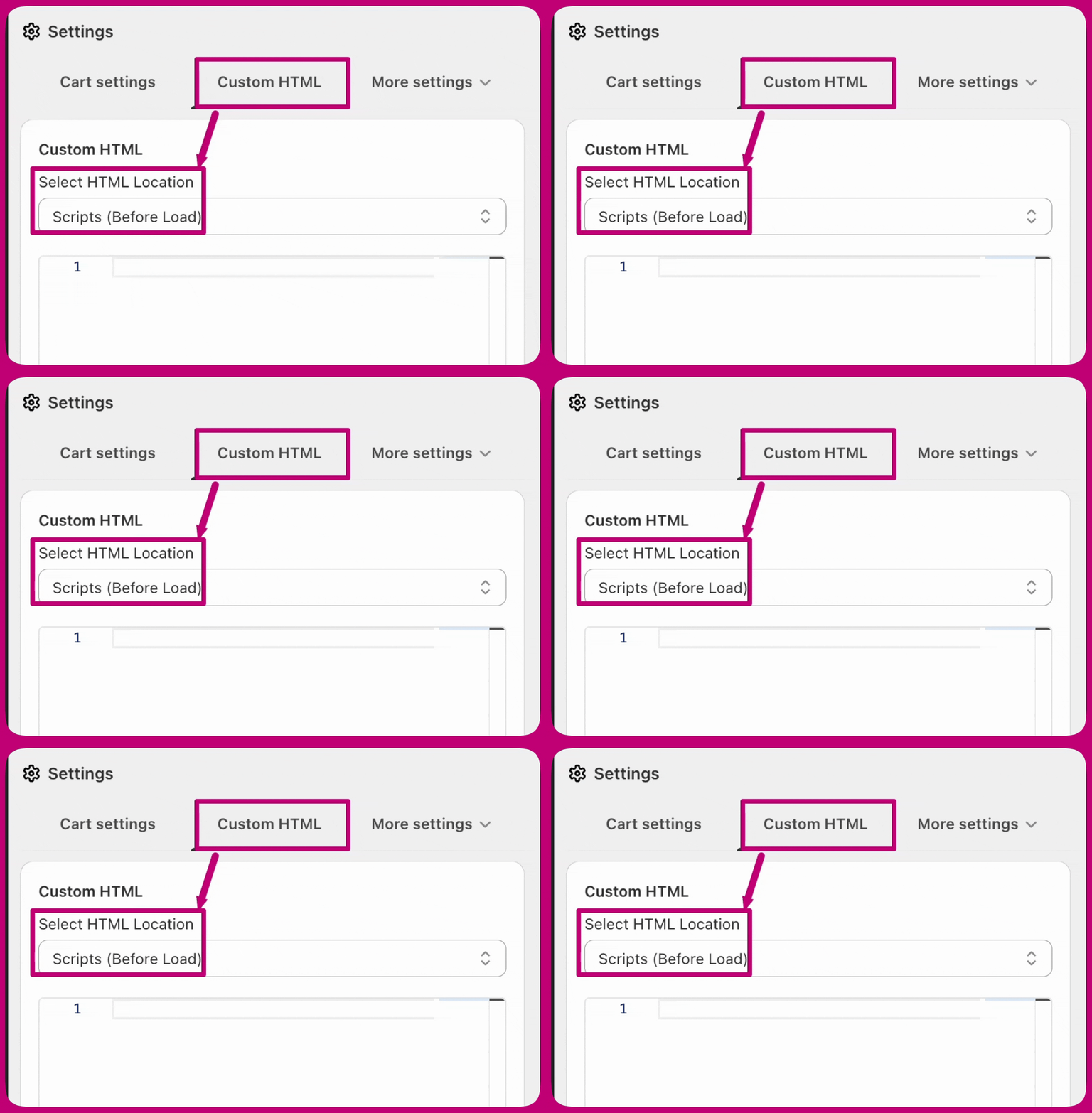
1. **Upcart Editor > Settings**로 이동한 다음 **Custom HTML** 탭을 여세요 (탭 행에 다 표시되지 않으면 **More settings** 안에 있어요).
2. 위치를 \*\*Scripts (Before Load)\*\*로 설정하세요.
3. 편집한 코드를 여기에 붙여넣으세요 (아래에서 각 수준별 예시를 제공할게요).

이 과정은 다음과 같아요:
<img src="https://mintcdn.com/aftersell/uxKAdY-e0h16xa48/images/upcart/cart-counter-custom-html-settings-location.gif?s=d70ce32a4328c99bf2d0b9d18efcd853" alt="HTML 위치가 Scripts Before Load로 설정된 Upcart Custom HTML 설정" width="1588" height="1080" data-path="images/upcart/cart-counter-custom-html-settings-location.gif" />

***

<div id="step-2-apply-the-fix-by-level">
  # **2단계: 수준별로 해결 방법 적용하기**
</div>

<div id="level-1-basic">
  ## Level 1 (기본)
</div>

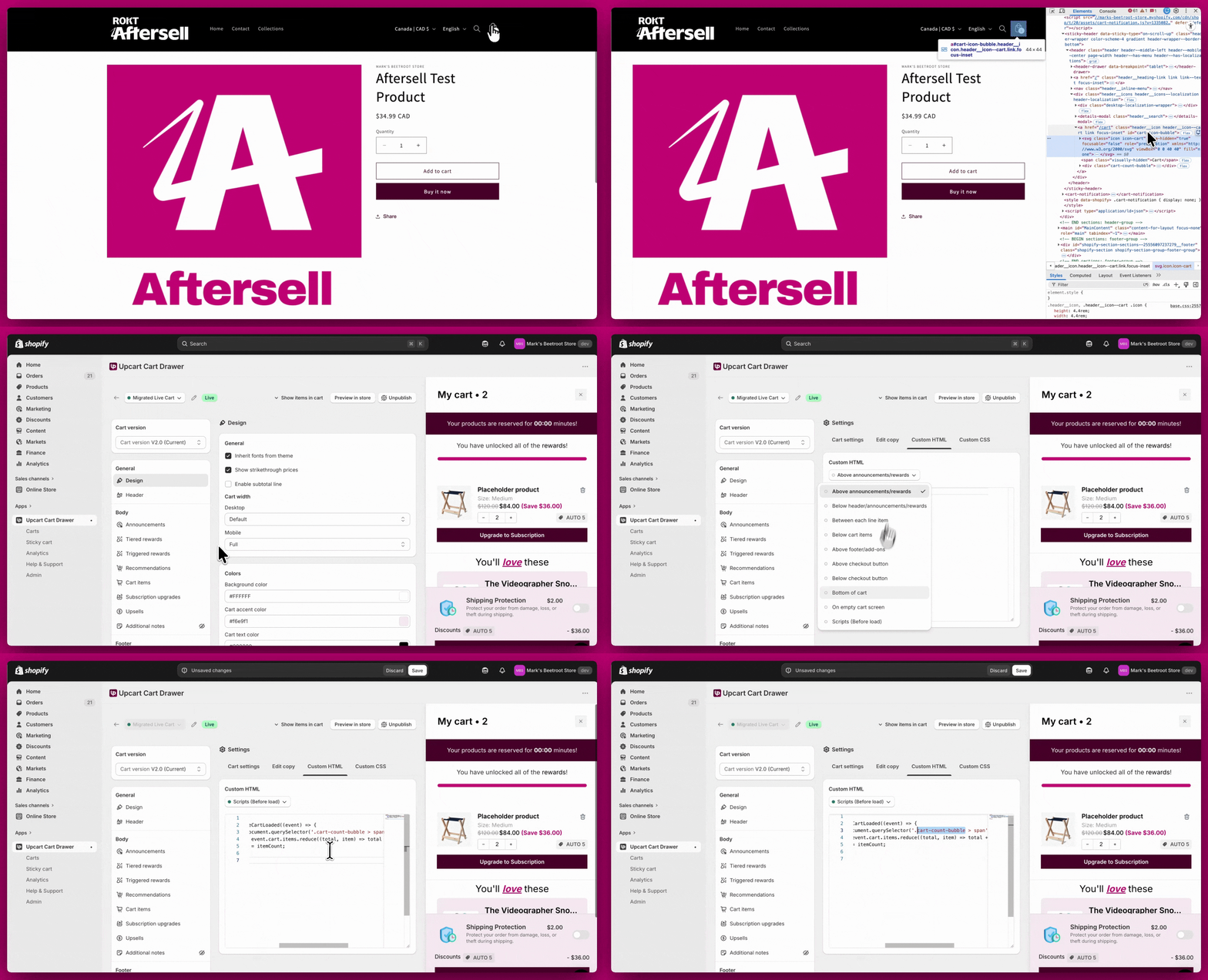
카트가 로드될 때 이 스크립트는 카트 라인 아이템의 수량을 합산해 테마의 카트 버블 안 카운트 요소에 기록해요. 카운트가 간단한 중첩 요소(예: `.cart-count-bubble > span`)에 있는 테마에 적합해요.

**잊지 마세요**

* \*\*`.cart-count-bubble > span`\*\*을 여러분의 카트 아이콘 클래스로 교체하세요.
* 코드 추가 후 스토어프론트에서 테스트하세요.
<img src="https://mintcdn.com/aftersell/uxKAdY-e0h16xa48/images/upcart/cart-counter-level-1-count-bubble-script.gif?s=ef698547d55d921009278b3a006e4a9d" alt="cart-count-bubble 셀렉터를 사용해 Level 1 카운트 스크립트를 Upcart Custom HTML에 붙여넣는 모습" width="1996" height="1080" data-path="images/upcart/cart-counter-level-1-count-bubble-script.gif" />

<div id="example-code-for-level-1">
  ## Level 1 예시 코드
</div>

```text theme={"theme":{"light":"snazzy-light","dark":"github-dark"}}
<script>  
window.upcartSubscribeCartLoaded((event) => {  
    const countEl = document.querySelector('.cart-count-bubble > span');  
    const itemCount = event.cart.items.reduce((total, item) => total + item.quantity, 0);  
    countEl.innerText = itemCount;  
});  
</script>
```

<Note>
  **레거시 참고:** `window.upcartOnCartLoaded` 콜백은 여전히 작동하지만 지원 중단(deprecated)되었으며 콘솔 경고를 기록해요. 새로운 스크립트에는 모두 `upcartSubscribeCartLoaded`를 사용하세요. `event.cart`에는 `item_count` 속성이 없으니, 총 아이템 수를 계산하려면 `event.cart.items.reduce((total, item) => total + item.quantity, 0)`를 사용하세요.
</Note>

***

<div id="level-2-moderate">
  ## Level 2 (중급)
</div>

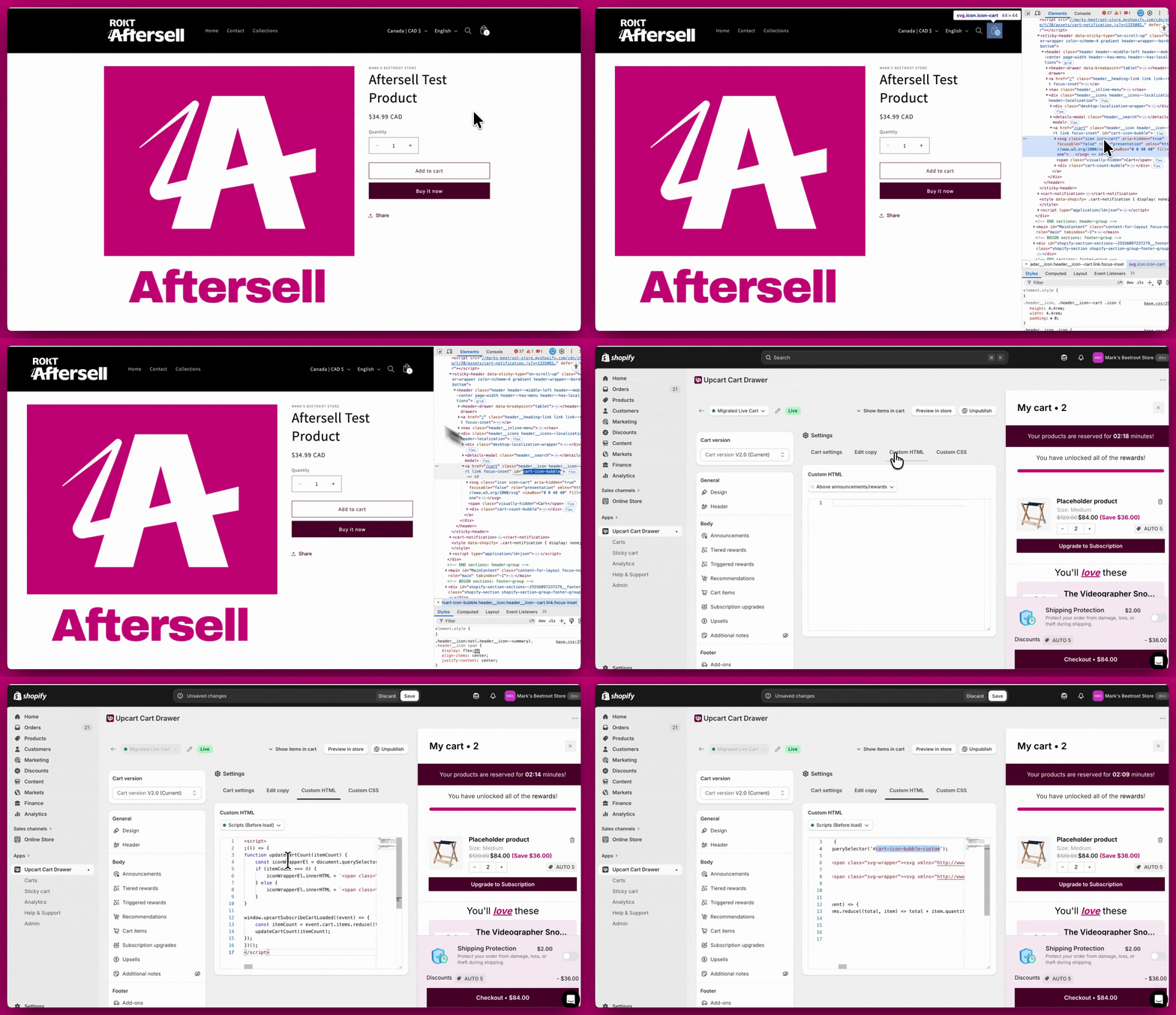
Level 1이 작동하지 않았다면, 테마가 카운트가 변경될 때 전체 카트 아이콘 HTML을 교체하는 방식일 수 있어요. 이 버전은 빈 카트 상태와 비어 있지 않은 카트 상태에 대해 아이콘 마크업을 다시 만들어 카운트와 아이콘이 동기화되도록 해요.

**잊지 마세요**

* \*\*`#cart-icon-bubble-custom`\*\*을 테마의 카트 아이콘 래퍼 셀렉터로 교체하세요.
* 저장 후 테스트하세요.
<Frame>
  <img src="https://mintcdn.com/aftersell/uxKAdY-e0h16xa48/images/upcart/cart-counter-level-2-icon-bubble-script.gif?s=7d36ca92c77564a670a1940818b7d86b" alt="cart-icon-bubble-custom 셀렉터를 사용해 Level 2 카트 아이콘 스크립트를 Upcart Custom HTML에 붙여넣는 모습" width="1876" height="1080" data-path="images/upcart/cart-counter-level-2-icon-bubble-script.gif" />
</Frame>

<div id="example-code-for-level-2">
  ### Level 2 예시 코드
</div>

```text theme={"theme":{"light":"snazzy-light","dark":"github-dark"}}
<script>  
;(() => {  
function updateCartCount(itemCount) {  
    const iconWrapperEl = document.querySelector('#cart-icon-bubble-custom');  
    if (itemCount === 0) {  
        iconWrapperEl.innerHTML = `<span class="svg-wrapper"><svg xmlns="http://www.w3.org/2000/svg" fill="none" class="icon icon-cart-empty" viewBox="0 0 40 40"><path fill="currentColor" fill-rule="evenodd" d="M15.75 11.8h-3.16l-.77 11.6a5 5 0 0 0 4.99 5.34h7.38a5 5 0 0 0 4.99-5.33L28.4 11.8zm0 1h-2.22l-.71 10.67a4 4 0 0 0 3.99 4.27h7.38a4 4 0 0 0 4-4.27l-.72-10.67h-2.22v.63a4.75 4.75 0 1 1-9.5 0zm8.5 0h-7.5v.63a3.75 3.75 0 1 0 7.5 0z"></path></svg></span><span class="visually-hidden">Cart</span>`;  
    } else {  
        iconWrapperEl.innerHTML = `<span class="svg-wrapper"><svg xmlns="http://www.w3.org/2000/svg" fill="none" class="icon icon-cart" viewBox="0 0 40 40"><path fill="currentColor" fill-rule="evenodd" d="M20.5 6.5a4.75 4.75 0 0 0-4.75 4.75v.56h-3.16l-.77 11.6a5 5 0 0 0 4.99 5.34h7.38a5 5 0 0 0 4.99-5.33l-.77-11.6h-3.16v-.57A4.75 4.75 0 0 0 20.5 6.5m3.75 5.31v-.56a3.75 3.75 0 1 0-7.5 0v.56zm-7.5 1h7.5v.56a3.75 3.75 0 1 1-7.5 0zm-1 0v.56a4.75 4.75 0 1 0 9.5 0v-.56h2.22l.71 10.67a4 4 0 0 1-3.99 4.27h-7.38a4 4 0 0 1-4-4.27l.72-10.67z"></path></svg></span><span class="visually-hidden">Cart</span><div class="cart-count-bubble"><span aria-hidden="true">${itemCount}</span><span class="visually-hidden">${itemCount} item</span></div>`;  
    }  
}  
  
window.upcartSubscribeCartLoaded((event) => {  
    const itemCount = event.cart.items.reduce((total, item) => total + item.quantity, 0);  
    updateCartCount(itemCount);  
});  
})();  
</script>
```

<Note>
  **레거시 참고:** `window.upcartOnCartLoaded` 콜백은 여전히 작동하지만 지원 중단되었으며 콘솔 경고를 기록해요. 새로운 스크립트에는 모두 `upcartSubscribeCartLoaded`를 사용하세요.

  `event.cart`에는 `item_count` 속성이 **없어요** — 위 스크립트들은 `event.cart.items.reduce((total, item) => total + item.quantity, 0)`로 합계를 계산해 `itemCount`로 전달해요. `cart.item_count`를 사용하는 이 스니펫의 예전 버전은 `ReferenceError`를 발생시키고 아이콘이 조용히 업데이트되지 않아요.
</Note>

***

<div id="level-3-advanced">
  ## Level 3 (고급)
</div>

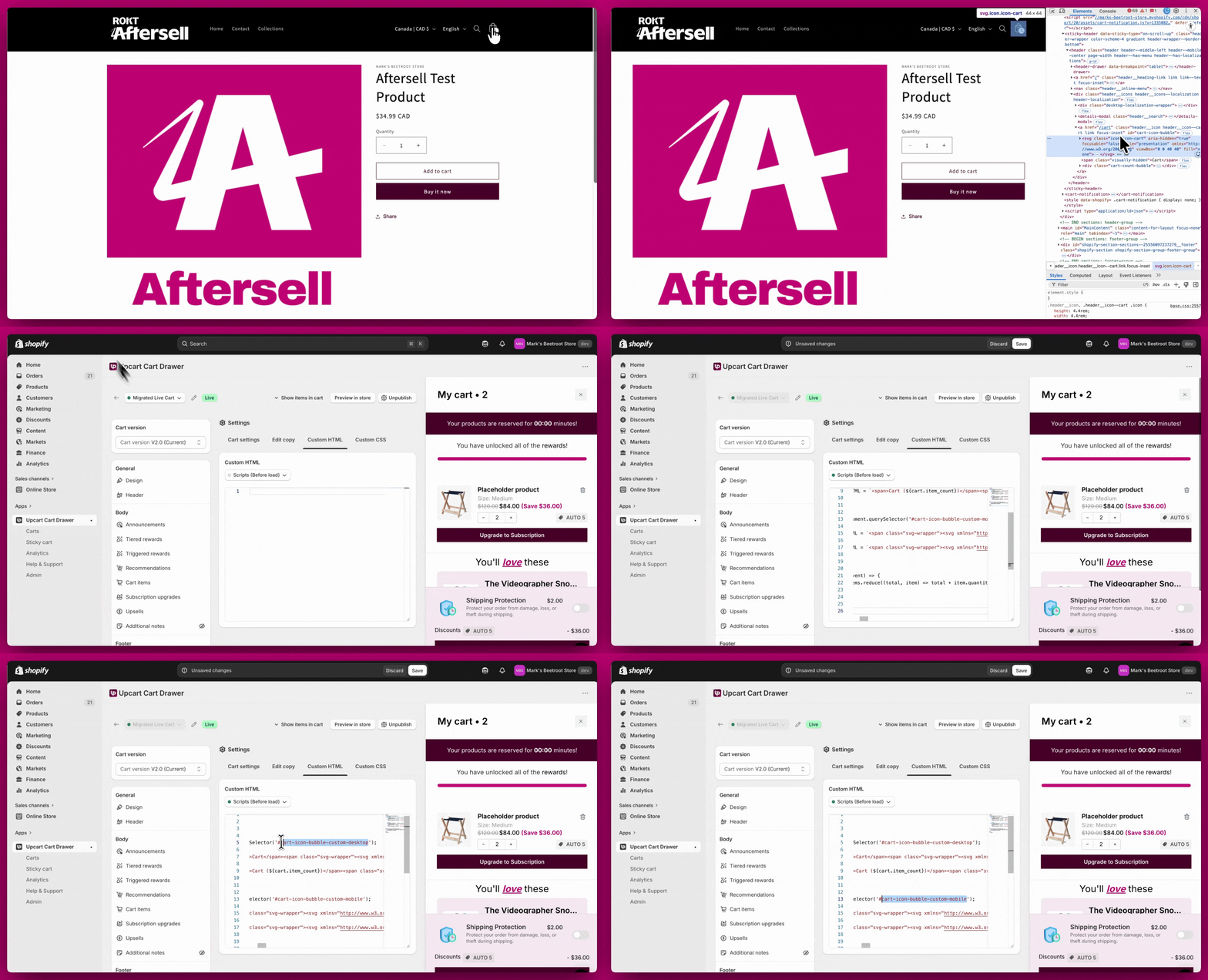
테마가 데스크톱과 모바일에 대해 **별도의** 카트 아이콘 마크업을 사용한다면, 각 뷰포트가 올바른 HTML과 카운트를 갖도록 두 개의 셀렉터에 동일한 업데이트 로직을 실행하세요.

**잊지 마세요**

* \*\*`#cart-icon-bubble-custom-desktop`\*\*과 \*\*`#cart-icon-bubble-custom-mobile`\*\*을 테마의 클래스로 교체하세요.
* 데스크톱과 모바일 뷰 모두에서 철저히 테스트하세요.
<img src="https://mintcdn.com/aftersell/uxKAdY-e0h16xa48/images/upcart/cart-counter-level-3-desktop-mobile-script.gif?s=36058384ee181aa8fc630e3c7bfc8716" alt="데스크톱과 모바일 카트 아이콘 셀렉터를 분리해 Level 3 스크립트를 Upcart Custom HTML에 붙여넣는 모습" width="1996" height="1080" data-path="images/upcart/cart-counter-level-3-desktop-mobile-script.gif" />

<div id="example-code-for-level-3">
  ### Level 3 예시 코드
</div>

```text theme={"theme":{"light":"snazzy-light","dark":"github-dark"}}
<script>  
;(() => {  
function updateCartCount(itemCount) {  
    // Desktop  
    const desktopIconWrapperEl = document.querySelector('#cart-icon-bubble-custom-desktop');  
    if (itemCount === 0) {  
        desktopIconWrapperEl.innerHTML = `<span>Cart</span><span class="svg-wrapper"><svg xmlns="http://www.w3.org/2000/svg" fill="none" class="icon icon-cart-empty" viewBox="0 0 40 40"><path fill="currentColor" fill-rule="evenodd" d="M15.75 11.8h-3.16l-.77 11.6a5 5 0 0 0 4.99 5.34h7.38a5 5 0 0 0 4.99-5.33L28.4 11.8zm0 1h-2.22l-.71 10.67a4 4 0 0 0 3.99 4.27h7.38a4 4 0 0 0 4-4.27l-.72-10.67h-2.22v.63a4.75 4.75 0 1 1-9.5 0zm8.5 0h-7.5v.63a3.75 3.75 0 1 0 7.5 0z"></path></svg></span>`;  
    } else {  
        desktopIconWrapperEl.innerHTML = `<span>Cart (${itemCount})</span><span class="svg-wrapper"><svg xmlns="http://www.w3.org/2000/svg" fill="none" class="icon icon-cart" viewBox="0 0 40 40"><path fill="currentColor" fill-rule="evenodd" d="M20.5 6.5a4.75 4.75 0 0 0-4.75 4.75v.56h-3.16l-.77 11.6a5 5 0 0 0 4.99 5.34h7.38a5 5 0 0 0 4.99-5.33l-.77-11.6h-3.16v-.57A4.75 4.75 0 0 0 20.5 6.5m3.75 5.31v-.56a3.75 3.75 0 1 0-7.5 0v.56zm-7.5 1h7.5v.56a3.75 3.75 0 1 1-7.5 0zm-1 0v.56a4.75 4.75 0 1 0 9.5 0v-.56h2.22l.71 10.67a4 4 0 0 1-3.99 4.27h-7.38a4 4 0 0 1-4-4.27l.72-10.67z"></path></svg></span>`;  
    }  
  
    // Mobile  
    const mobileIconWrapperEl = document.querySelector('#cart-icon-bubble-custom-mobile');  
    if (itemCount === 0) {  
        mobileIconWrapperEl.innerHTML = `<span class="svg-wrapper"><svg xmlns="http://www.w3.org/2000/svg" fill="none" class="icon icon-cart-empty" viewBox="0 0 40 40"><path fill="currentColor" fill-rule="evenodd" d="M15.75 11.8h-3.16l-.77 11.6a5 5 0 0 0 4.99 5.34h7.38a5 5 0 0 0 4.99-5.33L28.4 11.8zm0 1h-2.22l-.71 10.67a4 4 0 0 0 3.99 4.27h7.38a4 4 0 0 0 4-4.27l-.72-10.67h-2.22v.63a4.75 4.75 0 1 1-9.5 0zm8.5 0h-7.5v.63a3.75 3.75 0 1 0 7.5 0z"></path></svg></span><span class="visually-hidden">Cart</span>`;  
    } else {  
        mobileIconWrapperEl.innerHTML = `<span class="svg-wrapper"><svg xmlns="http://www.w3.org/2000/svg" fill="none" class="icon icon-cart" viewBox="0 0 40 40"><path fill="currentColor" fill-rule="evenodd" d="M20.5 6.5a4.75 4.75 0 0 0-4.75 4.75v.56h-3.16l-.77 11.6a5 5 0 0 0 4.99 5.34h7.38a5 5 0 0 0 4.99-5.33l-.77-11.6h-3.16v-.57A4.75 4.75 0 0 0 20.5 6.5m3.75 5.31v-.56a3.75 3.75 0 1 0-7.5 0v.56zm-7.5 1h7.5v.56a3.75 3.75 0 1 1-7.5 0zm-1 0v.56a4.75 4.75 0 1 0 9.5 0v-.56h2.22l.71 10.67a4 4 0 0 1-3.99 4.27h-7.38a4 4 0 0 1-4-4.27l.72-10.67z"></path></svg></span><span class="visually-hidden">Cart</span><div class="cart-count-bubble"><span aria-hidden="true">${itemCount}</span><span class="visually-hidden">${itemCount} item</span></div>`;  
    }  
}  
  
window.upcartSubscribeCartLoaded((event) => {  
    const itemCount = event.cart.items.reduce((total, item) => total + item.quantity, 0);  
    updateCartCount(itemCount);  
});  
})();  
</script>
```

<Note>
  **레거시 참고:** `window.upcartOnCartLoaded` 콜백은 여전히 작동하지만 지원 중단되었으며 콘솔 경고를 기록해요. 새로운 스크립트에는 모두 `upcartSubscribeCartLoaded`를 사용하세요.

  `event.cart`에는 `item_count` 속성이 **없어요** — 위 스크립트들은 `event.cart.items.reduce((total, item) => total + item.quantity, 0)`로 합계를 계산해 `itemCount`로 전달해요. `cart.item_count`를 사용하는 이 스니펫의 예전 버전은 `ReferenceError`를 발생시키고 아이콘이 조용히 업데이트되지 않아요.
</Note>

***

<div id="still-not-working">
  # 여전히 작동하지 않나요?
</div>

이 수준들 중 어느 것도 문제를 해결하지 못해도 걱정하지 마세요. 아직 방법이 있어요! 이는 테마에 더 고급 커스터마이징이 필요하다는 의미일 가능성이 높아요.

**다음으로 할 수 있는 일이에요:**

* 테마 개발자에게 도움을 요청하세요.
* 스토어에 맞춘 커스텀 솔루션을 만들 수 있는 [Shopify Expert](https://www.shopify.com/partners/directory)를 고용하세요.
