> ## Documentation Index
> Fetch the complete documentation index at: https://docs.aftersell.com/llms.txt
> Use this file to discover all available pages before exploring further.

# Upcart에 소계 라인 추가하기

> 체크아웃 버튼 위에 소계 라인도 표시하고 싶으신 분들을 위한 가이드예요

<div id="introduction">
  ## 소개
</div>

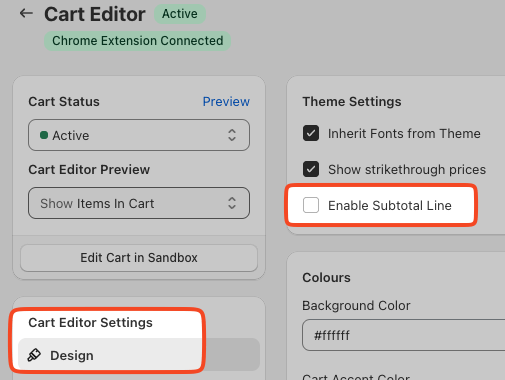
소계 설정 \*(아래 그림 참조)\*이 제대로 작동하지 않는다면, 이 문서에서 소계 라인을 수동으로 삽입하는 방법을 알아볼 수 있어요.

<div id="enabling-subtotal-line">
  ## 소계 라인 활성화하기
</div>

카트 Design 설정에서 소계 라인을 쉽게 활성화할 수 있어요.

설정 위치는 다음과 같아요:

**Cart Editor > Design > General > Enable subtotal line**
<img src="https://mintcdn.com/aftersell/uVGuDiyXpd6WOLO4/images/upcart/subtotal-line-cart-editor-design-settings.png?fit=max&auto=format&n=uVGuDiyXpd6WOLO4&q=85&s=a1c15c581fe49f32c8144e25c23f5d5b" alt="Enable Subtotal Line 체크박스가 강조 표시된 Cart Editor Design 설정" width="505" height="380" data-path="images/upcart/subtotal-line-cart-editor-design-settings.png" />

<div id="inserting-subtotal-via-code">
  # 코드로 소계 삽입하기
</div>

<div id="accessing-custom-css-and-html-settings">
  ## 커스텀 CSS 및 HTML 설정 접근하기
</div>

Upcart의 CSS 커스터마이징을 시작하려면 다음 단계를 따르세요:

1. 대시보드에서 Upcart 앱을 여세요.
2. Cart Editor로 이동하세요.
3. **Settings**를 여세요. 탭이 한 줄로 나열되어 있어요 — **Custom HTML** 또는 **Custom CSS**를 선택하세요(줄이 넘치면 **More settings** 뒤에 있어요).

<div id="html">
  ## HTML
</div>

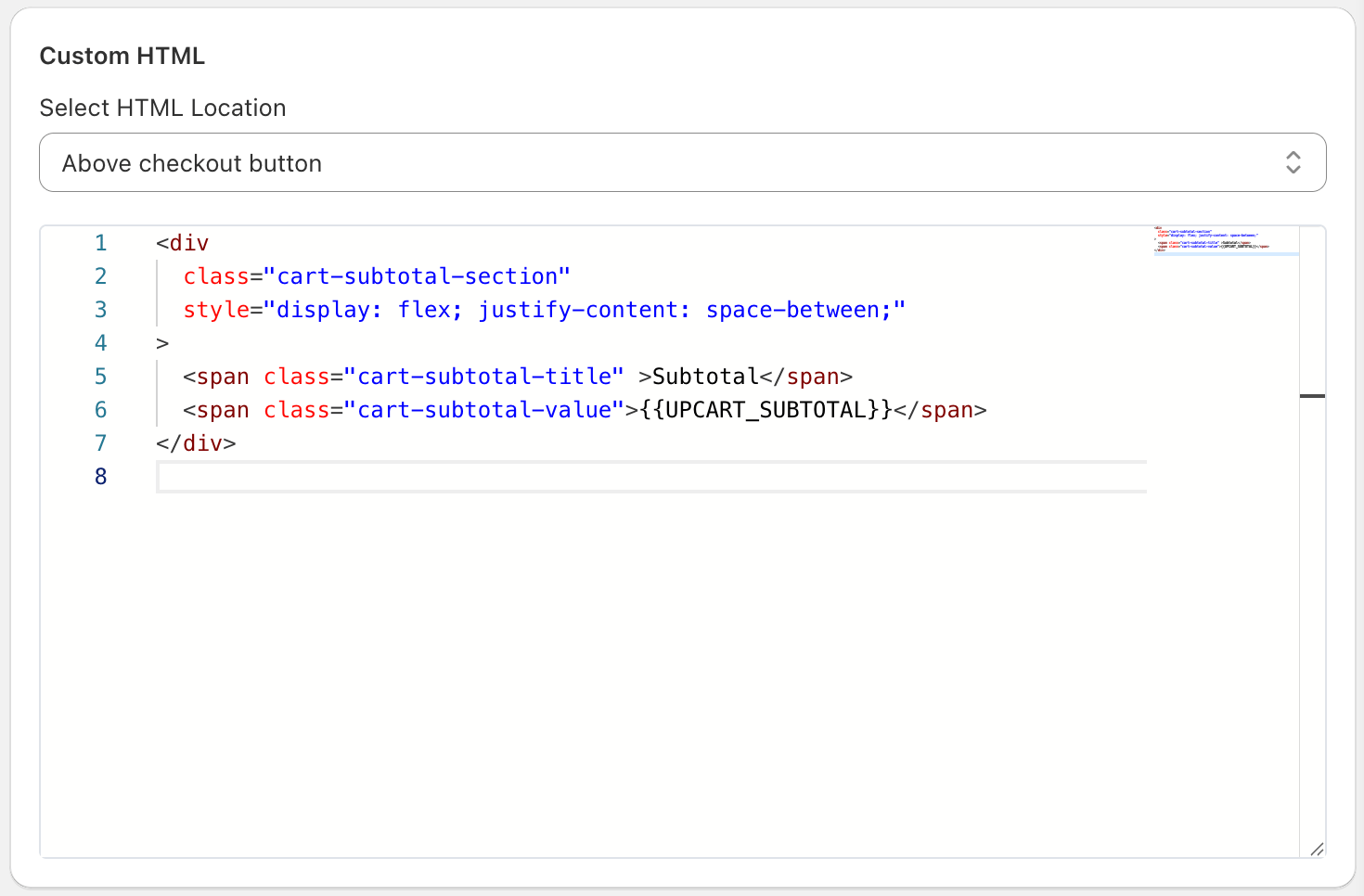
Upcart에서 원하는 변경 사항이 적용될 HTML 위치를 반드시 선택하세요. 여기서는 소계 라인이 "체크아웃 버튼 위"에 오도록 할 거예요. 아래 "Subtotal" 텍스트는 원하는 언어에 맞게 자유롭게 변경하세요.

```
<div   
  class="cart-subtotal-section"   
  style="display: flex; justify-content: space-between;"  
>  
  <span class="cart-subtotal-title">Subtotal</span>  
  <span class="cart-subtotal-value">{{UPCART_SUBTOTAL}}</span>  
</div>
```

Upcart의 커스텀 HTML 설정은 다음과 같이 보여야 해요:
<img src="https://mintcdn.com/aftersell/uVGuDiyXpd6WOLO4/images/upcart/subtotal-line-custom-html-settings-above.png?fit=max&auto=format&n=uVGuDiyXpd6WOLO4&q=85&s=28c3da390eca8817499ed35864f7f381" alt="소계 라인 코드와 함께 Above checkout button으로 설정된 커스텀 HTML 설정" width="1470" height="966" data-path="images/upcart/subtotal-line-custom-html-settings-above.png" />

<div id="css">
  ## CSS
</div>

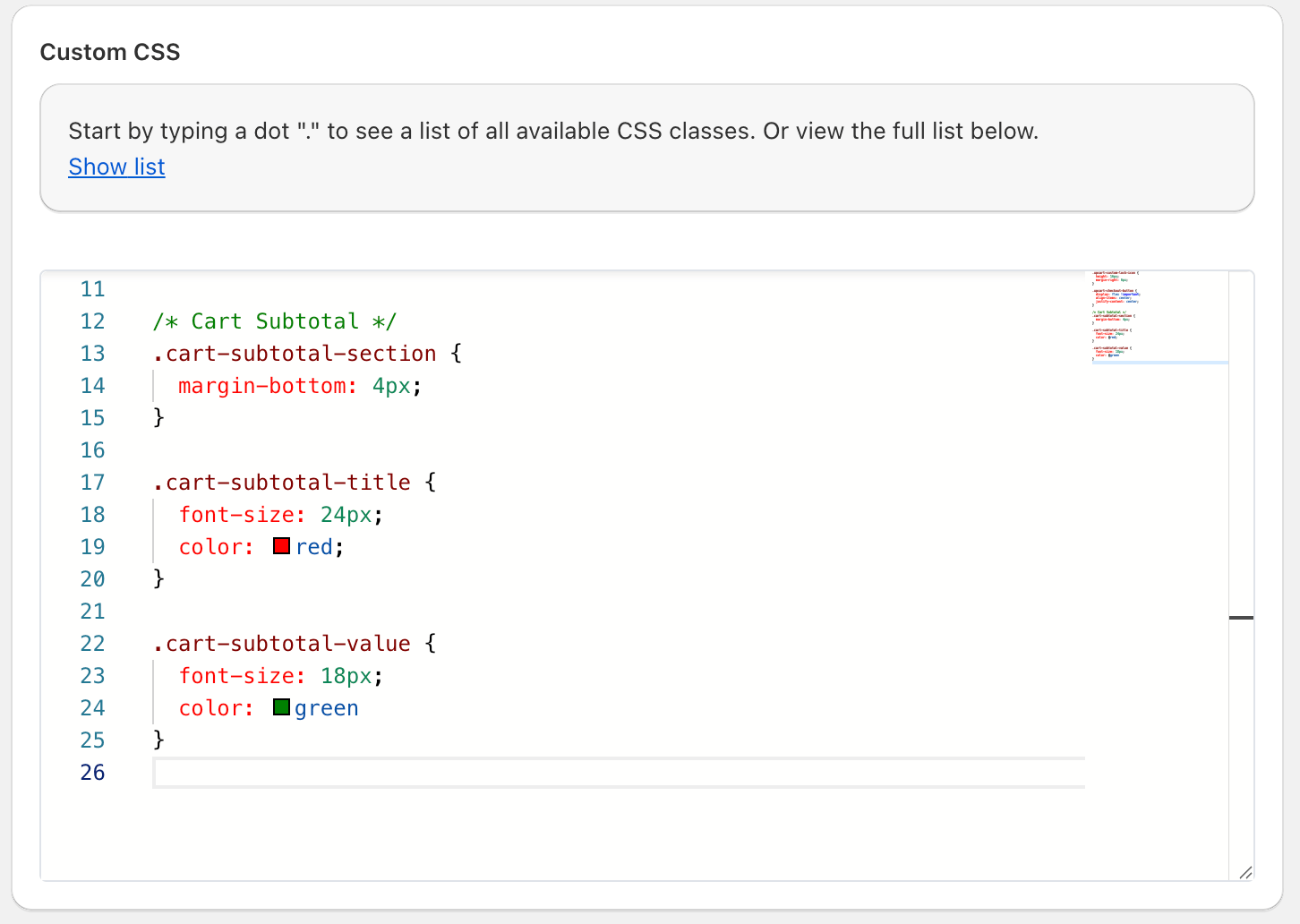
**Settings =>Custom CSS**에서 필요에 따라 커스텀 CSS의 글꼴 크기와 색상을 변경하세요. 완료 후 "Save"를 누르는 것을 잊지 마세요!

```
.cart-subtotal-section {  
  margin-bottom: 4px;  
}  
  
.cart-subtotal-title {  
  font-size: 24px;  
  color: red;  
}  
  
.cart-subtotal-value {  
  font-size: 18px;  
  color: green  
}
```
<img src="https://mintcdn.com/aftersell/uVGuDiyXpd6WOLO4/images/upcart/subtotal-line-custom-css-settings-cart.png?fit=max&auto=format&n=uVGuDiyXpd6WOLO4&q=85&s=2b4bd1b5ee98bc6eb5bb8f507a91ba31" alt="카트 소계 스타일 규칙이 표시된 커스텀 CSS 설정" width="1452" height="1032" data-path="images/upcart/subtotal-line-custom-css-settings-cart.png" />

***

<div id="support-for-customizations">
  ## 🚧 커스터마이징 지원
</div>

Upcart 지원팀은 카트에 커스텀 CSS 또는 HTML 솔루션을 구현하는 것을 지원할 수 없어요.

커스텀 디자인이나 스타일링에 도움이 필요하다면 [Shopify Expert에게 상담](https://www.shopify.com/partners/directory)하거나 [AI 프롬프트 가이드라인](https://docs.aftersell.com/upcart/ai_prompt_suggestions_for_adding_custom_code_to_your_upcart_settings#ai-prompt-suggestions-for-adding-custom-code-to-your-upcart-settings)을 사용해 LLM과 대화하는 것을 권장해요.
