> ## Documentation Index
> Fetch the complete documentation index at: https://docs.aftersell.com/llms.txt
> Use this file to discover all available pages before exploring further.

# アップセルモジュール: 設定

> この記事では、カート内アップセルの挙動を細かく調整する方法を説明します

<div id="overview">
  # 概要
</div>

Upcart のアップセルセクションでアップセル商品を選択したら、次は意図したとおりに表示されるように設定しましょう。このドキュメントでは、**Cart Editor > Upsells > Upsell Settings** にある各機能について説明します。前編の[**アップセルモジュール**](/ja/upcart/upsells_module)ドキュメントの続編です。
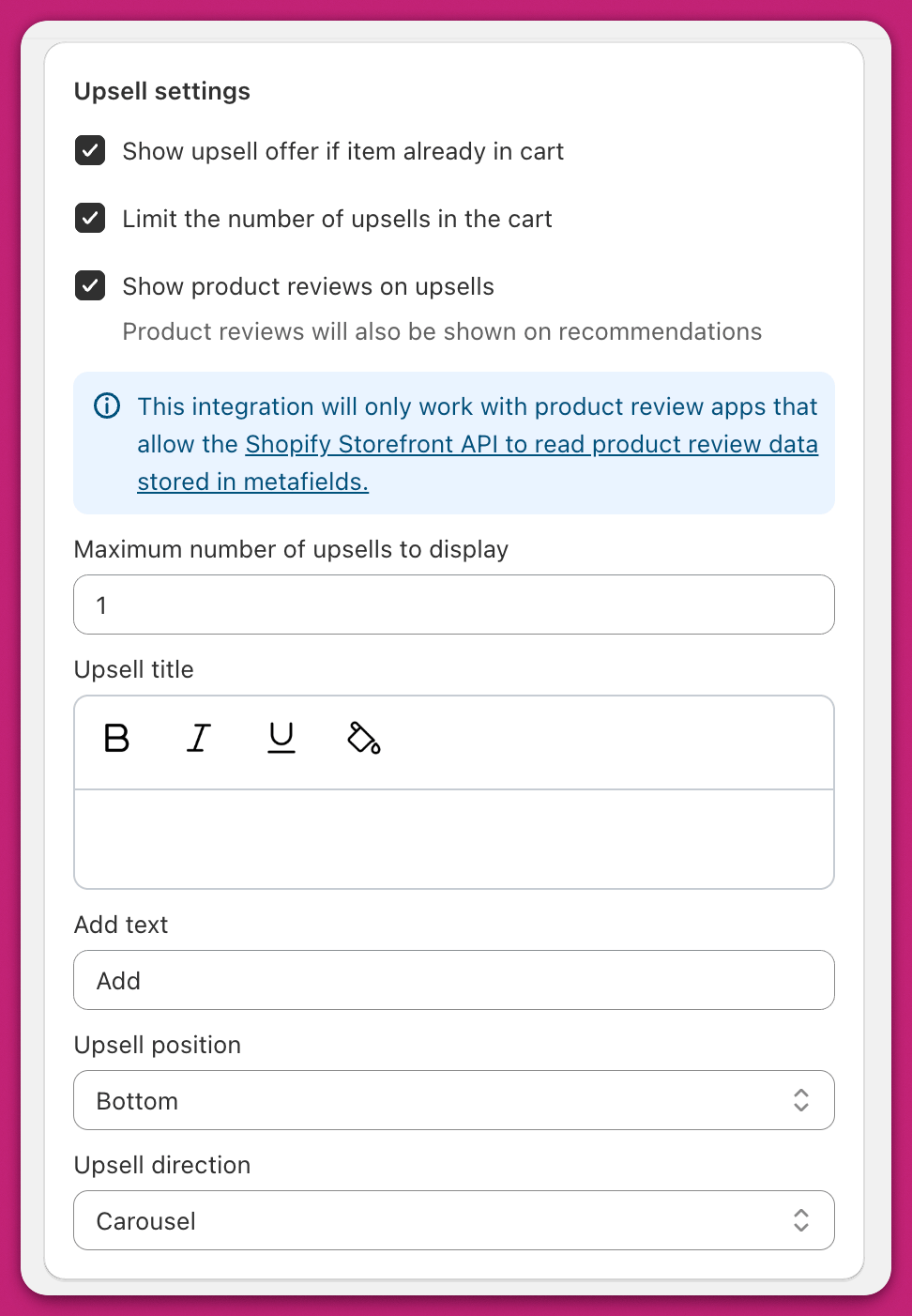
<img src="https://mintcdn.com/aftersell/uVGuDiyXpd6WOLO4/images/upcart/upsells-settings-upsell-panel-checkboxes-title.png?fit=max&auto=format&n=uVGuDiyXpd6WOLO4&q=85&s=eb98ed62162dff23ecbcdab36ecbb0e8" alt="チェックボックス、アップセルタイトル、位置、方向のオプションがある Upcart の Upsell Settings パネル" width="500" data-path="images/upcart/upsells-settings-upsell-panel-checkboxes-title.png" />

<div id="show-upsell-offer-if-item-already-in-cart">
  ## 商品がすでにカートにある場合もアップセルオファーを表示
</div>

この設定を有効にすると、アップセル商品がすでにカートに入っている場合でも、アップセルオファーが表示されます。
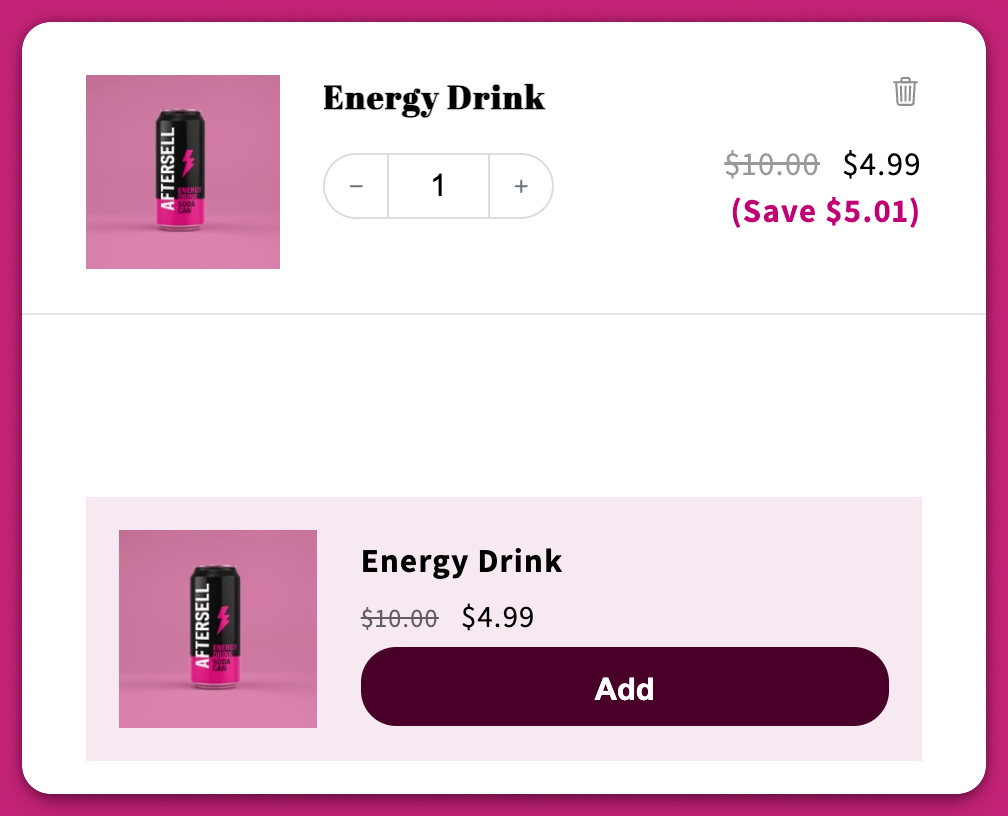
<img src="https://mintcdn.com/aftersell/uVGuDiyXpd6WOLO4/images/upcart/upsells-settings-energy-drink-already-in-cart.png?fit=max&auto=format&n=uVGuDiyXpd6WOLO4&q=85&s=2862077a2d8f4be4dc558f35b0ee3358" alt="同じ商品がすでにカートにあるにもかかわらず、Energy Drink のアップセルが表示されている" width="500" data-path="images/upcart/upsells-settings-energy-drink-already-in-cart.png" />

<div id="limit-the-number-of-upsells-in-the-cart">
  ## カート内のアップセル数を制限する
</div>

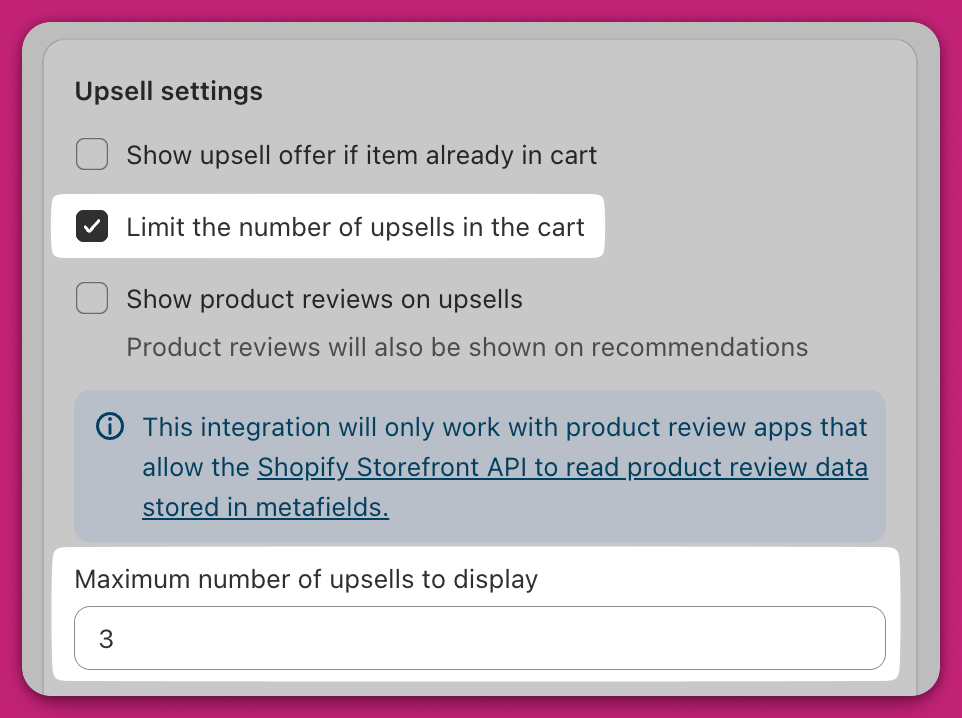
一度に表示できるアップセルの数に上限を設定できます。チェックを入れると、**Maximum number of upsells to display** という数値フィールド（最小値 1）が表示されます。

<img src="https://mintcdn.com/aftersell/uVGuDiyXpd6WOLO4/images/upcart/upsells-settings-limit-number-checkbox-enabled.png?fit=max&auto=format&n=uVGuDiyXpd6WOLO4&q=85&s=ab01338f54b9001414e6dc422ee564d3" alt="アップセル数を制限するチェックボックスを有効にし、最大表示数を 3 に設定" width="500" data-path="images/upcart/upsells-settings-limit-number-checkbox-enabled.png" />

<div id="upsell-title">
  ## アップセルタイトル
</div>

これは、**アップセルモジュールの上**に表示されるテキストです。

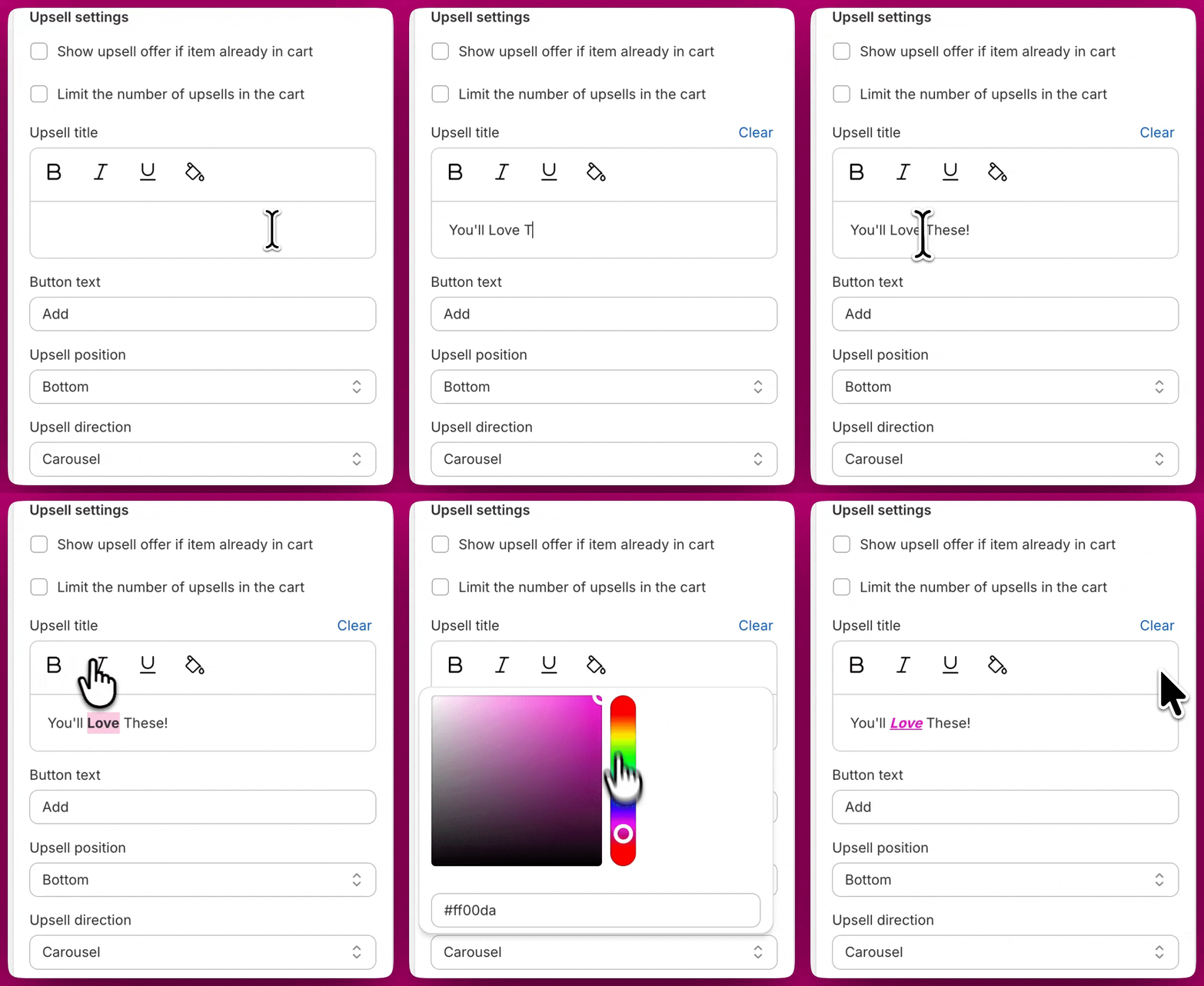
スタイルを設定したいテキストをハイライトし、テキストフィールドの上にあるボタンで**太字、斜体、下線**、**色**を適用してテキストを装飾できます。
<img src="https://mintcdn.com/aftersell/uVGuDiyXpd6WOLO4/images/upcart/upsells-settings-title-formatting.gif?s=9639dc015283db1f756af205ef68dcad" alt="アップセルタイトルの編集で太字、斜体、色の書式をテキストに適用" width="880" height="1080" data-path="images/upcart/upsells-settings-title-formatting.gif" />

<div id="button-text">
  ## ボタンテキスト
</div>

アップセルのカートに追加ボタンに表示されるテキストを、お好みの言い回しや言語にカスタマイズできます。

<div id="upsell-position">
  ## アップセルの位置
</div>

このドロップダウンでは、アップセルをカートの上部に配置するか、下部に配置するかを選択できます。

[Block](#block) のアップセル方向を使用している場合は、お客様の商品の視認性を最大限に保つため、一般的に Bottom を選択することをおすすめします。

<div id="upsell-direction">
  ## アップセルの方向
</div>

このドロップダウンでは、**アップセルモジュールのスタイル**を変更できます。

現時点では 2 つのオプションがあります。

<div id="carousel">
  ## カルーセル
</div>

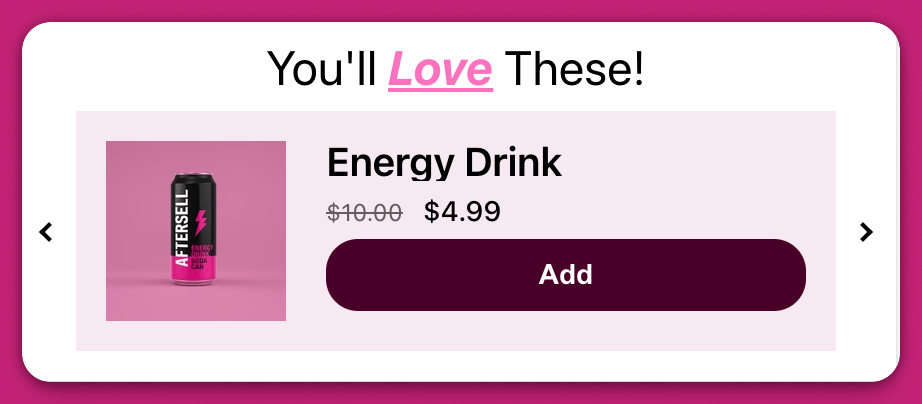
カルーセルは、すべてのアップセル商品を左から右へのスライダーで表示します。

このスライダーには左右に矢印があり、お客様は商品を切り替えることができます。
<img src="https://mintcdn.com/aftersell/uVGuDiyXpd6WOLO4/images/upcart/upsells-settings-carousel-layout-arrows.png?fit=max&auto=format&n=uVGuDiyXpd6WOLO4&q=85&s=1c3a0c5d0f4c150e2db07d5c0553ca6f" alt="左右のナビゲーション矢印付きで 1 つの商品を表示するカルーセル型アップセルレイアウト" width="500" data-path="images/upcart/upsells-settings-carousel-layout-arrows.png" />

<div id="block">
  ## ブロック
</div>

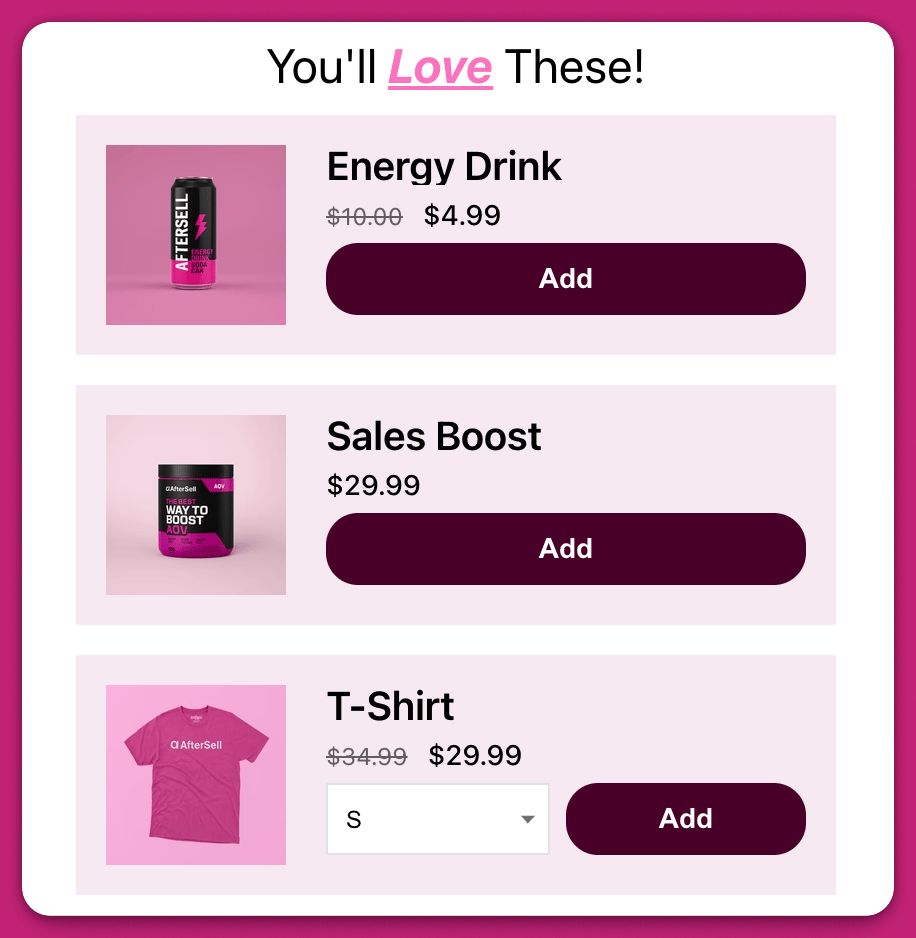
ブロックは、すべてのアップセル商品を縦に積み重ねて表示します。

<img src="https://mintcdn.com/aftersell/uVGuDiyXpd6WOLO4/images/upcart/upsells-settings-block-layout-three-products.png?fit=max&auto=format&n=uVGuDiyXpd6WOLO4&q=85&s=a22d3a82a9f1e03148d65c08922debcd" alt="カート内に 3 つの商品が縦に並んだブロック型アップセルレイアウト" width="500" data-path="images/upcart/upsells-settings-block-layout-three-products.png" />

このスタイルはより多くのスペースを使用しますが、お客様がモジュールを操作しなくてもすべてのアップセルを確認できるという利点があります。