> ## Documentation Index
> Fetch the complete documentation index at: https://docs.aftersell.com/llms.txt
> Use this file to discover all available pages before exploring further.
# Upcart x PageFly ランディングページビルダー
> この記事では、PageFly を Upcart と併用する際にカートページへのリダイレクトを防ぐ方法を説明します。
## 解決方法
以下の手順に従って、**Add to Cart** ボタンが Upcart と正しく連携するようにしてください。
1. Shopify 管理画面で **PageFly** アプリを開きます。
2. **Add to Cart** ボタンの設定に移動します。
3. **After add to cart action** というセクションを見つけます。
4. **Stay on the same page** オプションを選択します。
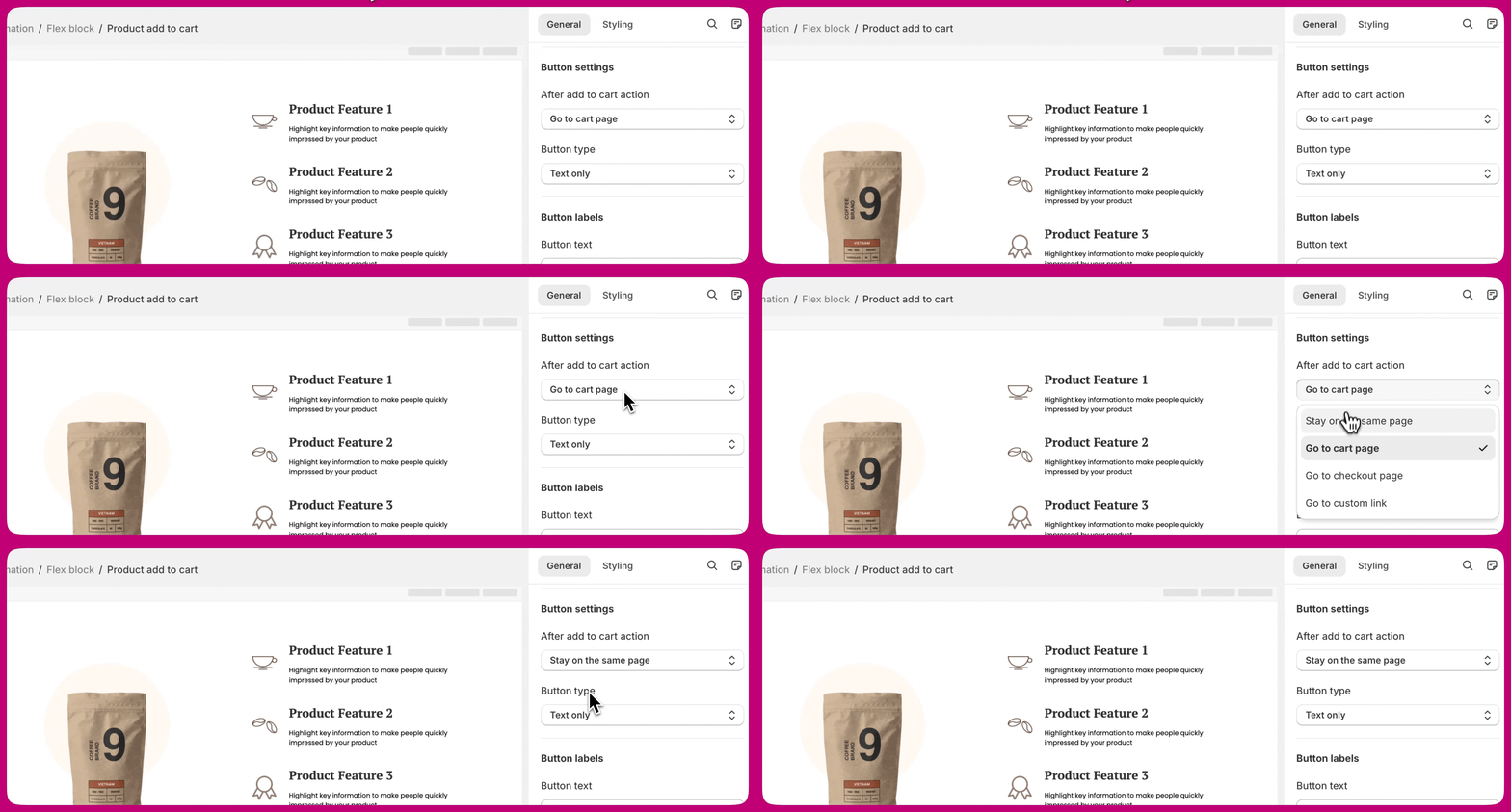 これにより、お客様は同じページにとどまり、商品がカートに追加された後に **Upcart のドロワー**が正しく開くようになります。
***
これにより、お客様は同じページにとどまり、商品がカートに追加された後に **Upcart のドロワー**が正しく開くようになります。
***
## 詳細情報
この設定の詳細については、**Add to Cart** ボタンの設定に関する \*\*[PageFly のドキュメント](https://help.pagefly.io/manual/shopify-elements-product-add-to-cart/)\*\*を参照してください。