> ## Documentation Index
> Fetch the complete documentation index at: https://docs.aftersell.com/llms.txt
> Use this file to discover all available pages before exploring further.

# 買い物を続けるボタンを表示する

> cart drawer のチェックアウトボタンの下に「買い物を続ける」リンクを追加します。

<div id="overview">
  # 概要
</div>

この機能は、クリックするとカートを閉じるシンプルなテキストリンクを追加します。上部の角にある閉じるアイコンをタップしづらい**モバイルユーザー**に特に役立ちます。

<div id="where-to-find-it">
  ## **設定の場所**
</div>

次の場所に移動します:\
**Upcart > Editor > Design** \
Design モジュールの「buttons」セクションで、**「Show continue shopping button」** というラベルのチェックボックスを探します。
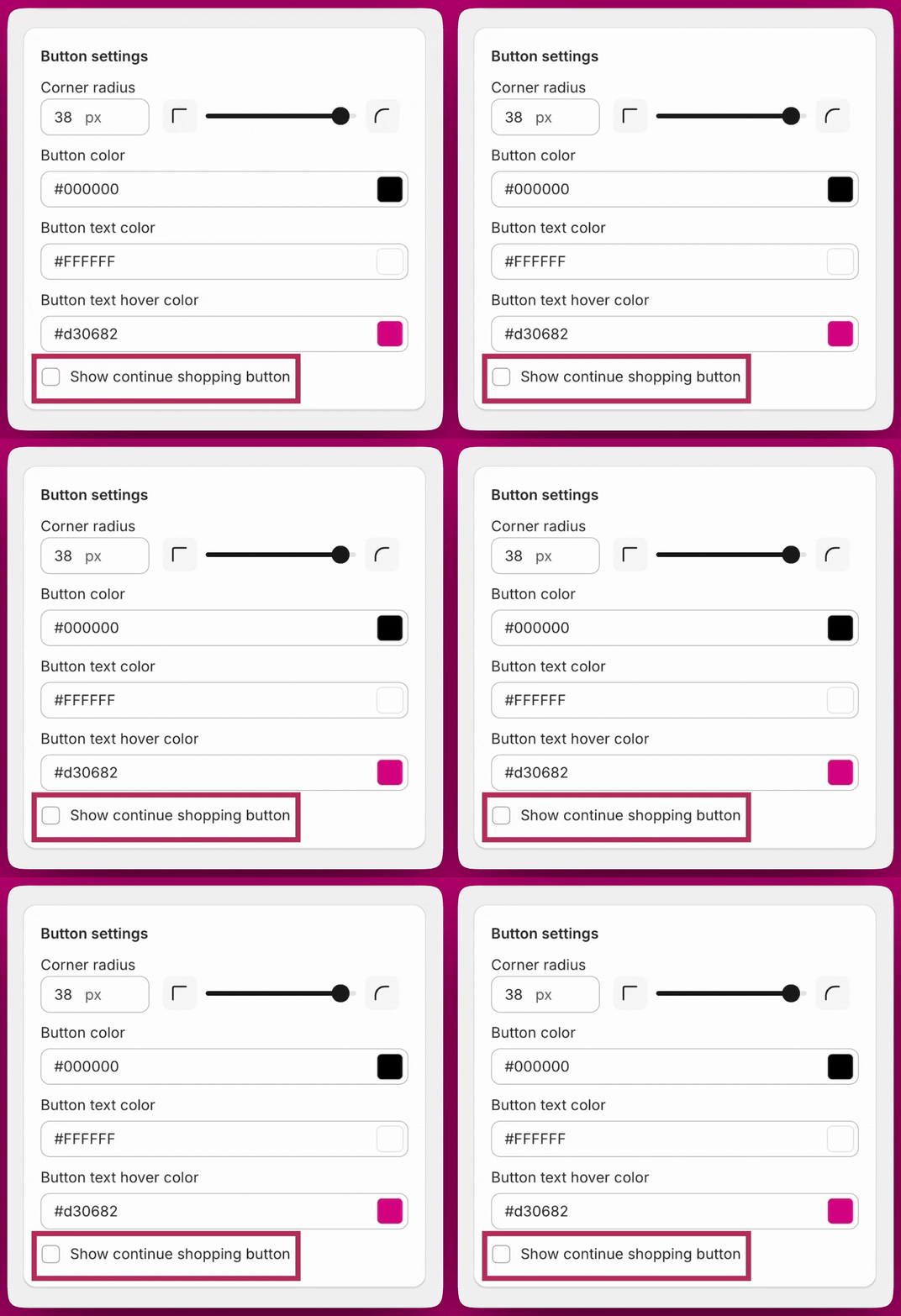
<img src="https://mintcdn.com/aftersell/uxKAdY-e0h16xa48/images/upcart/continue-shopping-button-setting-checkbox.gif?s=72a03bd35cfea76440be8d1b59e74e06" alt="Show continue shopping button チェックボックスがハイライトされた Upcart のボタン設定" width="1108" height="1080" data-path="images/upcart/continue-shopping-button-setting-checkbox.gif" />

<div id="how-it-works">
  ## **仕組み**
</div>

<div id="enabled-box-checked">
  ## ✅ 有効(チェックあり)
</div>

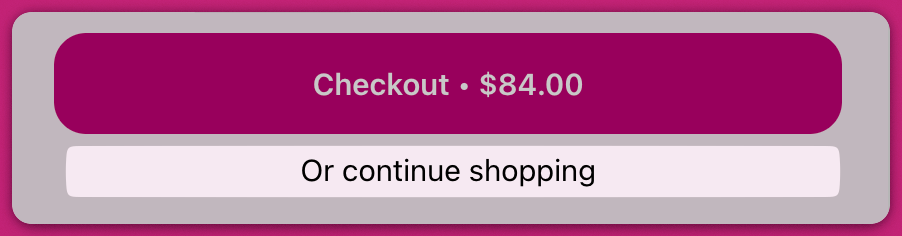
* **「Continue Shopping」** リンクが cart drawer の下部に表示されます。
* クリックすると、ドロワーが閉じて顧客はストアフロントに戻ります。

リンクのテキストは、**Settings > Edit copy** の **Continue shopping button text** フィールドでカスタマイズできます。
<img src="https://mintcdn.com/aftersell/uxKAdY-e0h16xa48/images/upcart/continue-shopping-cart-footer-checkout-button.png?fit=max&auto=format&n=uxKAdY-e0h16xa48&q=85&s=450c1c579d49b3a0e4570bac69343a4c" alt="Checkout ボタンとその下に Or continue shopping リンクがあるカートフッター" width="600" data-path="images/upcart/continue-shopping-cart-footer-checkout-button.png" />

<div id="disabled-box-unchecked">
  ## ⬜ 無効(チェックなし)
</div>

* リンクはカートに表示されません。
* 顧客は「X」ボタンを使用して手動でカートを閉じる必要があります。
