> ## Documentation Index
> Fetch the complete documentation index at: https://docs.aftersell.com/llms.txt
> Use this file to discover all available pages before exploring further.

# Upcart に小計行を追加する

> チェックアウトボタンの上に小計行も表示したい方向け

<div id="introduction">
  ## はじめに
</div>

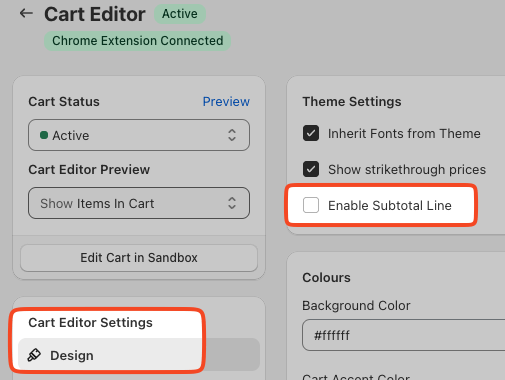
小計設定\*(下の画像)\*がうまく機能しない場合のために、小計行を手動で挿入する方法を説明するドキュメントです。

<div id="enabling-subtotal-line">
  ## 小計行を有効にする
</div>

カートの Design 設定で、小計行を簡単に有効にできます。

設定は次の場所にあります:

**Cart Editor > Design > General > Enable subtotal line**
<img src="https://mintcdn.com/aftersell/uVGuDiyXpd6WOLO4/images/upcart/subtotal-line-cart-editor-design-settings.png?fit=max&auto=format&n=uVGuDiyXpd6WOLO4&q=85&s=a1c15c581fe49f32c8144e25c23f5d5b" alt="Enable Subtotal Line チェックボックスが強調表示された Cart Editor の Design 設定" width="505" height="380" data-path="images/upcart/subtotal-line-cart-editor-design-settings.png" />

<div id="inserting-subtotal-via-code">
  # コードで小計を挿入する
</div>

<div id="accessing-custom-css-and-html-settings">
  ## カスタム CSS と HTML 設定にアクセスする
</div>

Upcart の CSS のカスタマイズを始めるには、次の手順に従います:

1. ダッシュボード内で Upcart アプリを開きます。
2. Cart Editor に移動します。
3. **Settings** を開きます。タブが並んでいるので、**Custom HTML** または **Custom CSS** を選択します(タブが収まりきらない場合は **More settings** の中にあります)。

<div id="html">
  ## HTML
</div>

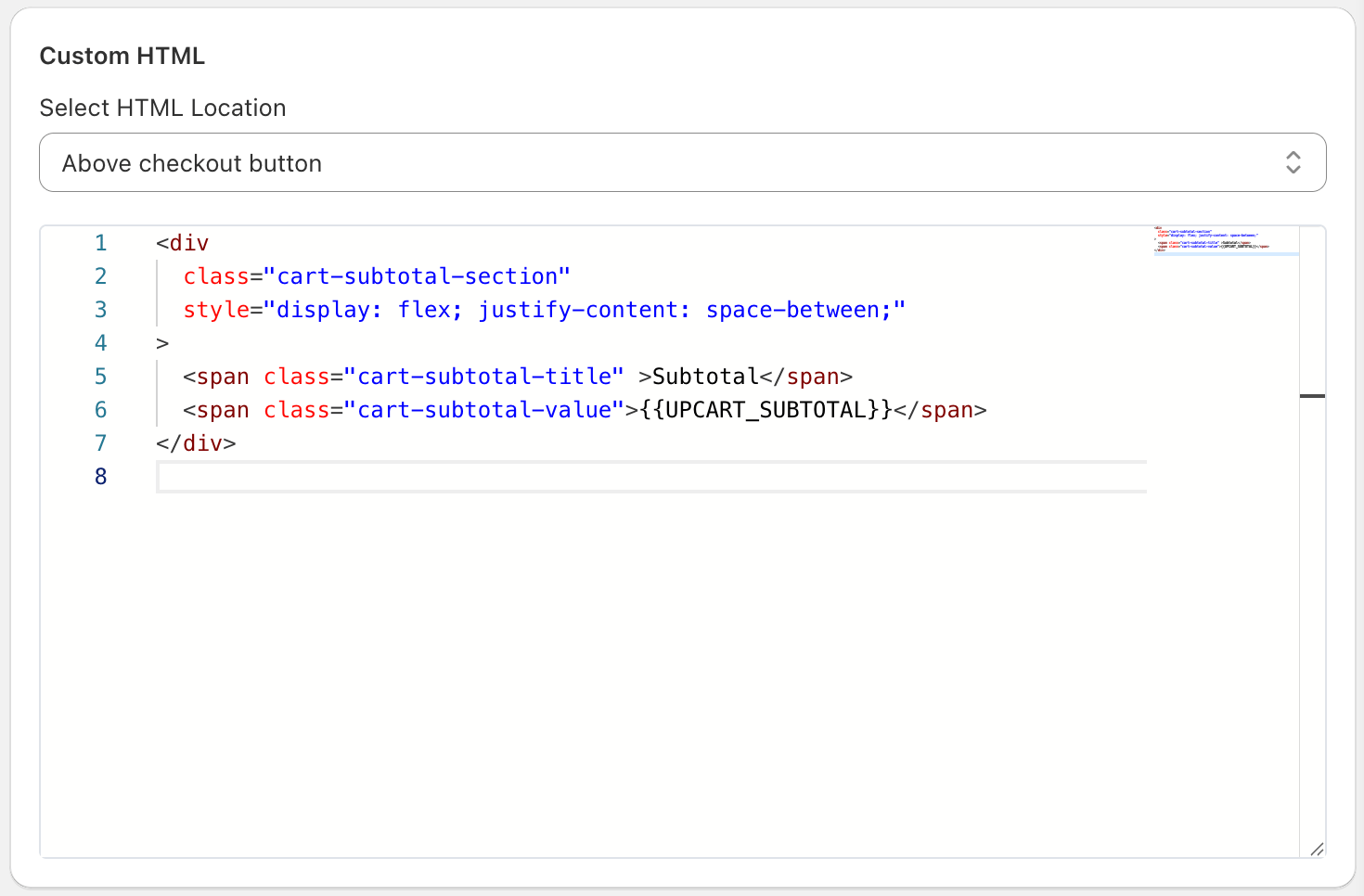
Upcart で変更を反映したい場所を指定するため、必ず HTML の挿入位置を選択してください。今回の場合、小計行は「チェックアウトボタンの上(above the checkout button)」に表示します。以下の「Subtotal」テキストは、お好みの言語に合わせて自由に変更してください。

```
<div   
  class="cart-subtotal-section"   
  style="display: flex; justify-content: space-between;"  
>  
  <span class="cart-subtotal-title">Subtotal</span>  
  <span class="cart-subtotal-value">{{UPCART_SUBTOTAL}}</span>  
</div>
```

Upcart のカスタム HTML 設定は、次のようになるはずです:
<img src="https://mintcdn.com/aftersell/uVGuDiyXpd6WOLO4/images/upcart/subtotal-line-custom-html-settings-above.png?fit=max&auto=format&n=uVGuDiyXpd6WOLO4&q=85&s=28c3da390eca8817499ed35864f7f381" alt="小計行のコードとともに Above checkout button に設定されたカスタム HTML 設定" width="1470" height="966" data-path="images/upcart/subtotal-line-custom-html-settings-above.png" />

<div id="css">
  ## CSS
</div>

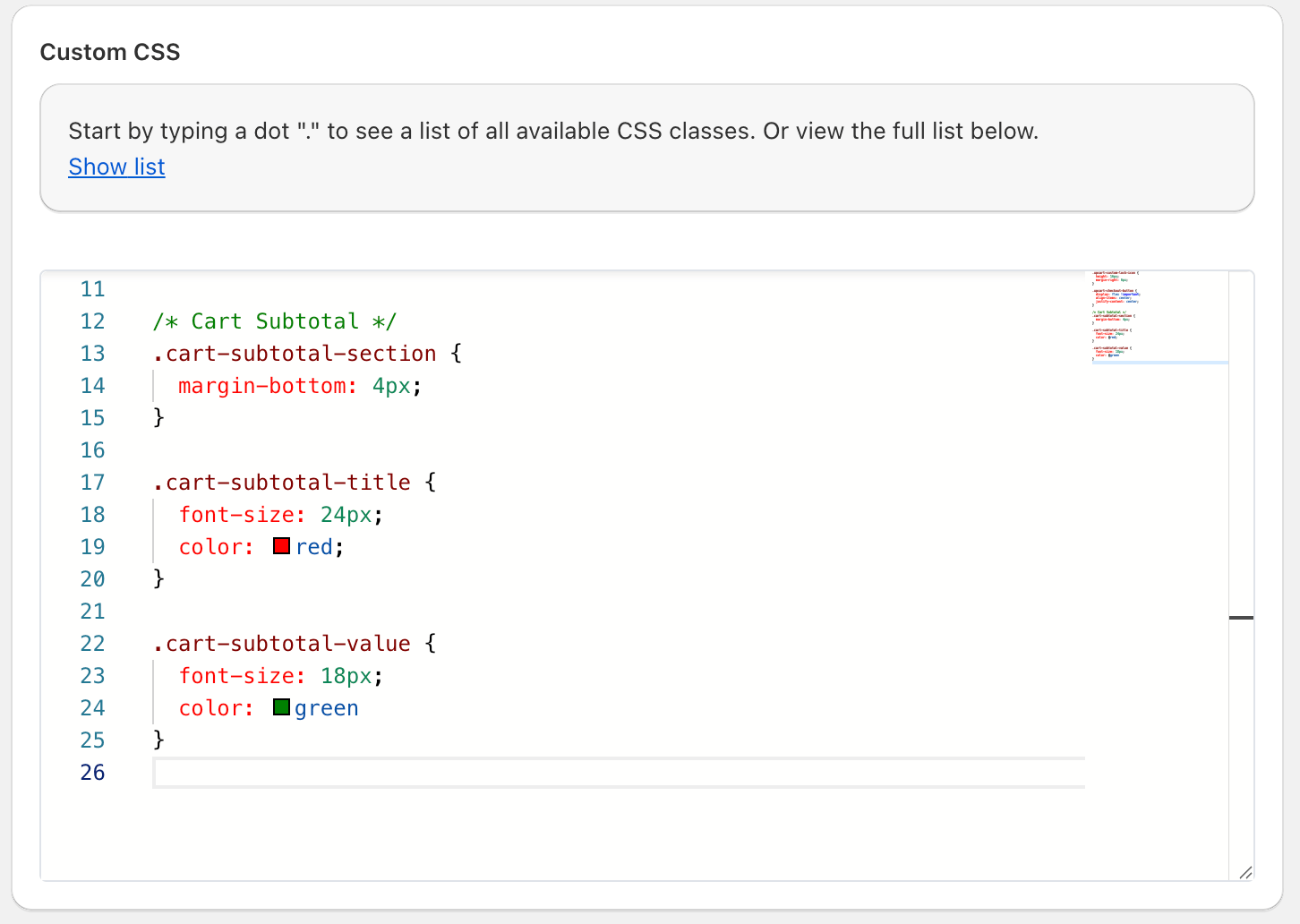
**Settings =>Custom CSS** で、必要に応じてカスタム CSS のフォントサイズと色を変更します。完了したら「Save」を押すのを忘れないでください!

```
.cart-subtotal-section {  
  margin-bottom: 4px;  
}  
  
.cart-subtotal-title {  
  font-size: 24px;  
  color: red;  
}  
  
.cart-subtotal-value {  
  font-size: 18px;  
  color: green  
}
```
<img src="https://mintcdn.com/aftersell/uVGuDiyXpd6WOLO4/images/upcart/subtotal-line-custom-css-settings-cart.png?fit=max&auto=format&n=uVGuDiyXpd6WOLO4&q=85&s=2b4bd1b5ee98bc6eb5bb8f507a91ba31" alt="カート小計のスタイリングルールを表示しているカスタム CSS 設定" width="1452" height="1032" data-path="images/upcart/subtotal-line-custom-css-settings-cart.png" />

***

<div id="support-for-customizations">
  ## 🚧 カスタマイズに関するサポート
</div>

Upcart のサポートチームは、カート内でのカスタム CSS や HTML ソリューションの実装をサポートできません。

カスタムのデザインやスタイリングでサポートが必要な場合は、[Shopify Expert への相談](https://www.shopify.com/partners/directory)、または [AI プロンプトガイドライン](https://docs.aftersell.com/upcart/ai_prompt_suggestions_for_adding_custom_code_to_your_upcart_settings#ai-prompt-suggestions-for-adding-custom-code-to-your-upcart-settings)を使った LLM とのチャットをおすすめします。
