> ## Documentation Index
> Fetch the complete documentation index at: https://docs.aftersell.com/llms.txt
> Use this file to discover all available pages before exploring further.
# Aftersellのインストール
> ShopifyストアにAftersellをインストールする方法
**このガイドでは、ShopifyストアにAftersellをインストールする手順を説明します。簡単ですぐに終わるプロセスで、所要時間はわずか2分です!**
## ステップ1: Shopify App Store
Shopify App Storeにアクセスします。上部の検索バーで「Aftersell」を検索します。検索結果からAftersellを見つけてクリックします。
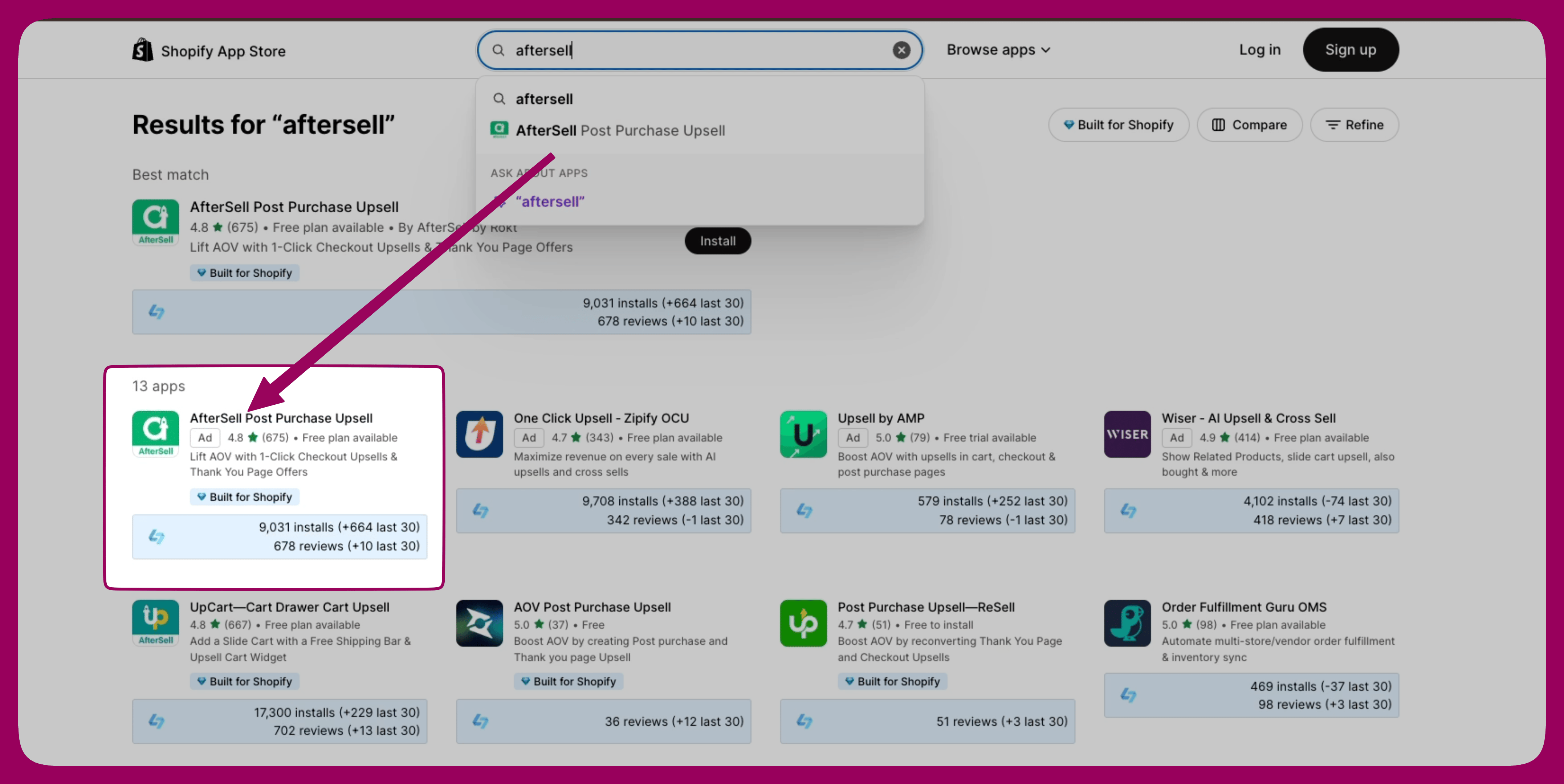 [Shopify App StoreのAftersell](https://apps.shopify.com/aftersell)
## ステップ2: Aftersellをインストールする
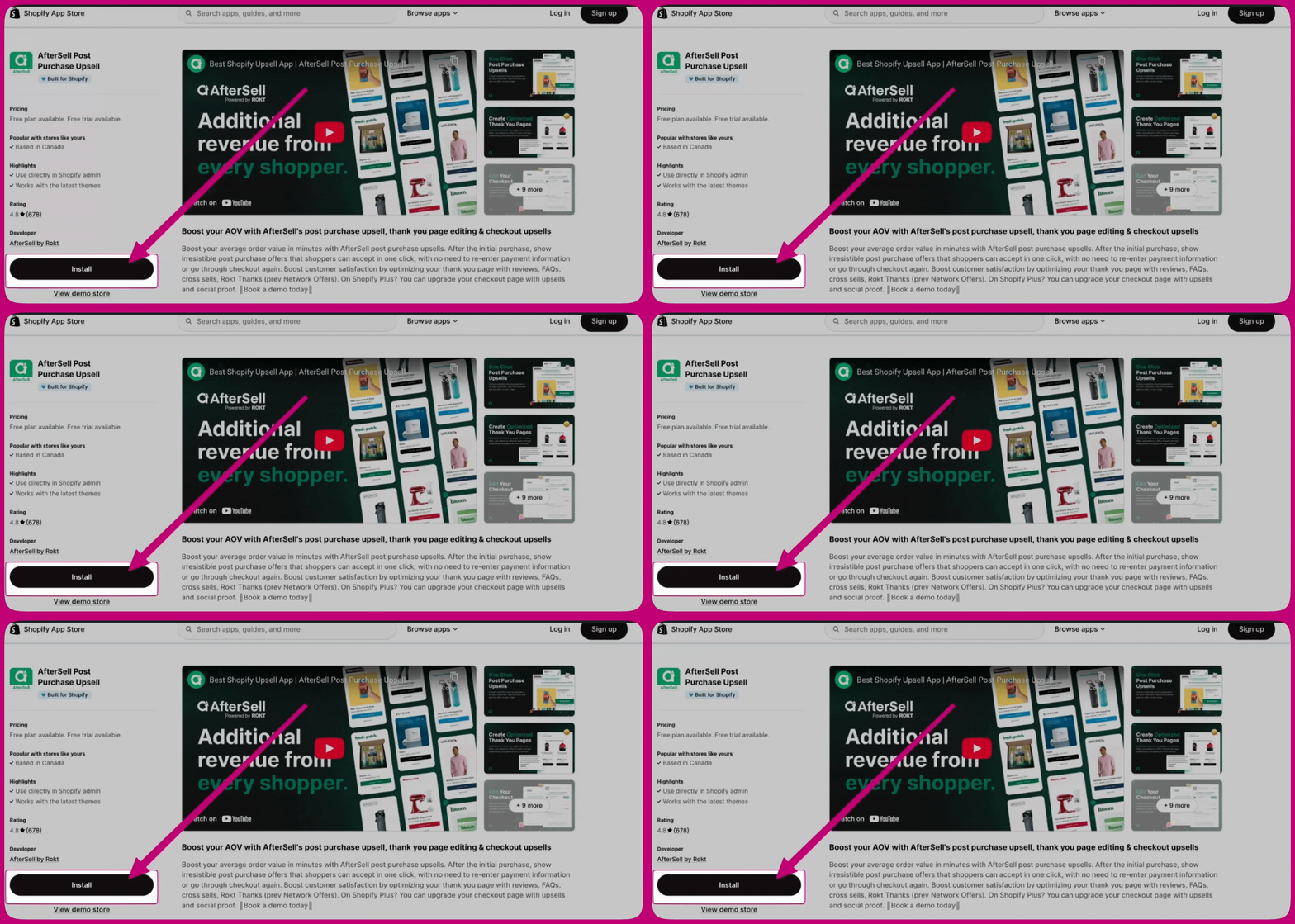
Aftersellのアプリページで「Install」ボタンをクリックします。アプリが必要とする権限を確認できるページにリダイレクトされます。
## ステップ3: Aftersellを設定する
インストールが完了すると、Aftersellのダッシュボードにリダイレクトされます。画面の指示に従って初期設定を完了し、お好みに合わせてAftersellを設定してください。