> ## Documentation Index
> Fetch the complete documentation index at: https://docs.aftersell.com/llms.txt
> Use this file to discover all available pages before exploring further.
# Translating post-purchase funnels
> This article explains how to translate post-purchase funnels and Thank You pages in Aftersell.
Aftersell supports translations for post-purchase funnels in two ways: automatic system text translation via the Language setting in the funnel editor, and manual translation for content you write directly.
***
## How language translation works
When you select a language on an offer in the funnel editor, Aftersell automatically translates all system-level text for that offer, including pricing labels, button text, subscription labels, quantity selectors, and other non-editable strings. You don't need to configure anything else for the translation to take effect.
For new V2 offers, Aftersell also seeds the default offer copy — headlines, subheads, timer headings, the "before you go" text, and the offer description — in the offer's language at creation time. If you later change the language on an offer, any copy that is still the built-in default is automatically re-translated to the new language. Copy you have customized is left untouched.
**Settings > Translations** is where you can set a store-wide default language for new offers and optionally customize or override auto-translated strings for any language. It doesn't control which language an offer displays after creation. That's set per offer in the editor.
***
## Setting a default offer language
You can set a default language that is applied to all new post-purchase V2 offers when they are created. This affects the language of the default offer copy (headlines, subheads, timer headings, and other default text) as well as the system text language.
1. Go to **Settings**
2. Select **Translations**
3. Under **Post-purchase**, find the **Default post-purchase language** section
4. Select your preferred language from the **Offer language** dropdown
5. Click **Save**
New offers created after saving use this language by default. You can still change the language on any individual offer in the funnel editor. This setting does not affect existing offers or checkout translations.
> 💡 If no default language is set, new offers are created in English.
***
## Step 1: Set the language on your offer
To apply a language to an offer:
1. Open your funnel in the Aftersell editor
2. Select the offer you want to translate
3. Open the **Language** section
4. Select a language from the **Language** dropdown
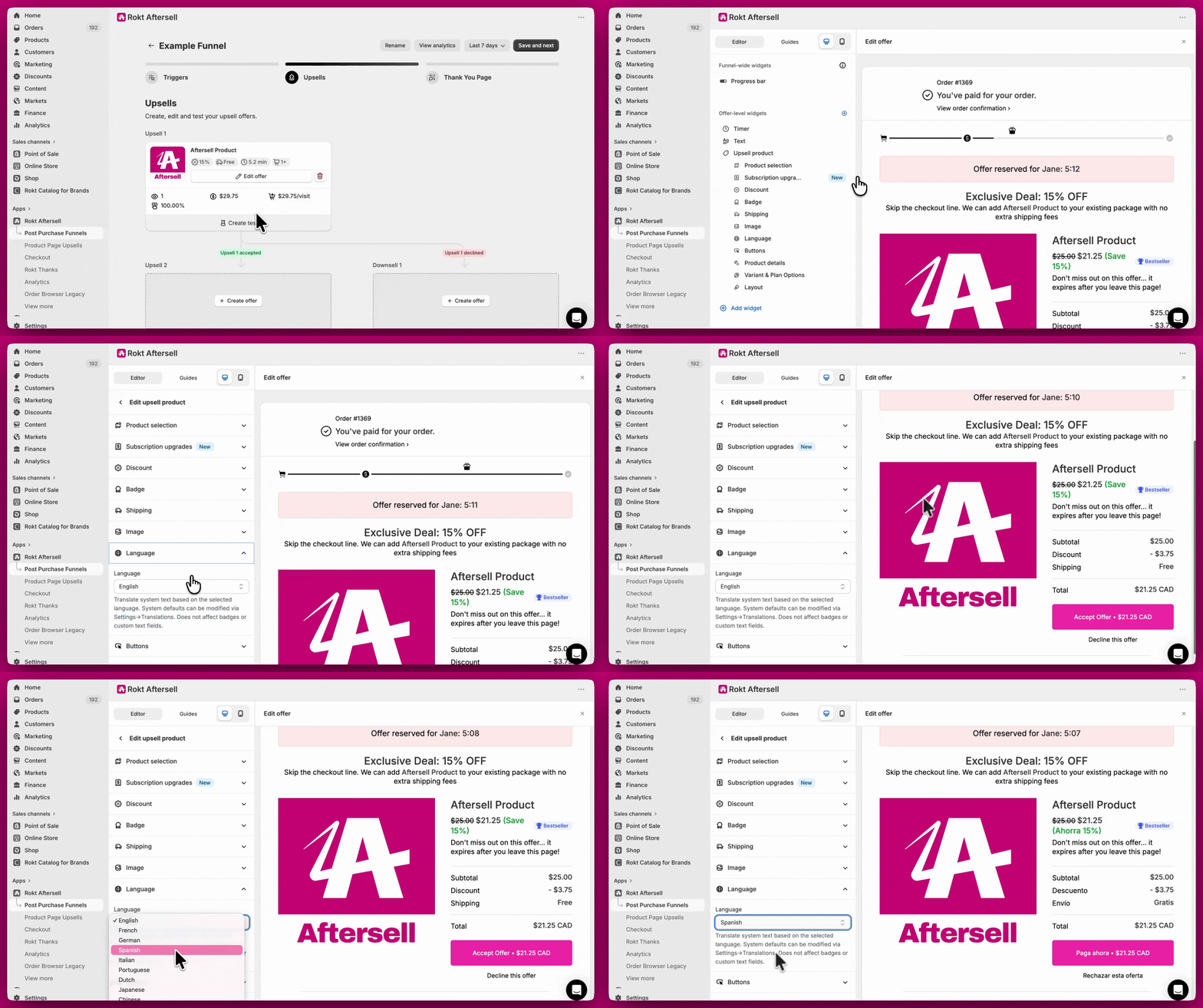 All system text on the offer, including pricing labels, subscription labels, and other non-editable strings, will automatically translate to the selected language. Aftersell supports 32 languages.
For new V2 offers, the default offer copy (headlines, subheads, timer headings, and offer description) is also created in the selected language. If you change the language on an existing offer, any copy that is still the built-in default is automatically re-translated to the new language.
***
## Step 2 (optional): Customize auto-translated strings
If you want to override any of the default translated strings for a specific language, you can do so in **Settings > Translations**.
1. Go to **Settings**
2. Select **Translations**
3. Under **Post-purchase upsell translations**, choose a language from the language dropdown
4. Update any fields you want to override for that language
When an offer's language matches a language you've configured here, your custom strings are applied. If no custom strings exist for that language, Aftersell's default translations are used.
### Fields available in Settings > Translations
| Field | Description |
| ------------------------------------------- | --------------------------------------------------------------- |
| Free | Label shown when a product is free |
| Shipping | Shipping label |
| Taxes | Tax label |
| Subtotal | Subtotal label |
| Total | Total label |
| OR (multi-product divider) | Divider text shown between products in multi-product offers |
| Quantity | Quantity label |
| Unavailable | Label shown when a product is unavailable |
| Show price breakdown | Price breakdown toggle label |
| Save amount | Savings label (e.g. `Save {AMOUNT}`) |
| Subscribe & Save | Subscription option label |
| Subscription disclaimer | Disclaimer text below subscription pricing |
| Recurring subtotal | Recurring charge label |
| Purchase options | Purchase options label |
| Variant selection required (dropdowns) | Prompt shown when a dropdown variant hasn't been selected |
| Variant selection required (button) | Prompt shown when a button variant hasn't been selected |
| Minimum quantity message | Message shown when minimum quantity requirement hasn't been met |
| Discount | Discount label |
| Tax adjustment for replacement upsells | Tax adjustment label for replacement-type upsells |
| Shipping adjustment for replacement upsells | Shipping adjustment label for replacement-type upsells |
| Refund for replacement upsells | Refund label for replacement-type upsells |
***
## Translating product names, variants, and options
In addition to system text, you can translate the product-level strings that appear on your offer — including product titles, variant names, option names, and subscription plan names. These come from your store's published translations in Shopify.
### How it works
When you configure a non-default product details language on an offer, Aftersell fetches translated strings from Shopify's Storefront API using the translations you've set up in **Shopify Admin > Settings > Languages** (via the Translate & Adapt app or another translation tool). The translated strings are applied on top of the canonical product data, so inventory, pricing, and other product details are unaffected.
### Setting up product details translation
1. Open your funnel in the Aftersell editor
2. Select the offer you want to configure
3. Open the **Language** section
4. Under **Product details language**, choose one of the following options:
* **Use default store language** — no translation applied; product strings display as configured in Shopify Admin (default)
* **Use selected locale language** — product strings are translated to match the shopper's checkout locale automatically
* **Select specific language** — product strings are always translated to a language you choose from the dropdown
5. If you select **Select specific language**, choose the target language from the **Language** dropdown that appears below
> ⚠️ You must add the target language to your store in **Shopify Admin > Settings > Languages** before it can be used here. Aftersell reads translations from your store's published languages.
### Granting required permissions
When any offer is configured for product details translation, a banner appears on the Funnels page and in the funnel editor asking you to authorize Aftersell to read your store's translations. Click **Update App** in the banner to grant the required permissions. The banner disappears automatically once the permissions are granted.
Without these permissions, product strings display in the default store language regardless of your product details language setting.
### What gets translated
| Content | Translated |
| ------------------------------------------ | ----------------------------- |
| Product title | ✅ |
| Product description | ✅ |
| Variant names | ✅ |
| Option names (e.g. Size, Color) | ✅ |
| Option values (e.g. Small, Red) | ✅ |
| Subscription plan names | ✅ |
| Pricing, inventory, and other product data | ❌ (always from Shopify Admin) |
### Multi-product offers
For multi-product offers, the product details language setting applies to the entire offer, not individual products. You can find it in the **Language** section at the offer level in the funnel editor.
***
## Step 3: Manually translate remaining content
Some content is not auto-translated and needs to be updated manually in the editor:
**Badges** - Badge text (e.g. Best Seller, Trending) cannot currently be translated.
**FAQ and Text widgets** - Replace the existing copy in each widget with your translated text.
**Image widgets** - Text inside images cannot be edited. Upload a new version of the image in the target language. For multi-language support, use different images per language-specific funnel.
All system text on the offer, including pricing labels, subscription labels, and other non-editable strings, will automatically translate to the selected language. Aftersell supports 32 languages.
For new V2 offers, the default offer copy (headlines, subheads, timer headings, and offer description) is also created in the selected language. If you change the language on an existing offer, any copy that is still the built-in default is automatically re-translated to the new language.
***
## Step 2 (optional): Customize auto-translated strings
If you want to override any of the default translated strings for a specific language, you can do so in **Settings > Translations**.
1. Go to **Settings**
2. Select **Translations**
3. Under **Post-purchase upsell translations**, choose a language from the language dropdown
4. Update any fields you want to override for that language
When an offer's language matches a language you've configured here, your custom strings are applied. If no custom strings exist for that language, Aftersell's default translations are used.
### Fields available in Settings > Translations
| Field | Description |
| ------------------------------------------- | --------------------------------------------------------------- |
| Free | Label shown when a product is free |
| Shipping | Shipping label |
| Taxes | Tax label |
| Subtotal | Subtotal label |
| Total | Total label |
| OR (multi-product divider) | Divider text shown between products in multi-product offers |
| Quantity | Quantity label |
| Unavailable | Label shown when a product is unavailable |
| Show price breakdown | Price breakdown toggle label |
| Save amount | Savings label (e.g. `Save {AMOUNT}`) |
| Subscribe & Save | Subscription option label |
| Subscription disclaimer | Disclaimer text below subscription pricing |
| Recurring subtotal | Recurring charge label |
| Purchase options | Purchase options label |
| Variant selection required (dropdowns) | Prompt shown when a dropdown variant hasn't been selected |
| Variant selection required (button) | Prompt shown when a button variant hasn't been selected |
| Minimum quantity message | Message shown when minimum quantity requirement hasn't been met |
| Discount | Discount label |
| Tax adjustment for replacement upsells | Tax adjustment label for replacement-type upsells |
| Shipping adjustment for replacement upsells | Shipping adjustment label for replacement-type upsells |
| Refund for replacement upsells | Refund label for replacement-type upsells |
***
## Translating product names, variants, and options
In addition to system text, you can translate the product-level strings that appear on your offer — including product titles, variant names, option names, and subscription plan names. These come from your store's published translations in Shopify.
### How it works
When you configure a non-default product details language on an offer, Aftersell fetches translated strings from Shopify's Storefront API using the translations you've set up in **Shopify Admin > Settings > Languages** (via the Translate & Adapt app or another translation tool). The translated strings are applied on top of the canonical product data, so inventory, pricing, and other product details are unaffected.
### Setting up product details translation
1. Open your funnel in the Aftersell editor
2. Select the offer you want to configure
3. Open the **Language** section
4. Under **Product details language**, choose one of the following options:
* **Use default store language** — no translation applied; product strings display as configured in Shopify Admin (default)
* **Use selected locale language** — product strings are translated to match the shopper's checkout locale automatically
* **Select specific language** — product strings are always translated to a language you choose from the dropdown
5. If you select **Select specific language**, choose the target language from the **Language** dropdown that appears below
> ⚠️ You must add the target language to your store in **Shopify Admin > Settings > Languages** before it can be used here. Aftersell reads translations from your store's published languages.
### Granting required permissions
When any offer is configured for product details translation, a banner appears on the Funnels page and in the funnel editor asking you to authorize Aftersell to read your store's translations. Click **Update App** in the banner to grant the required permissions. The banner disappears automatically once the permissions are granted.
Without these permissions, product strings display in the default store language regardless of your product details language setting.
### What gets translated
| Content | Translated |
| ------------------------------------------ | ----------------------------- |
| Product title | ✅ |
| Product description | ✅ |
| Variant names | ✅ |
| Option names (e.g. Size, Color) | ✅ |
| Option values (e.g. Small, Red) | ✅ |
| Subscription plan names | ✅ |
| Pricing, inventory, and other product data | ❌ (always from Shopify Admin) |
### Multi-product offers
For multi-product offers, the product details language setting applies to the entire offer, not individual products. You can find it in the **Language** section at the offer level in the funnel editor.
***
## Step 3: Manually translate remaining content
Some content is not auto-translated and needs to be updated manually in the editor:
**Badges** - Badge text (e.g. Best Seller, Trending) cannot currently be translated.
**FAQ and Text widgets** - Replace the existing copy in each widget with your translated text.
**Image widgets** - Text inside images cannot be edited. Upload a new version of the image in the target language. For multi-language support, use different images per language-specific funnel.
-1.gif?s=d6c1b40ea17245ad98b6e99d7aeb830e) **Thank You page** - The Thank You page is tied to its funnel. Open the Thank You page editor for the relevant funnel and update the widget text to match.
> 💡 For new V2 offers, the default offer copy (headlines, subheads, timer headings, and offer description) is automatically created in the offer's language. You only need to manually update copy that you have customized or that falls outside the default offer copy.
***
## Multi-language setups using language triggers
For fully localized experiences across multiple languages, the recommended approach is to create separate funnels per language using the **Language trigger**.
For example:
* Create one funnel targeting **English** customers, write all content in English, and set the offer language to English
* Create a second funnel targeting **French** customers, write all content in French, and set the offer language to French
This keeps each funnel fully localized while leveraging auto-translation for system text.
***
## Need Help?
If you have questions about language setup or need help configuring translations, reach out through the in-app chat or by email. Our support team is happy to help.
**Thank You page** - The Thank You page is tied to its funnel. Open the Thank You page editor for the relevant funnel and update the widget text to match.
> 💡 For new V2 offers, the default offer copy (headlines, subheads, timer headings, and offer description) is automatically created in the offer's language. You only need to manually update copy that you have customized or that falls outside the default offer copy.
***
## Multi-language setups using language triggers
For fully localized experiences across multiple languages, the recommended approach is to create separate funnels per language using the **Language trigger**.
For example:
* Create one funnel targeting **English** customers, write all content in English, and set the offer language to English
* Create a second funnel targeting **French** customers, write all content in French, and set the offer language to French
This keeps each funnel fully localized while leveraging auto-translation for system text.
***
## Need Help?
If you have questions about language setup or need help configuring translations, reach out through the in-app chat or by email. Our support team is happy to help.