> ## Documentation Index
> Fetch the complete documentation index at: https://docs.aftersell.com/llms.txt
> Use this file to discover all available pages before exploring further.
# Rokt Thanks settings
> How to modify Rokt Thanks settings
To configure Rokt Thanks settings, click the *Settings* button while in the *Rokt Thanks* tab.
### Payment method
The default payment method for **Rokt Thanks** payouts is **PayPal**. Simply enter your PayPal email, and you’ll receive payments once your generated revenue reaches the **\$100 payment threshold** for each payout period.
Please note that **PayPal applies a 4% processing fee**, which is deducted from your payout amount.
For more information on payments, see our [documentation](/aftersell/rokt_thanks_payouts).
* If you have previously added a PayPal account email for payouts and would like to change it, please email the Rokt Finance team at [ap@rokt.com](mailto:ap@rokt.com).
***
## Traffic allocation
Use the slider to configure the allocation of traffic that will see Rokt Thanks on your confirmation page.
 When the traffic allocation is set to 100%, Rokt Thanks will appear for every customer provided there is a relevant offer available. Reasons the placement may not appear include:
* The customer is from an unsupported geography.
* The customer’s browser settings are using an unsupported language.
* There are no relevant offers to be displayed based on the available advertisers and the allowed vertical/sub-vertical categories. To ensure the maximum number of advertisers are available, it is recommended that only the necessary verticals or sub-verticals are blocked.
***
### **Aftersell settings**
Skip storewide popup timer widget if Rokt content is available to be shown.
If Rokt Thanks has content to show and a funnel with a storewide popup has also been triggered, this setting ensures that the Rokt content will be shown instead of the storewide popup. If this is unchecked, then the storewide popup will be favoured instead.
* This is currently available only on the [Thank you page scripts](/aftersell/thank_you_page_scripts_overview) approach.
#### Auto-tag orders with Rokt Thanks placement status
When enabled, Aftersell automatically applies the Shopify order tag **`Rokt Thanks=shown`** to any order where the Rokt Thanks placement was displayed or interacted with (shown or accepted status). This lets you segment and filter orders in Shopify based on whether a customer saw the Rokt Thanks placement.
* Only orders going forward are tagged — existing orders are not backfilled.
* The tag is applied once per order and is not duplicated if the order is already tagged.
* To enable this, check the **Auto-tag orders with Rokt Thanks placement status** checkbox in the Aftersell settings section.
***
### Offer control
Our machine learning algorithms ensure that you show the most relevant and engaging offers to each individual. In addition, you have full control over which offer categories to show to your customers.
When the traffic allocation is set to 100%, Rokt Thanks will appear for every customer provided there is a relevant offer available. Reasons the placement may not appear include:
* The customer is from an unsupported geography.
* The customer’s browser settings are using an unsupported language.
* There are no relevant offers to be displayed based on the available advertisers and the allowed vertical/sub-vertical categories. To ensure the maximum number of advertisers are available, it is recommended that only the necessary verticals or sub-verticals are blocked.
***
### **Aftersell settings**
Skip storewide popup timer widget if Rokt content is available to be shown.
If Rokt Thanks has content to show and a funnel with a storewide popup has also been triggered, this setting ensures that the Rokt content will be shown instead of the storewide popup. If this is unchecked, then the storewide popup will be favoured instead.
* This is currently available only on the [Thank you page scripts](/aftersell/thank_you_page_scripts_overview) approach.
#### Auto-tag orders with Rokt Thanks placement status
When enabled, Aftersell automatically applies the Shopify order tag **`Rokt Thanks=shown`** to any order where the Rokt Thanks placement was displayed or interacted with (shown or accepted status). This lets you segment and filter orders in Shopify based on whether a customer saw the Rokt Thanks placement.
* Only orders going forward are tagged — existing orders are not backfilled.
* The tag is applied once per order and is not duplicated if the order is already tagged.
* To enable this, check the **Auto-tag orders with Rokt Thanks placement status** checkbox in the Aftersell settings section.
***
### Offer control
Our machine learning algorithms ensure that you show the most relevant and engaging offers to each individual. In addition, you have full control over which offer categories to show to your customers.
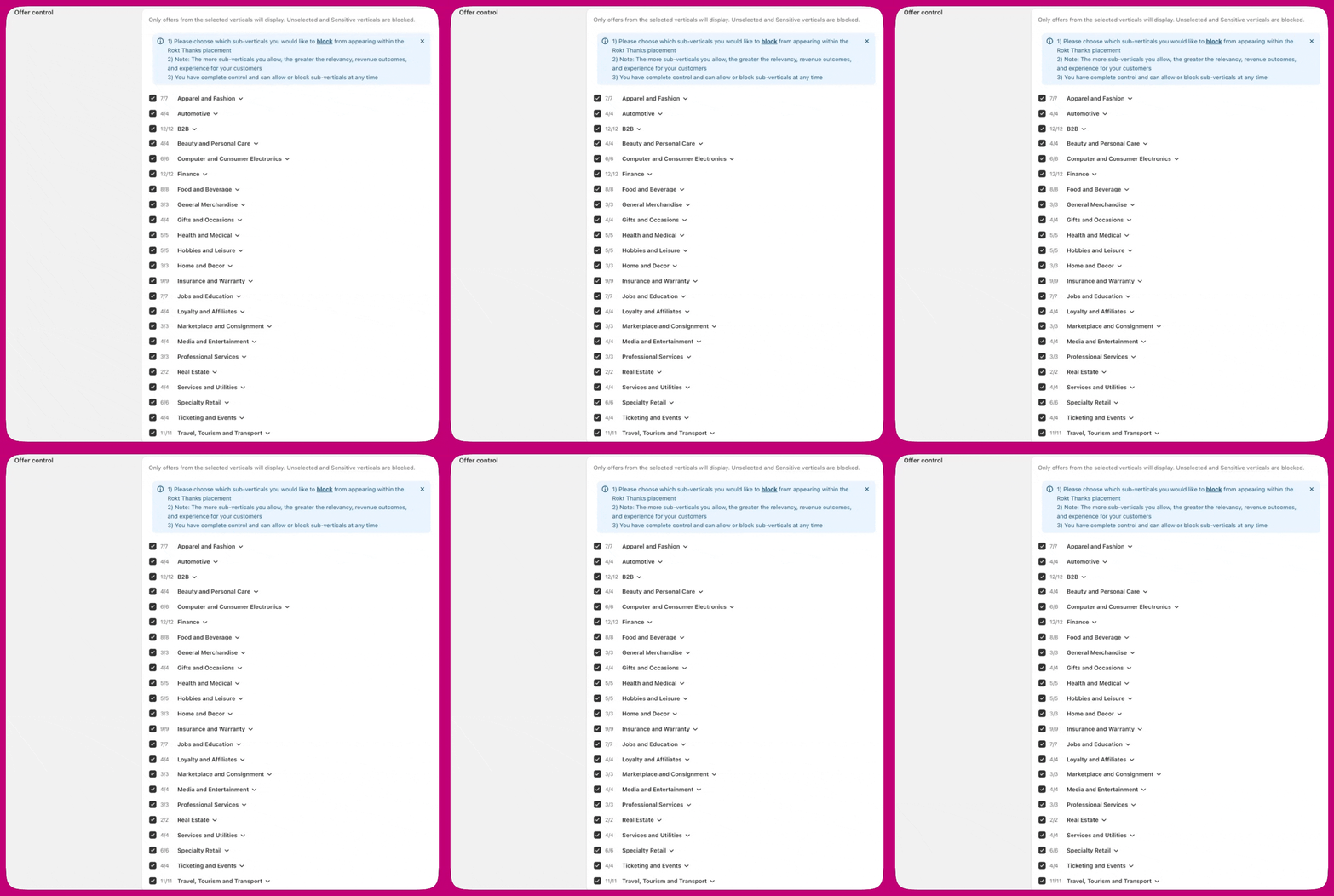 By default, all industry verticals and sub-verticals are allowed except for the sub-vertical of your store. This is so that competitors in your sub-vertical are blocked from displaying on your site. To change your store vertical, go to the **Settings** tab.
#### Managing verticals
The offer control section includes two tabs:
* **Verticals** - Standard industry categories that are available by default
* **Growth verticals** - Categories that may be legally or culturally sensitive (e.g., cryptocurrency, dating, fantasy sports, sports betting, paid cashbacks and rewards programs, charities)
By default, growth verticals are blocked. You can selectively allow specific growth verticals by switching to the **Growth verticals** tab and checking the categories you want to permit. Only the growth verticals that comply with Shopify's Terms of Service are available for selection.
***
## Block advertisers
To block offers from particular advertisers:
1. Enter their domain name(s) in the **Block competitors** field.
2. Select **Block**.
A list of all blocked advertisers will appear underneath the field once you’ve saved your changes.
***
### Offers with confirmation emails
If you allow Rokt to send offer confirmation emails from your brand, customers who opt into an offer may receive a confirmation email from your brand containing a coupon code or a link to claim the advertiser’s offer. Enabling this feature helps **maximize your revenue potential** by improving offer engagement and redemption. [Learn more](https://docs.rokt.com/user-guides/rokt-ecommerce/controls/resources/customer-confirmation-emails/).
By default, all industry verticals and sub-verticals are allowed except for the sub-vertical of your store. This is so that competitors in your sub-vertical are blocked from displaying on your site. To change your store vertical, go to the **Settings** tab.
#### Managing verticals
The offer control section includes two tabs:
* **Verticals** - Standard industry categories that are available by default
* **Growth verticals** - Categories that may be legally or culturally sensitive (e.g., cryptocurrency, dating, fantasy sports, sports betting, paid cashbacks and rewards programs, charities)
By default, growth verticals are blocked. You can selectively allow specific growth verticals by switching to the **Growth verticals** tab and checking the categories you want to permit. Only the growth verticals that comply with Shopify's Terms of Service are available for selection.
***
## Block advertisers
To block offers from particular advertisers:
1. Enter their domain name(s) in the **Block competitors** field.
2. Select **Block**.
A list of all blocked advertisers will appear underneath the field once you’ve saved your changes.
***
### Offers with confirmation emails
If you allow Rokt to send offer confirmation emails from your brand, customers who opt into an offer may receive a confirmation email from your brand containing a coupon code or a link to claim the advertiser’s offer. Enabling this feature helps **maximize your revenue potential** by improving offer engagement and redemption. [Learn more](https://docs.rokt.com/user-guides/rokt-ecommerce/controls/resources/customer-confirmation-emails/).