> ## Documentation Index
> Fetch the complete documentation index at: https://docs.aftersell.com/llms.txt
> Use this file to discover all available pages before exploring further.
# Product Recommendation widget
> Configure the Thank You Page Product Recommendation widget in Aftersell: choose products, design the offer, apply discounts, and set order handling.
The Product Recommendation widget displays upsell products on the Thank You page after checkout. Use it to promote specific products, drive automatic recommendations based on cart contents, or feature a collection. This page covers every setting on the widget. For the full funnel setup and Shopify editor steps, see [How to configure thank-you page widgets](/aftersell/how_can_i_set_up_and_customize_thank_you_page_upsells_in_aftersell).
Add the widget from the **Thank You Page** section of your funnel by clicking **Add Widget** and selecting **Product Recommendation**.
Unlike post-purchase upsells, Thank You page product recommendations are compatible with **all payment gateways** and **multi-currency stores**. Customers re-enter their payment details to complete the upsell purchase, but Aftersell automatically applies their saved shipping information to keep the checkout experience seamless.
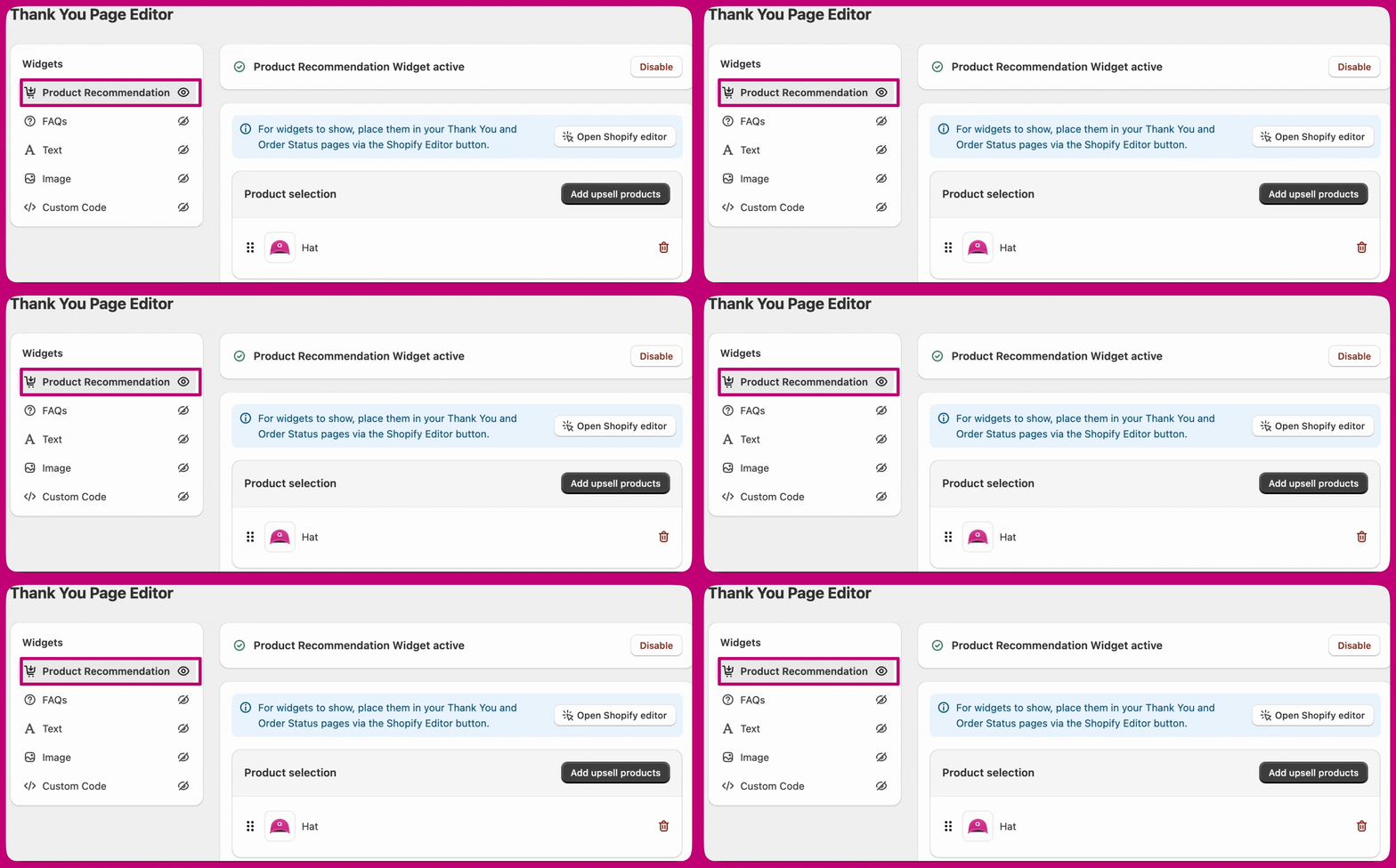 ## Product selection
1. Choose your product selection method:
* **Specific Products** - Manually select products to display
* **Automatic Upsells** - Let Aftersell recommend products based on cart contents
* **Collections** - Display products from a specific collection
* **Strategy** - Fill the widget from an Aftersell [Strategies](/aftersell/strategies_overview) ruleset. This option appears only when Strategies targeting is active for your store and you have not already picked products by another method.
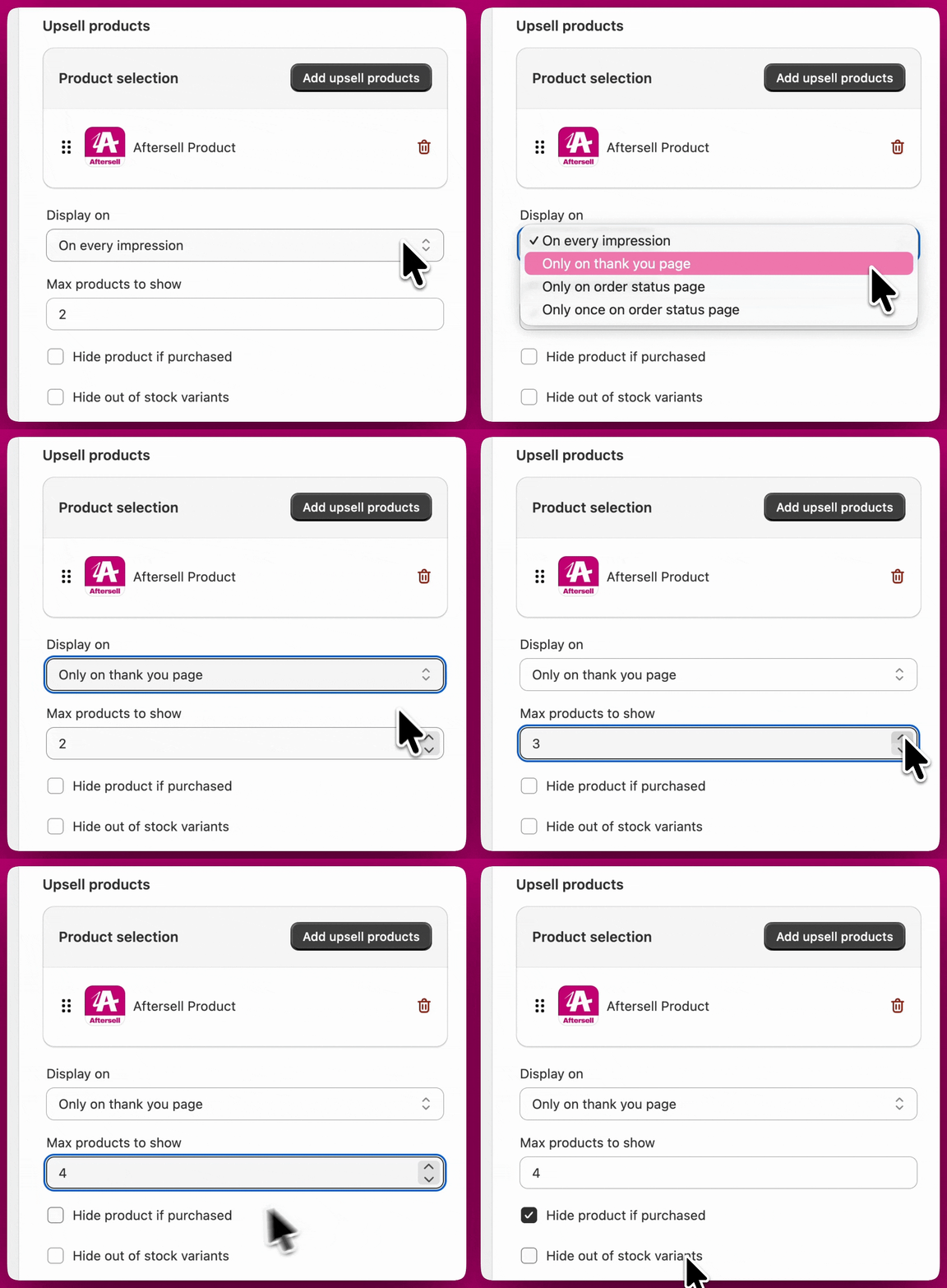
2. Set the **maximum number of products** to display. There is no fixed maximum, but keeping the count focused (for example, 4-10 products) keeps the offer easy to scan.
3. Enable **Hide product if purchased** so customers are not shown a product they already bought in the same order.
4. Enable **Hide out of stock variants** to filter out unavailable variants so customers only see items they can actually purchase.
When browsing the **Products** tab in the product picker, you can check **Active products only** to hide Draft and Archived products. This filter is off by default and only applies to the Products tab, Collections are not affected.
### Editing specific products
To choose specific products, click **Add upsell products** in the widget editor. Once you have products selected, the button label changes to **Edit upsell products**.
Opening the picker when products are already selected shows your current selection pre-checked. From there you can:
* **Add** new products by checking them.
* **Remove** existing products by unchecking them.
* **Clear** the entire selection by unchecking all products.
Saving the picker reconciles the widget to whatever you leave selected: added products are included, unchecked products are removed, and re-saving an unchanged selection makes no changes. Collection, AI, and Strategy upsell rows are not affected when you edit specific products.
## Display on
The **Display on** setting controls where the widget appears after a customer completes their purchase:
* **On every impression** - Shows the widget on both the Thank You page and the Order Status page.
* **Only on thank you page** - Shows the widget on the Thank You page only.
* **Only on order status page** - Shows the widget on the Order Status page only.
* **Only once on order status page** - Shows the widget on the Order Status page a single time, rather than on every visit.
## Product selection
1. Choose your product selection method:
* **Specific Products** - Manually select products to display
* **Automatic Upsells** - Let Aftersell recommend products based on cart contents
* **Collections** - Display products from a specific collection
* **Strategy** - Fill the widget from an Aftersell [Strategies](/aftersell/strategies_overview) ruleset. This option appears only when Strategies targeting is active for your store and you have not already picked products by another method.
2. Set the **maximum number of products** to display. There is no fixed maximum, but keeping the count focused (for example, 4-10 products) keeps the offer easy to scan.
3. Enable **Hide product if purchased** so customers are not shown a product they already bought in the same order.
4. Enable **Hide out of stock variants** to filter out unavailable variants so customers only see items they can actually purchase.
When browsing the **Products** tab in the product picker, you can check **Active products only** to hide Draft and Archived products. This filter is off by default and only applies to the Products tab, Collections are not affected.
### Editing specific products
To choose specific products, click **Add upsell products** in the widget editor. Once you have products selected, the button label changes to **Edit upsell products**.
Opening the picker when products are already selected shows your current selection pre-checked. From there you can:
* **Add** new products by checking them.
* **Remove** existing products by unchecking them.
* **Clear** the entire selection by unchecking all products.
Saving the picker reconciles the widget to whatever you leave selected: added products are included, unchecked products are removed, and re-saving an unchanged selection makes no changes. Collection, AI, and Strategy upsell rows are not affected when you edit specific products.
## Display on
The **Display on** setting controls where the widget appears after a customer completes their purchase:
* **On every impression** - Shows the widget on both the Thank You page and the Order Status page.
* **Only on thank you page** - Shows the widget on the Thank You page only.
* **Only on order status page** - Shows the widget on the Order Status page only.
* **Only once on order status page** - Shows the widget on the Order Status page a single time, rather than on every visit.
 ## Offer design
The **Offer design** settings control how product recommendations are presented to customers.
* Choose whether products are displayed in a **horizontal** or **vertical** layout, and adjust visual elements such as borders, button styles, and spacing to match your checkout.
* Add **banner text** above the offer to introduce the recommendation, highlight an incentive, or provide context for the products shown.
* Configure **compare-at price** display and the color used for sale prices.
* Enable a **quantity selector**, customize the quantity label, and set **minimum or maximum quantity limits**.
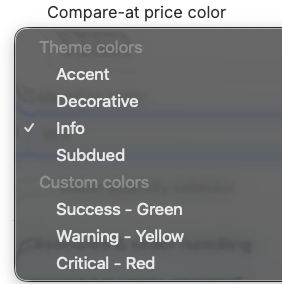
Compare, Discount, and Sale prices offer two color families:
* **Checkout branding colors** - Accent, Decorative, Info, Subdued
* **Preset colors** - Success (green), Warning (yellow), Critical (red)
## Offer design
The **Offer design** settings control how product recommendations are presented to customers.
* Choose whether products are displayed in a **horizontal** or **vertical** layout, and adjust visual elements such as borders, button styles, and spacing to match your checkout.
* Add **banner text** above the offer to introduce the recommendation, highlight an incentive, or provide context for the products shown.
* Configure **compare-at price** display and the color used for sale prices.
* Enable a **quantity selector**, customize the quantity label, and set **minimum or maximum quantity limits**.
Compare, Discount, and Sale prices offer two color families:
* **Checkout branding colors** - Accent, Decorative, Info, Subdued
* **Preset colors** - Success (green), Warning (yellow), Critical (red)
 Some of these settings can also be modified through your Shopify checkout editor or by other apps that offer this functionality.
Two toggles complement the Automatic Discount feature:
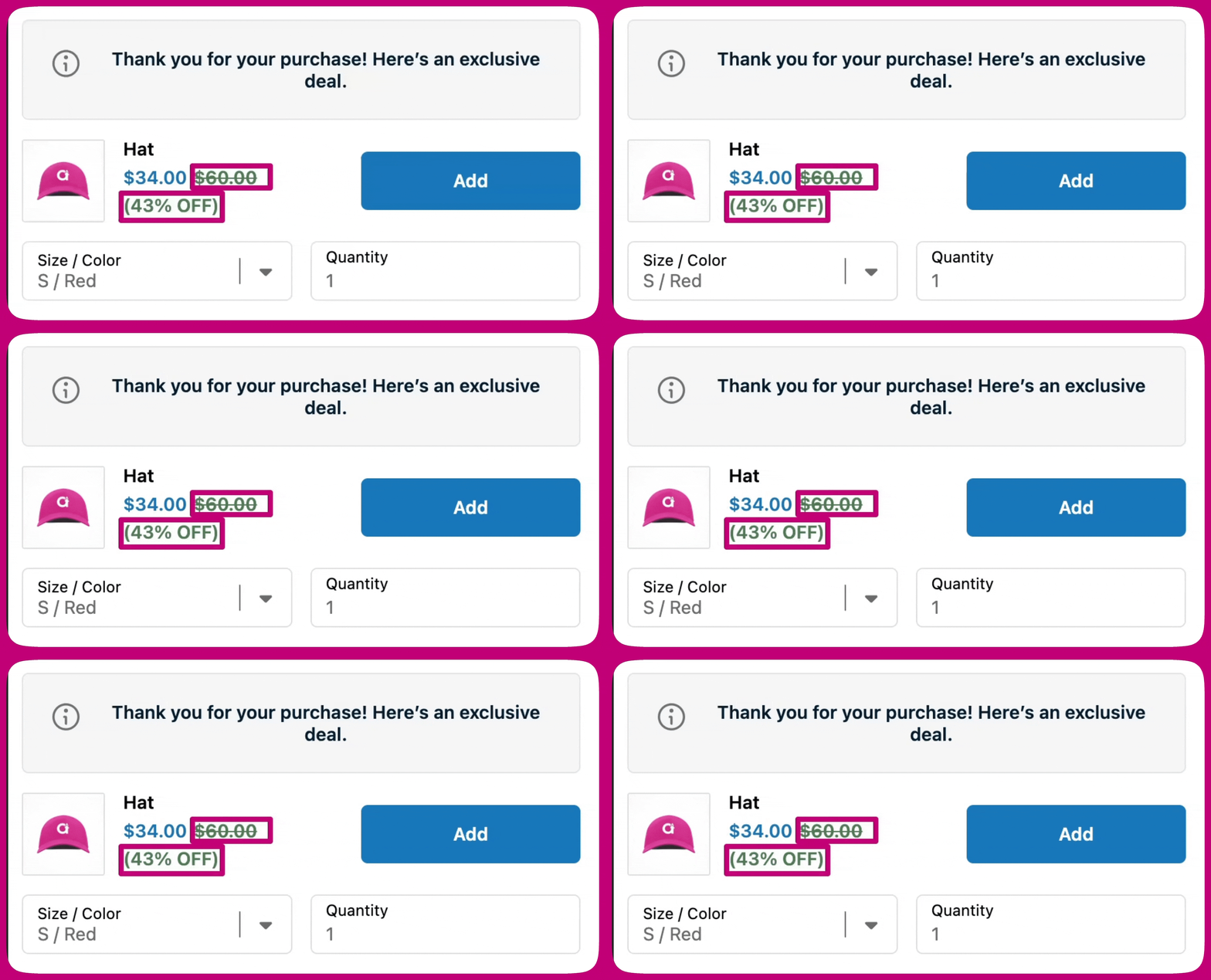
* **Show compare at price** - Display the "Compare at" price with a strikethrough.
* **Show discount** - Display the discount on the upsell.
## Discounts and order handling
### Discounts
Apply a discount directly to the upsell by setting a **percentage** or **fixed amount**. The discount is applied automatically when the customer accepts the offer.
Customize how the discount appears with the **discount text** and **discount price color**. Discount colors can use your checkout branding colors (Accent, Decorative, Info, Subdued) or a preset (Success, Warning, Critical). If enabled, the discount display can include the **compare-at price**, shown with a strikethrough to highlight the savings.
Some of these settings can also be modified through your Shopify checkout editor or by other apps that offer this functionality.
Two toggles complement the Automatic Discount feature:
* **Show compare at price** - Display the "Compare at" price with a strikethrough.
* **Show discount** - Display the discount on the upsell.
## Discounts and order handling
### Discounts
Apply a discount directly to the upsell by setting a **percentage** or **fixed amount**. The discount is applied automatically when the customer accepts the offer.
Customize how the discount appears with the **discount text** and **discount price color**. Discount colors can use your checkout branding colors (Accent, Decorative, Info, Subdued) or a preset (Success, Warning, Critical). If enabled, the discount display can include the **compare-at price**, shown with a strikethrough to highlight the savings.
 Discounts follow Shopify's standard checkout discount rules. Only one line-item discount can apply to a product at a time, and discounts only combine if marked as **combinable** in Shopify Admin. In some cases, discounts may not apply if another app modifies the checkout. We recommend testing your checkout after enabling discounts.
### Order handling
Order handling controls how an accepted upsell is added to the customer's order. There are two options, each with different trade-offs.
* **Modify original order** - Adds the upsell directly to the existing order. Free shipping is automatically applied. You can optionally email the customer when their order is modified.
* **Create new draft order** - Keeps the original order untouched and creates a separate order for the upsell.
Discounts follow Shopify's standard checkout discount rules. Only one line-item discount can apply to a product at a time, and discounts only combine if marked as **combinable** in Shopify Admin. In some cases, discounts may not apply if another app modifies the checkout. We recommend testing your checkout after enabling discounts.
### Order handling
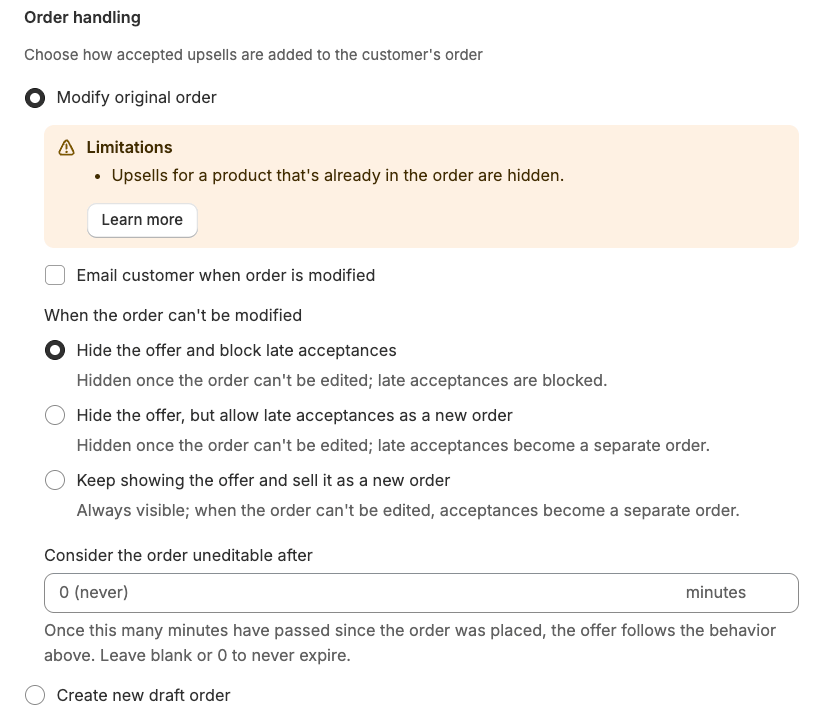
Order handling controls how an accepted upsell is added to the customer's order. There are two options, each with different trade-offs.
* **Modify original order** - Adds the upsell directly to the existing order. Free shipping is automatically applied. You can optionally email the customer when their order is modified.
* **Create new draft order** - Keeps the original order untouched and creates a separate order for the upsell.
 #### When to choose each option
| Use **Modify original order** when... | Use **Create new draft order** when... |
| ---------------------------------------------------------------- | ------------------------------------------------------------------------------------------------------------------- |
| You want a single fulfillment for everything the customer bought | You want to re-offer a product the customer just purchased (for example, the same item at a post-purchase discount) |
| Your upsell catalog is distinct from your best-sellers | Your top-sellers are also your primary upsell candidates |
| Free shipping on the upsell is the priority | You need a separate order for fulfillment or reporting reasons |
| Your upsell products are not bundle products | Your upsell products include bundle products |
**"Modify original order" has limitations.** When this mode is selected, a **Limitations** banner appears in the widget editor listing the following:
* **Same-variant upsells are hidden.** Shopify's order-edit API does not allow duplicate variants in an order. If the customer already has the upsell variant in their original order, the upsell is hidden from the Thank You page. If an upsell is hidden for this reason, the Order Browser flags the affected order with an "Upsell hidden due to order merging" banner.
* **Bundle products cannot be added to an existing order.** Shopify's order-edit API rejects bundle products. When a selected upsell variant is a bundle, the outcome follows your **When the order can't be modified** setting:
* With **Hide the offer and block late acceptances**: the bundle upsell is hidden and customers cannot buy it through this offer.
* With **Hide the offer, but allow late acceptances as a new order** or **Keep showing the offer and sell it as a new order**: the bundle upsell is fulfilled as a separate draft order instead of being merged into the original order.
Switch to **Create new draft order** if you want bundle products or same-variant upsells to always be available to customers.
#### When the order can't be modified
When **Modify original order** is selected, some orders can't be edited at the time a customer accepts the upsell. There are exactly three cases: the order has been **archived**, it is **partially paid**, or it is older than the **expiry window** you set below. The **When the order can't be modified** setting controls what happens in those cases.
A **fulfilled** order is not one of them, it can still be edited, but only upsell products that don't require shipping can be merged into it (see the note further down).
| Option | What it does |
| ------------------------------------------------------------- | ------------------------------------------------------------------------------------------------------------------------------------------------------------------------------------------------------------------------------------- |
| **Hide the offer and block late acceptances** | The offer is hidden once the order can no longer be edited. Any acceptance that arrives after the order becomes ineligible is blocked. |
| **Hide the offer, but allow late acceptances as a new order** | The offer is hidden once the order can no longer be edited. If a customer accepts just before the offer hides (a race-window accept), the upsell is fulfilled as a separate draft order instead. This is the default for new widgets. |
| **Keep showing the offer and sell it as a new order** | The offer stays visible regardless of whether the order can be edited. If the order can't be modified, the accepted upsell is fulfilled as a separate draft order. |
The two fallback options create a separate draft order for the upsell when the original order can't be modified. The customer receives a payment link to complete the purchase as a new order.
#### Setting an expiry window
You can set a time limit on how long an order remains eligible for merging. Use the **Consider the order uneditable after** field (located under the behavior selector in **Order handling**) to enter a number of minutes. Once that many minutes have passed since the order was placed, the order is treated as ineligible and the **When the order can't be modified** behavior applies.
Leave the field blank or set it to **0** to never expire, the offer remains eligible for as long as the order itself is editable.
This is useful when your fulfillment workflow processes orders quickly and you want to avoid attempting to merge into an order that is likely already in progress.
#### Other things to know about "Modify original order"
* Free shipping is automatically applied and cannot be disabled.
* The original order is marked as **partially paid** until the customer completes payment for the added upsell. Once payment is captured, Shopify updates the order automatically.
* If the order is already fulfilled, has no shipping line, or contains only items that don't require shipping, only upsell products that **don't require shipping** can be merged into it. Products that do require shipping are dropped from the offer on those orders.
### Free shipping
You can offer **free shipping** on accepted upsell products to help increase conversion. When enabled, customers are not charged shipping for the upsell, while your existing Shopify shipping settings continue to apply to the original order.
How the Free shipping toggle behaves depends on your **Order handling** setting:
* **Modify original order** - Free shipping is automatically applied to the accepted upsell and the toggle can't be disabled.
* **Create new draft order** - The Free shipping toggle applies to the separate draft order created for the upsell. When enabled, the draft order is created without shipping charges on the upsell line item. Leave the toggle off if you want Shopify's normal shipping rates to apply to that new order.
The same behavior applies when a fallback creates a separate draft order under **Modify original order** (for example, a same-variant or bundle upsell, or an acceptance after the order becomes uneditable): the Free shipping toggle controls whether the draft order is created without shipping charges on the upsell.
You can also display a **"Free Shipping" badge** on the offer and customize the badge text to highlight the benefit.
#### When to choose each option
| Use **Modify original order** when... | Use **Create new draft order** when... |
| ---------------------------------------------------------------- | ------------------------------------------------------------------------------------------------------------------- |
| You want a single fulfillment for everything the customer bought | You want to re-offer a product the customer just purchased (for example, the same item at a post-purchase discount) |
| Your upsell catalog is distinct from your best-sellers | Your top-sellers are also your primary upsell candidates |
| Free shipping on the upsell is the priority | You need a separate order for fulfillment or reporting reasons |
| Your upsell products are not bundle products | Your upsell products include bundle products |
**"Modify original order" has limitations.** When this mode is selected, a **Limitations** banner appears in the widget editor listing the following:
* **Same-variant upsells are hidden.** Shopify's order-edit API does not allow duplicate variants in an order. If the customer already has the upsell variant in their original order, the upsell is hidden from the Thank You page. If an upsell is hidden for this reason, the Order Browser flags the affected order with an "Upsell hidden due to order merging" banner.
* **Bundle products cannot be added to an existing order.** Shopify's order-edit API rejects bundle products. When a selected upsell variant is a bundle, the outcome follows your **When the order can't be modified** setting:
* With **Hide the offer and block late acceptances**: the bundle upsell is hidden and customers cannot buy it through this offer.
* With **Hide the offer, but allow late acceptances as a new order** or **Keep showing the offer and sell it as a new order**: the bundle upsell is fulfilled as a separate draft order instead of being merged into the original order.
Switch to **Create new draft order** if you want bundle products or same-variant upsells to always be available to customers.
#### When the order can't be modified
When **Modify original order** is selected, some orders can't be edited at the time a customer accepts the upsell. There are exactly three cases: the order has been **archived**, it is **partially paid**, or it is older than the **expiry window** you set below. The **When the order can't be modified** setting controls what happens in those cases.
A **fulfilled** order is not one of them, it can still be edited, but only upsell products that don't require shipping can be merged into it (see the note further down).
| Option | What it does |
| ------------------------------------------------------------- | ------------------------------------------------------------------------------------------------------------------------------------------------------------------------------------------------------------------------------------- |
| **Hide the offer and block late acceptances** | The offer is hidden once the order can no longer be edited. Any acceptance that arrives after the order becomes ineligible is blocked. |
| **Hide the offer, but allow late acceptances as a new order** | The offer is hidden once the order can no longer be edited. If a customer accepts just before the offer hides (a race-window accept), the upsell is fulfilled as a separate draft order instead. This is the default for new widgets. |
| **Keep showing the offer and sell it as a new order** | The offer stays visible regardless of whether the order can be edited. If the order can't be modified, the accepted upsell is fulfilled as a separate draft order. |
The two fallback options create a separate draft order for the upsell when the original order can't be modified. The customer receives a payment link to complete the purchase as a new order.
#### Setting an expiry window
You can set a time limit on how long an order remains eligible for merging. Use the **Consider the order uneditable after** field (located under the behavior selector in **Order handling**) to enter a number of minutes. Once that many minutes have passed since the order was placed, the order is treated as ineligible and the **When the order can't be modified** behavior applies.
Leave the field blank or set it to **0** to never expire, the offer remains eligible for as long as the order itself is editable.
This is useful when your fulfillment workflow processes orders quickly and you want to avoid attempting to merge into an order that is likely already in progress.
#### Other things to know about "Modify original order"
* Free shipping is automatically applied and cannot be disabled.
* The original order is marked as **partially paid** until the customer completes payment for the added upsell. Once payment is captured, Shopify updates the order automatically.
* If the order is already fulfilled, has no shipping line, or contains only items that don't require shipping, only upsell products that **don't require shipping** can be merged into it. Products that do require shipping are dropped from the offer on those orders.
### Free shipping
You can offer **free shipping** on accepted upsell products to help increase conversion. When enabled, customers are not charged shipping for the upsell, while your existing Shopify shipping settings continue to apply to the original order.
How the Free shipping toggle behaves depends on your **Order handling** setting:
* **Modify original order** - Free shipping is automatically applied to the accepted upsell and the toggle can't be disabled.
* **Create new draft order** - The Free shipping toggle applies to the separate draft order created for the upsell. When enabled, the draft order is created without shipping charges on the upsell line item. Leave the toggle off if you want Shopify's normal shipping rates to apply to that new order.
The same behavior applies when a fallback creates a separate draft order under **Modify original order** (for example, a same-variant or bundle upsell, or an acceptance after the order becomes uneditable): the Free shipping toggle controls whether the draft order is created without shipping charges on the upsell.
You can also display a **"Free Shipping" badge** on the offer and customize the badge text to highlight the benefit.