> ## Documentation Index
> Fetch the complete documentation index at: https://docs.aftersell.com/llms.txt
> Use this file to discover all available pages before exploring further.
# Post-purchase branding settings
> How to edit Aftersell branding, colors, buttons
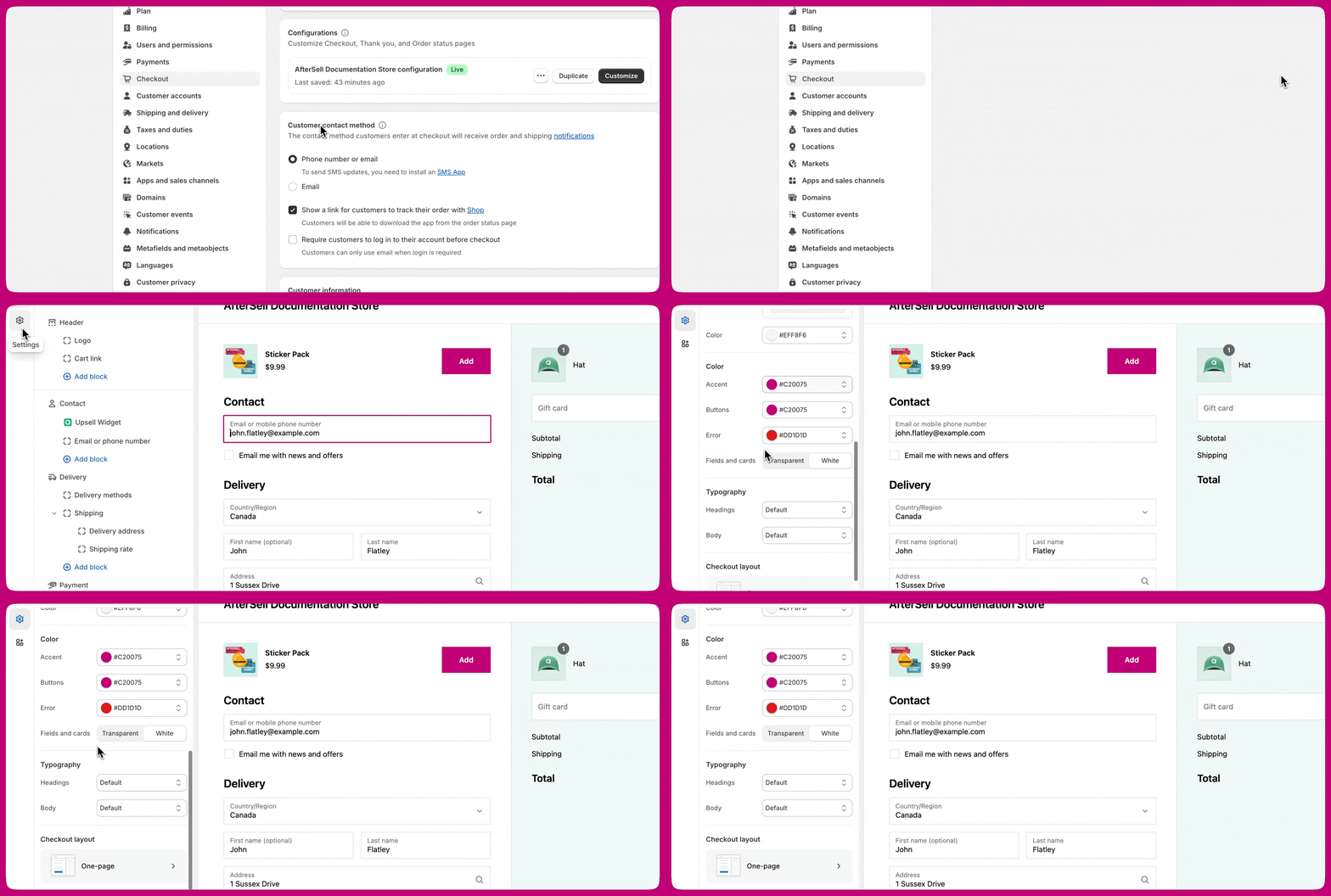
Your post-purchase branding in Aftersell automatically matches your Shopify checkout branding. As a result, there are no options within Aftersell to customize colors, fonts, or other elements. However, you can make these changes in the Shopify checkout editor. To access the Shopify checkout editor, follow the steps shown in the gif below:
 ***
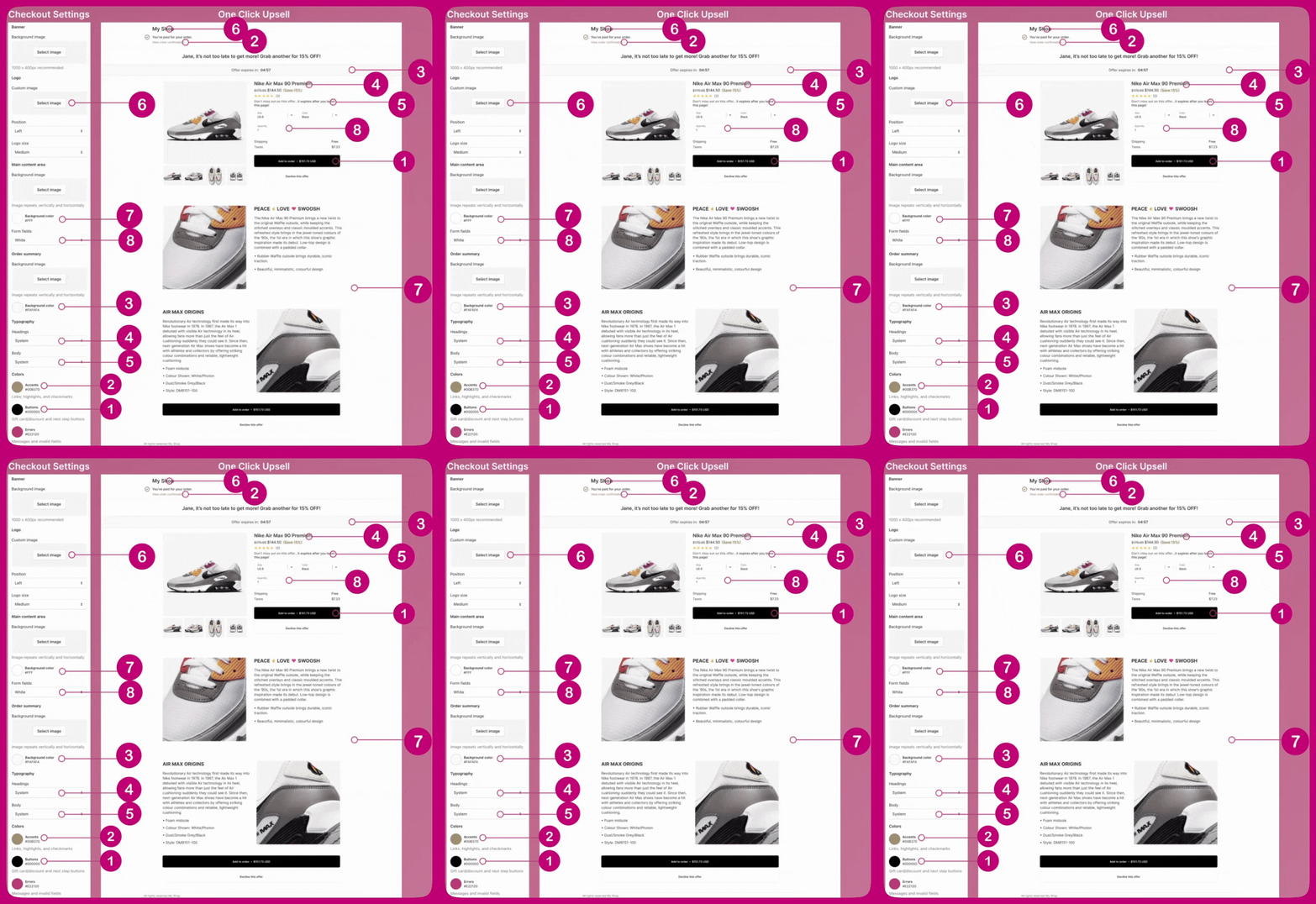
Many of the fields in the Shopify checkout editor are linked to Aftersell's post-purchase page. The image below shows this mapping, with numbered elements in the Shopify checkout settings corresponding to the same elements on the post-purchase upsell page.
* For instance, the button color in the Shopify checkout is directly reflected in the button color on the post-purchase page:
***
Many of the fields in the Shopify checkout editor are linked to Aftersell's post-purchase page. The image below shows this mapping, with numbered elements in the Shopify checkout settings corresponding to the same elements on the post-purchase upsell page.
* For instance, the button color in the Shopify checkout is directly reflected in the button color on the post-purchase page:
 ***
Please note that Aftersell's editor preview may occasionally display a visual bug, but your branding should match the Shopify checkout settings on a live offer. If necessary, we recommend placing a test order to verify this.
***
Please note that Aftersell's editor preview may occasionally display a visual bug, but your branding should match the Shopify checkout settings on a live offer. If necessary, we recommend placing a test order to verify this.