> ## Documentation Index
> Fetch the complete documentation index at: https://docs.aftersell.com/llms.txt
> Use this file to discover all available pages before exploring further.
# Order browser overview
The Order Browser gives you a centralized, order-level view of Aftersell performance. Use it to see which orders were eligible for a post-purchase offer, whether an offer was shown, how customers interacted with each offer slot, and where there are gaps in your setup.
The Order Browser currently covers Post-Purchase (PPU) and Thank You Page (TYP) experiences. **Coming soon:** Checkout and Rokt Thanks timeline data will be added in a future update.
## Accessing the Order Browser
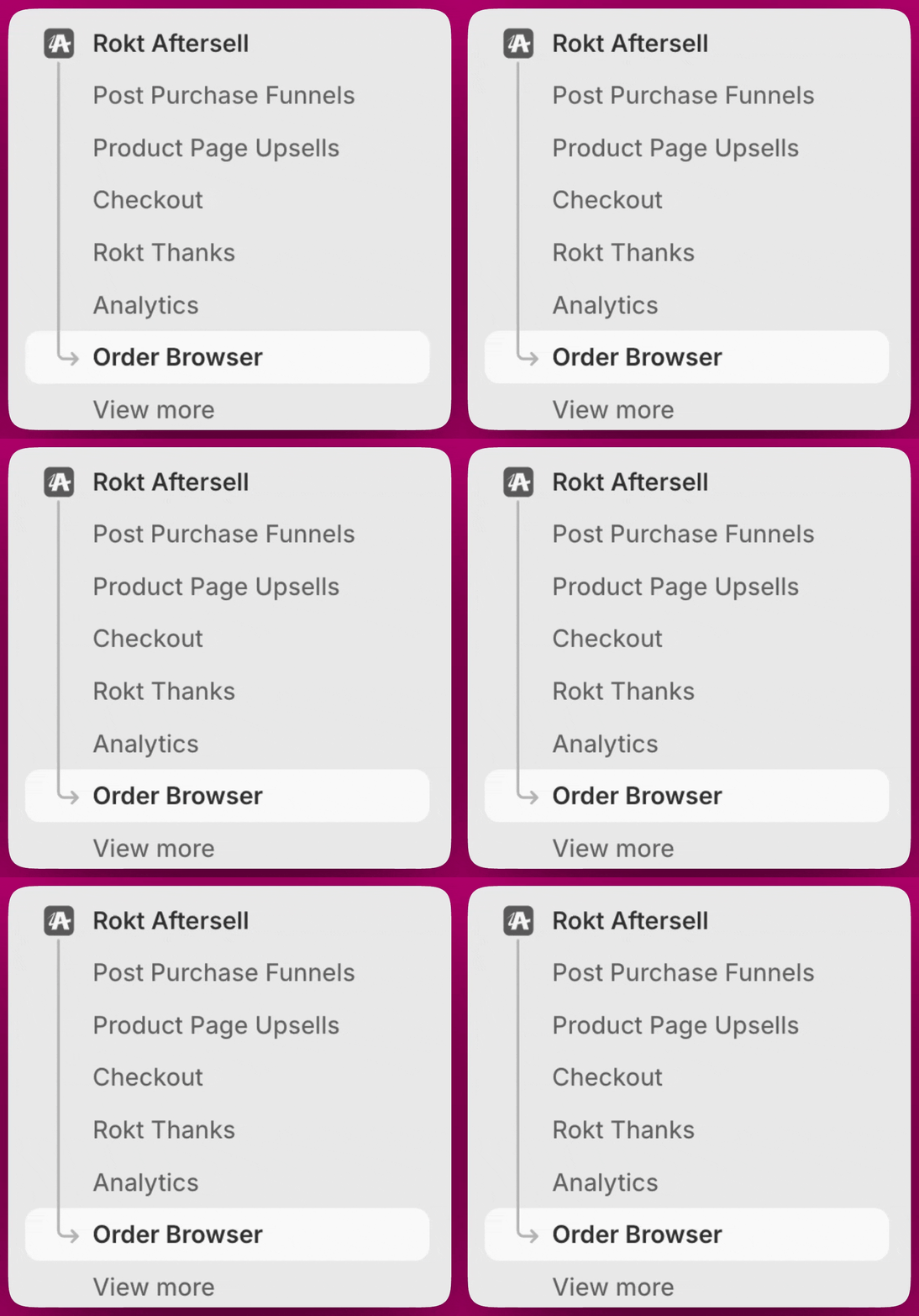
To access it, navigate to: **Apps → Rokt Aftersell → Order Browser** in your Shopify admin.
 ***
## Summary Bar
At the top of the Order Browser, three metrics give you a quick pulse on performance for your selected date range.
| Metric | What it means |
| ------------------------- | -------------------------------------------------------- |
| **Total eligible orders** | Orders that qualified to receive a post-purchase offer |
| **Total offers shown** | How many of those orders actually had an offer displayed |
| **Upsell Revenue** | Total revenue generated from accepted offers |
***
## Summary Bar
At the top of the Order Browser, three metrics give you a quick pulse on performance for your selected date range.
| Metric | What it means |
| ------------------------- | -------------------------------------------------------- |
| **Total eligible orders** | Orders that qualified to receive a post-purchase offer |
| **Total offers shown** | How many of those orders actually had an offer displayed |
| **Upsell Revenue** | Total revenue generated from accepted offers |
 The Order Browser defaults to the Last 30 days. Use the date picker in the top-right corner to adjust the range. Data is available from **February 25, 2026 onward**, and the Total Orders view shows all available data across your full history.
Use the **Export button** (also top-right) to download the current view as a CSV. The export respects any filters you have active, so filter first if you only want a subset of orders.
Order data updates every few minutes. Use the Last Updated timestamp and refresh button in the interface to check how current your data is.
***
## Performance Panels
Below the summary bar, three panels break down your performance in more detail. Together they help you quickly spot eligibility issues, configuration gaps, and opportunities to improve coverage.
#### Eligible Post-Purchase Orders
Shows the total count of eligible orders with a donut chart breaking them down by Shown vs Not shown. A high "Not shown" proportion usually points to funnel configuration gaps, product filtering, or Shopify eligibility issues. See the Order Browser Troubleshooting guide for next steps.
#### Improvement Opportunities
This panel highlights eligible orders where at least one offer didn't render because of funnel, offer, or product configuration gaps. Some of these orders may have shown other offers — fixing these gaps widens overall coverage. The panel is split into two categories: Funnel & Offer opportunities and Product opportunities. For each reason, the panel shows how many eligible orders were affected.
**Funnel & Offer opportunities**
**What it means:** An eligible order came through but no funnel matched its trigger conditions.
**What to do:** Create a catch-all funnel using the **Show for All Customers** trigger and set it to the lowest priority so it fires whenever no other funnel matches.
**What it means:** A funnel ran but one or more offer slots had no offer set up.
**What to do:** Go to the funnel and add an offer to the empty slot.
**What it means:** A funnel exists but hasn't been fully set up.
**What to do:** Open the funnel and complete the configuration.
**What it means:** A funnel was configured and matched the order, but every product across all offer slots was filtered out by your targeting or filter rules before anything could display.
**What to do:** Review your funnel's product filters and targeting rules. Broaden the filter criteria or add fallback products to ensure at least one offer has something eligible to show.
**What it means:** An individual offer slot ran but every product in it was filtered out before the offer could display.
**What to do:** Review the offer's filter settings and add more fallback products so there is always something eligible to show.
Opportunities are tagged based on the customer's actual journey, not the funnel's configuration. For example, if a funnel has no offer set up in slot 3 but the customer declined slot 2 and never reached slot 3, it will not be flagged. The flag only appears if the customer's journey would have reached that step.
You can click on any opportunity category to filter the order table to orders affected by that specific gap.
**Product opportunities**
**What it means:** The replacement upsell failsafe was triggered because the shop hit its replacement-failure threshold. Replacement upsells are paused shop-wide until the failsafe is manually reset by Aftersell. Orders attributed to this reason never attempted a replacement.
**What to do:** Contact Aftersell support to review and reset the failsafe.
**What it means:** No line item in the order matched the replacement target's variant ID, so the replacement was skipped.
**What to do:** Review the replacement upsell configuration and confirm the target variant is present in the orders you expect it to match.
**What it means:** A recommended product is sold as a subscription only, but the customer's checkout already included a subscription, so it couldn't be added as a post-purchase upsell.
**What to do:** Consider replacing subscription-only products in this offer with non-subscription alternatives, or move subscription offers to the Thank You Page where this restriction doesn't apply.
These aren't errors. They're flags that something can be fixed to improve coverage.
### Ineligible Post-Purchase Orders
Shows orders that couldn't receive a post-purchase offer, broken down by the specific reason. The panel surfaces exact counts per reason so you can see where the biggest eligibility gaps are.
Shopify does not tell Aftersell exactly why an order was skipped for post-purchase. The system identifies likely reasons based on Shopify's documented limitations. Because a single order can match multiple reasons, the individual reason counts do not add up to the total ineligible number. No percentages are shown for this section for that reason.
You can click on any ineligibility reason to filter the order table to just those orders.
**What it means:** Order value was under \$0.50 (e.g., fully discounted orders).
**What to do:** Shopify restriction — no fix. Set up Thank You Page upsells to capture these orders.
**What it means:** Order included duties or landed costs.
**What to do:** Shopify restriction — no fix. TYP upsells are not affected.
**What it means:** Order was paid entirely with a gift card.
**What to do:** Shopify restriction — no fix. TYP upsells are not affected.
**What it means:** Order used a BNPL method (Klarna, Afterpay, Shop Pay Installments).
**What to do:** Shopify restriction — no fix. TYP upsells are not affected.
**What it means:** Order used a local delivery method not supported for post-purchase.
**What to do:** Shopify restriction — no fix. TYP upsells are not affected.
**What it means:** Order was placed in a currency other than the store's default.
**What to do:** Shopify restriction — no fix. TYP upsells support multi-currency and will show to these customers.
**What it means:** Shipping address was missing a country code.
**What to do:** Typically a data issue on the order. No fix available for past orders.
**What it means:** Order used a non-credit-card payment method not supported by Shopify.
**What to do:** Shopify restriction — no fix. TYP upsells are not affected.
**What it means:** Order used a third-party payment gateway that doesn't support post-purchase.
**What to do:** Check if your gateway supports Shopify's post-purchase API. See Payment Methods for the full supported gateway list.
**What it means:** Order used a digital wallet (Apple Pay, Google Pay, PayPal).
**What to do:** Shopify restriction — no fix. Set up Thank You Page upsells to capture wallet orders — TYP is not affected.
**What it means:** Shopify bypassed post-purchase for this order. Aftersell has no visibility into why — the error code shown in the order detail is `no_activity`.
**What to do:** Contact Shopify support directly. Aftersell cannot investigate or resolve this — it is entirely within Shopify's platform.
**What it means:** Order came through a channel that doesn't support post-purchase (e.g., draft orders, POS).
**What to do:** \[do you have a "what to do" for this one? I don't see one in your data — let me know and I'll add it in]
The Order Browser defaults to the Last 30 days. Use the date picker in the top-right corner to adjust the range. Data is available from **February 25, 2026 onward**, and the Total Orders view shows all available data across your full history.
Use the **Export button** (also top-right) to download the current view as a CSV. The export respects any filters you have active, so filter first if you only want a subset of orders.
Order data updates every few minutes. Use the Last Updated timestamp and refresh button in the interface to check how current your data is.
***
## Performance Panels
Below the summary bar, three panels break down your performance in more detail. Together they help you quickly spot eligibility issues, configuration gaps, and opportunities to improve coverage.
#### Eligible Post-Purchase Orders
Shows the total count of eligible orders with a donut chart breaking them down by Shown vs Not shown. A high "Not shown" proportion usually points to funnel configuration gaps, product filtering, or Shopify eligibility issues. See the Order Browser Troubleshooting guide for next steps.
#### Improvement Opportunities
This panel highlights eligible orders where at least one offer didn't render because of funnel, offer, or product configuration gaps. Some of these orders may have shown other offers — fixing these gaps widens overall coverage. The panel is split into two categories: Funnel & Offer opportunities and Product opportunities. For each reason, the panel shows how many eligible orders were affected.
**Funnel & Offer opportunities**
**What it means:** An eligible order came through but no funnel matched its trigger conditions.
**What to do:** Create a catch-all funnel using the **Show for All Customers** trigger and set it to the lowest priority so it fires whenever no other funnel matches.
**What it means:** A funnel ran but one or more offer slots had no offer set up.
**What to do:** Go to the funnel and add an offer to the empty slot.
**What it means:** A funnel exists but hasn't been fully set up.
**What to do:** Open the funnel and complete the configuration.
**What it means:** A funnel was configured and matched the order, but every product across all offer slots was filtered out by your targeting or filter rules before anything could display.
**What to do:** Review your funnel's product filters and targeting rules. Broaden the filter criteria or add fallback products to ensure at least one offer has something eligible to show.
**What it means:** An individual offer slot ran but every product in it was filtered out before the offer could display.
**What to do:** Review the offer's filter settings and add more fallback products so there is always something eligible to show.
Opportunities are tagged based on the customer's actual journey, not the funnel's configuration. For example, if a funnel has no offer set up in slot 3 but the customer declined slot 2 and never reached slot 3, it will not be flagged. The flag only appears if the customer's journey would have reached that step.
You can click on any opportunity category to filter the order table to orders affected by that specific gap.
**Product opportunities**
**What it means:** The replacement upsell failsafe was triggered because the shop hit its replacement-failure threshold. Replacement upsells are paused shop-wide until the failsafe is manually reset by Aftersell. Orders attributed to this reason never attempted a replacement.
**What to do:** Contact Aftersell support to review and reset the failsafe.
**What it means:** No line item in the order matched the replacement target's variant ID, so the replacement was skipped.
**What to do:** Review the replacement upsell configuration and confirm the target variant is present in the orders you expect it to match.
**What it means:** A recommended product is sold as a subscription only, but the customer's checkout already included a subscription, so it couldn't be added as a post-purchase upsell.
**What to do:** Consider replacing subscription-only products in this offer with non-subscription alternatives, or move subscription offers to the Thank You Page where this restriction doesn't apply.
These aren't errors. They're flags that something can be fixed to improve coverage.
### Ineligible Post-Purchase Orders
Shows orders that couldn't receive a post-purchase offer, broken down by the specific reason. The panel surfaces exact counts per reason so you can see where the biggest eligibility gaps are.
Shopify does not tell Aftersell exactly why an order was skipped for post-purchase. The system identifies likely reasons based on Shopify's documented limitations. Because a single order can match multiple reasons, the individual reason counts do not add up to the total ineligible number. No percentages are shown for this section for that reason.
You can click on any ineligibility reason to filter the order table to just those orders.
**What it means:** Order value was under \$0.50 (e.g., fully discounted orders).
**What to do:** Shopify restriction — no fix. Set up Thank You Page upsells to capture these orders.
**What it means:** Order included duties or landed costs.
**What to do:** Shopify restriction — no fix. TYP upsells are not affected.
**What it means:** Order was paid entirely with a gift card.
**What to do:** Shopify restriction — no fix. TYP upsells are not affected.
**What it means:** Order used a BNPL method (Klarna, Afterpay, Shop Pay Installments).
**What to do:** Shopify restriction — no fix. TYP upsells are not affected.
**What it means:** Order used a local delivery method not supported for post-purchase.
**What to do:** Shopify restriction — no fix. TYP upsells are not affected.
**What it means:** Order was placed in a currency other than the store's default.
**What to do:** Shopify restriction — no fix. TYP upsells support multi-currency and will show to these customers.
**What it means:** Shipping address was missing a country code.
**What to do:** Typically a data issue on the order. No fix available for past orders.
**What it means:** Order used a non-credit-card payment method not supported by Shopify.
**What to do:** Shopify restriction — no fix. TYP upsells are not affected.
**What it means:** Order used a third-party payment gateway that doesn't support post-purchase.
**What to do:** Check if your gateway supports Shopify's post-purchase API. See Payment Methods for the full supported gateway list.
**What it means:** Order used a digital wallet (Apple Pay, Google Pay, PayPal).
**What to do:** Shopify restriction — no fix. Set up Thank You Page upsells to capture wallet orders — TYP is not affected.
**What it means:** Shopify bypassed post-purchase for this order. Aftersell has no visibility into why — the error code shown in the order detail is `no_activity`.
**What to do:** Contact Shopify support directly. Aftersell cannot investigate or resolve this — it is entirely within Shopify's platform.
**What it means:** Order came through a channel that doesn't support post-purchase (e.g., draft orders, POS).
**What to do:** \[do you have a "what to do" for this one? I don't see one in your data — let me know and I'll add it in]
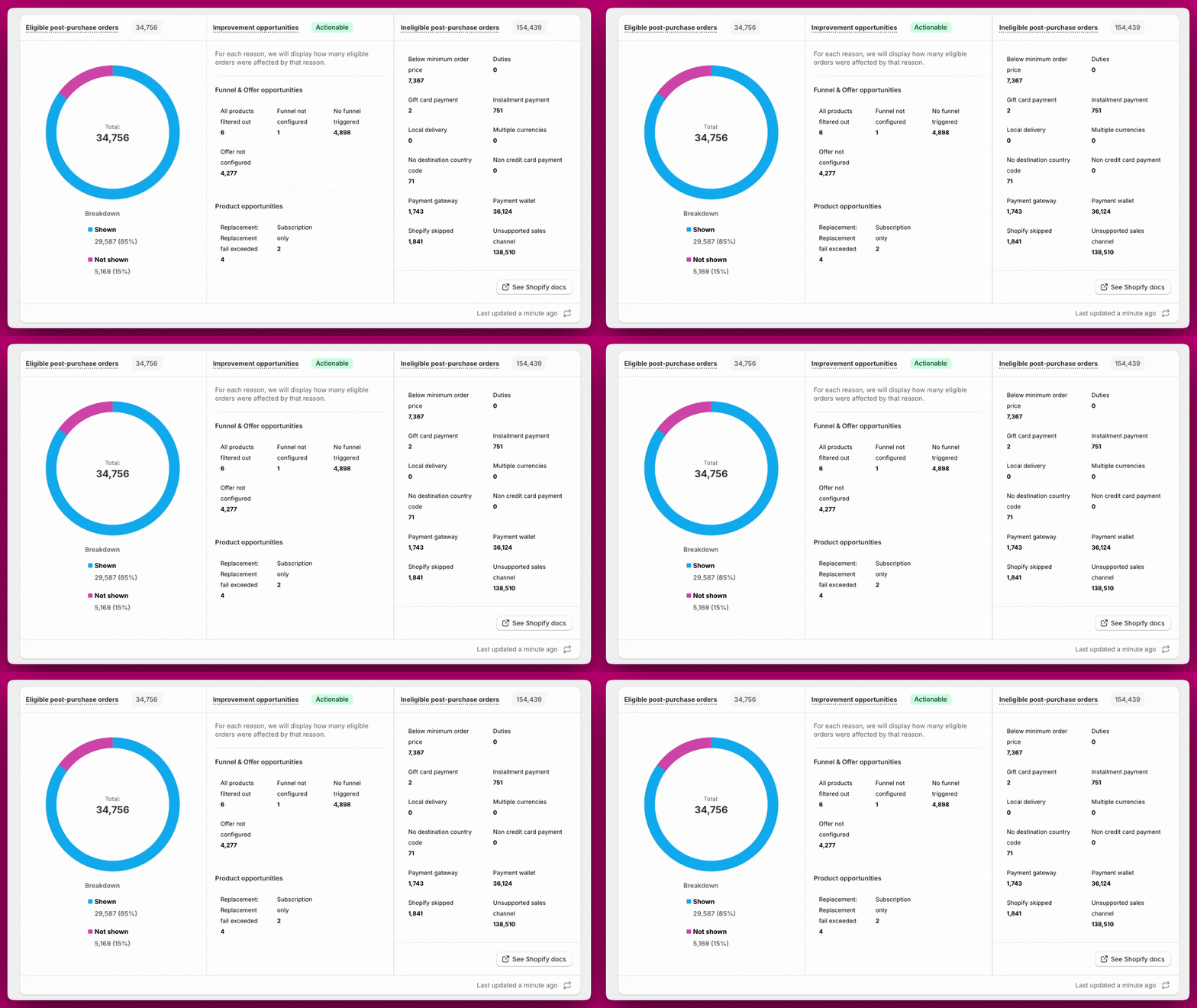 Payment wallet and Unsupported sales channel tend to be the largest contributors for most stores. For payment method restrictions, [Thank You Page upsells](/aftersell/how_can_i_set_up_and_customize_thank_you_page_upsells_in_aftersell) are the best way to recover that traffic since TYP is not subject to Shopify's post-purchase restrictions.
For a full breakdown of supported and unsupported payment methods, see [Payment Methods](/aftersell/payment_methods)
***
## The Order Table
Below the performance panels is a detailed, order-level table. Each row is a single order. This is where you can search, filter, and drill into exactly what happened for any order.
### Columns
| Column | What it shows |
| ----------------------- | ----------------------------------------------------------------------------------------------- |
| **Order** | Shopify order number. Click to open the order detail view. |
| **Date** | When the order was placed |
| **Eligibility** | Whether the order was eligible or ineligible for a post-purchase offer |
| **Sales channel** | e.g. Online Store |
| **Country** | The shipping country for the order, displayed as an ISO country code (e.g. US, GB, AU) |
| **Total** | Order value |
| **PPU Funnel** | Which post-purchase upsell funnel was shown. Click to open the funnel editor. |
| **PPU offer 1 / 2 / 3** | The interaction status for each post-purchase offer slot |
| **TYP Funnel** | Which Thank You Page funnel was shown |
| **TYP widget** | The widget status on the Thank You Page |
| **Rokt Thanks** | The Rokt Thanks offer status for the order (only visible if your store has Rokt Thanks enabled) |
PPU stands for Post-Purchase Upsell. TYP stands for Thank You Page. Each post-purchase funnel can have up to three offer slots (PPU offer 1, 2, and 3), each shown or resolved independently.
### Offer Status Definitions
**PPU offer statuses** (columns PPU offer 1, 2, 3)
| Status | What it means |
| ------------------------------ | ------------------------------------------------------------------------------------------------------------------------------------------------------------------------------------------------------------------------------------------------- |
| **Accepted** | The customer accepted the offer. The item was added to their order. |
| **Declined** | The customer actively declined the offer by clicking the decline button. |
| **No interaction** | The offer was shown, but the customer closed the tab or navigated away without clicking Accept or Decline. The offer was seen, just not acted on. |
| **Customer skipped** | The customer skipped the post-purchase page entirely, or closed their browser before the offer loaded. The offer never had a chance to display. |
| **Timer expired** | The post-purchase session timer ran out before the customer interacted with the offer. |
| **Not configured** | An offer slot exists in the funnel but no offer has been set up in that slot yet. |
| **Products excluded** | The offer has products configured, but all of them are being excluded by your offer settings (e.g., hide if already purchased, out of stock, unpublished). Nothing was available to show. |
| **No stock at location** | Every candidate product for this offer was out of stock at the locations required by the offer's per-location inventory filter. Restock at those locations, or adjust the inventory filter on the offer strategy. |
| **Ineligible** | Shopify skipped the post-purchase page for this order due to a platform-level eligibility rule. This is a Shopify restriction, not an Aftersell configuration issue. |
| **Subscription upgrade issue** | The customer accepted the offer and the item was added to their order, but the downstream subscription upgrade at your subscription provider (Recharge, Loop, or Skio) failed. Open the order to see the specific cause and what to do to fix it. |
**TYP widget statuses** (TYP widget column)
Which Thank You Page funnel was shown. The Post Purchase funnel and Thank You Pafe funnel for an order can be the **same or different.**
| Status | What it means |
| -------------------------------------- | ---------------------------------------------------------------------------------------------------------------------------------------------------------------------------------------------------------------------------------------------------------------------------------------------------------------------------------------------------------------------------------------------------------------------- |
| **Accepted** | The customer accepted an offer on the Thank You Page. |
| **Declined** | The customer declined an offer on the Thank You Page. |
| **No interaction** | A TYP offer was shown but the customer didn't interact with it. |
| **Pending conversion** | The customer has seen the Thank You Page offer but a decision hasn't been recorded yet (the page may still be open). |
| **Products filtered out** | The TYP offer had products configured but all were filtered out, so nothing was displayed. |
| **No products found** | The TYP offer couldn't load any products to display. |
| **Technical issue** | There was a problem loading the Thank You Page experience for this order. |
| **Products excluded** | The offer has products configured, but all of them are being excluded by your offer settings (e.g., hide if already purchased, out of stock, unpublished). Nothing was available to show. |
| **Upsell hidden due to order merging** | The widget is set to "Modify original order" mode and every configured variant is already in the customer's order. Shopify does not allow duplicate variants in an order edit, so the upsell was hidden. Switch to **Create new draft order** in the widget's [order handling settings](/aftersell/thank_you_page_extensions_overview#order-handling) if you want to re-offer products the customer already purchased. |
| **Subscription conflict** | The offer included a subscription product but the order already contains a subscription. Shopify does not allow subscription upsells in this case. Consider moving subscription offers to the Thank You Page. |
**Rokt Thanks statuses** (Rokt Thanks column)
This column is only visible if your store has Rokt Thanks enabled.
| Status | What it means |
| ------------------ | -------------------------------------------------------------------------------------- |
| **Accepted** | The customer engaged with the Rokt Thanks offer (positive engagement recorded). |
| **Shown** | The Rokt Thanks placement loaded and was interactive, but the customer did not engage. |
| **No interaction** | The Rokt Thanks placement loaded but the customer did not interact with it. |
| **Not loaded** | The Rokt Thanks placement did not load for this order. |
**Funnel column statuses** (PPU Funnel, TYP Funnel columns)
| Status | What it means |
| --------------------------- | --------------------------------------------------------------------------------------------------------------------------------------------------------------------------------------------------------------------------------------------------- |
| **No funnel triggered** | No funnel matched this order's trigger conditions. The order was eligible but no funnel fired. |
| **Funnel not set up** | A funnel matched the order but has no placements configured, so no offer was shown. Open the funnel and add an offer to at least one slot. |
| **All offers filtered out** | A funnel was configured and matched the order, but all products across every offer slot were filtered out by your targeting or filter rules. Review your funnel's product filters and targeting to ensure at least one offer has eligible products. |
Statuses that are frequently confused:
* **Customer skipped** = the offer never loaded (the customer left before the page could show)
* **No interaction** = the offer loaded and was visible, but the customer didn't click anything
* **Timer expired** = the session timed out while the offer was on screen
* **Ineligible** = Shopify blocked post-purchase from running at all for this order
* **No funnel triggered** = the order was eligible but no funnel matched its trigger rules
* **Funnel not set up** = a funnel matched but has no offer slots configured
* **All offers filtered out** = a funnel matched and had offers configured, but every product was filtered out by targeting or filter rules
* **Subscription upgrade issue** = the offer was accepted and the item added to the order, but the subscription upgrade at your provider failed — open the order for the specific cause and fix
***
## Searching and Filtering Orders
### Search
Use the search bar at the top to find a specific order by name.
### Filters
Click **Add filter +** to filter the order table. Multiple filters can be combined to narrow down results. Click **Clear all** to remove active filters.
| Filter | What it does |
| ----------------------------- | ---------------------------------------------------------------------------------------------------------------------------------------------------------------------------------------------------------------------------------------------------------------------------- |
| Post-purchase status | Filter by the overall post-purchase outcome, grouped into four buckets: **Not eligible**, **No offer shown**, **Shown, not accepted**, and **Accepted**. Use this as a quick top-level filter to find all orders where a customer accepted, declined, or never saw an offer. |
| Post-purchase eligibility | Filter by whether an order was eligible or ineligible |
| PPU Funnel | Filter by which post-purchase upsell funnel was shown |
| Post-purchase offer 1 / 2 / 3 | Filter by the status of each offer slot |
| TYP Funnel | Filter by which Thank You Page funnel was shown |
| Thank You page status | Filter by the outcome on the Thank You Page |
| Payment status | Filter by payment method or status |
| Post-purchase shown | Filter by whether the post-purchase page was shown |
| Thank You page shown | Filter by whether the Thank You Page was shown |
| Funnel opportunities | Filter by orders with funnel-level improvement opportunities |
| Product opportunities | Filter by orders with product-level improvement opportunities |
| Offer opportunities | Filter by orders with offer-level improvement opportunities |
| Ineligibility reason | Filter by the specific reason an order was ineligible |
***
## Viewing an Individual Order
### Viewing an Individual Order
Click any order number to open the order detail view. This is a complete record of Aftersell activity for that order. Use **View in Shopify** in the top right to open the order directly in Shopify.
The detailed timeline view is only available for orders placed after the Order Browser launch. Orders placed before that date will show limited timeline data.
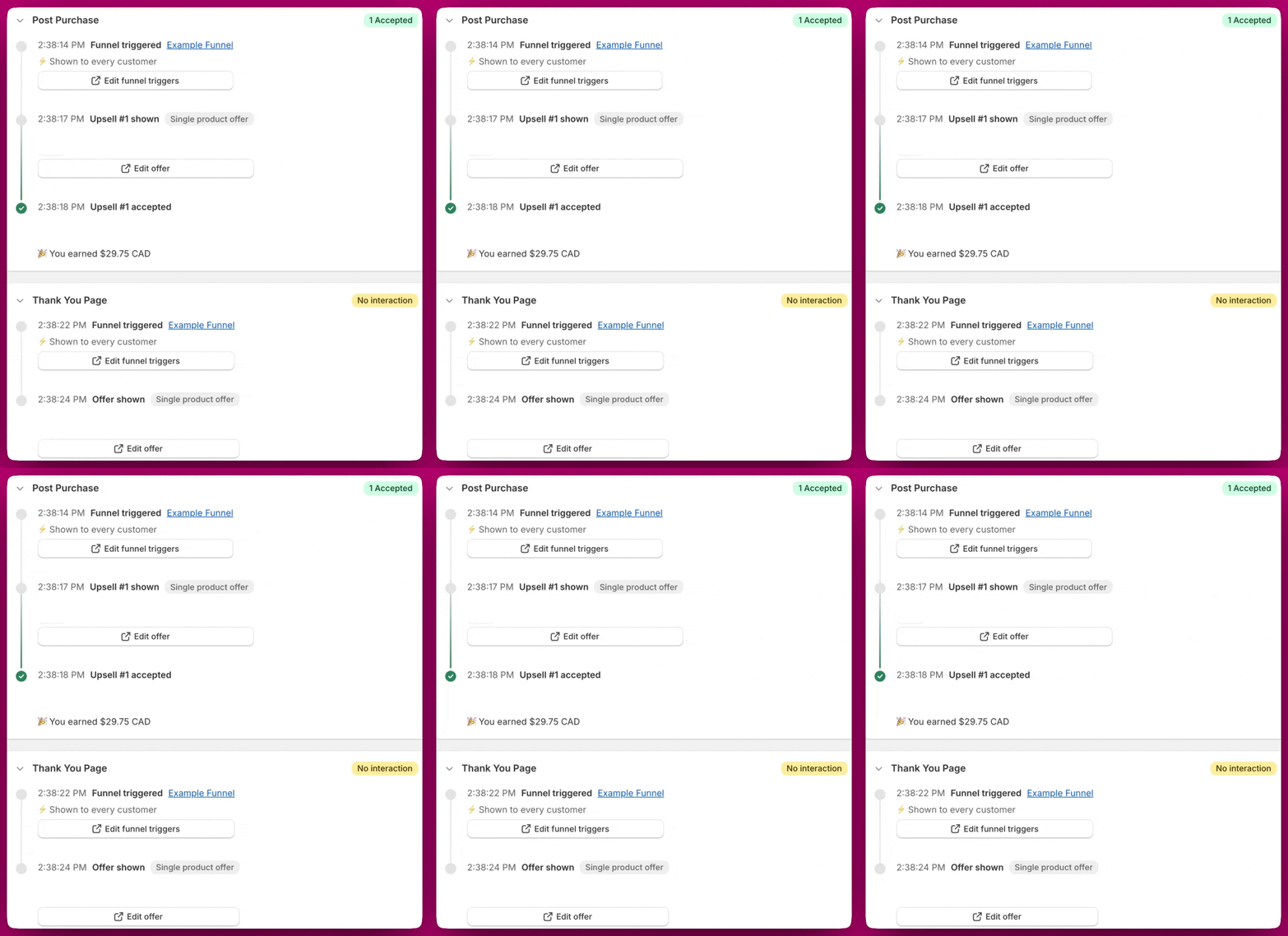
The detail view has two collapsible sections: **Post Purchase** and **Thank You Page**. Click the section header (the chevron on the left) to expand or collapse each one. Each section displays a status badge at a glance, for example **1 Accepted** or **No interaction**, so you can understand the outcome without expanding the section. The right sidebar shows order info, customer details, payment method, tags, and discounts.
Payment wallet and Unsupported sales channel tend to be the largest contributors for most stores. For payment method restrictions, [Thank You Page upsells](/aftersell/how_can_i_set_up_and_customize_thank_you_page_upsells_in_aftersell) are the best way to recover that traffic since TYP is not subject to Shopify's post-purchase restrictions.
For a full breakdown of supported and unsupported payment methods, see [Payment Methods](/aftersell/payment_methods)
***
## The Order Table
Below the performance panels is a detailed, order-level table. Each row is a single order. This is where you can search, filter, and drill into exactly what happened for any order.
### Columns
| Column | What it shows |
| ----------------------- | ----------------------------------------------------------------------------------------------- |
| **Order** | Shopify order number. Click to open the order detail view. |
| **Date** | When the order was placed |
| **Eligibility** | Whether the order was eligible or ineligible for a post-purchase offer |
| **Sales channel** | e.g. Online Store |
| **Country** | The shipping country for the order, displayed as an ISO country code (e.g. US, GB, AU) |
| **Total** | Order value |
| **PPU Funnel** | Which post-purchase upsell funnel was shown. Click to open the funnel editor. |
| **PPU offer 1 / 2 / 3** | The interaction status for each post-purchase offer slot |
| **TYP Funnel** | Which Thank You Page funnel was shown |
| **TYP widget** | The widget status on the Thank You Page |
| **Rokt Thanks** | The Rokt Thanks offer status for the order (only visible if your store has Rokt Thanks enabled) |
PPU stands for Post-Purchase Upsell. TYP stands for Thank You Page. Each post-purchase funnel can have up to three offer slots (PPU offer 1, 2, and 3), each shown or resolved independently.
### Offer Status Definitions
**PPU offer statuses** (columns PPU offer 1, 2, 3)
| Status | What it means |
| ------------------------------ | ------------------------------------------------------------------------------------------------------------------------------------------------------------------------------------------------------------------------------------------------- |
| **Accepted** | The customer accepted the offer. The item was added to their order. |
| **Declined** | The customer actively declined the offer by clicking the decline button. |
| **No interaction** | The offer was shown, but the customer closed the tab or navigated away without clicking Accept or Decline. The offer was seen, just not acted on. |
| **Customer skipped** | The customer skipped the post-purchase page entirely, or closed their browser before the offer loaded. The offer never had a chance to display. |
| **Timer expired** | The post-purchase session timer ran out before the customer interacted with the offer. |
| **Not configured** | An offer slot exists in the funnel but no offer has been set up in that slot yet. |
| **Products excluded** | The offer has products configured, but all of them are being excluded by your offer settings (e.g., hide if already purchased, out of stock, unpublished). Nothing was available to show. |
| **No stock at location** | Every candidate product for this offer was out of stock at the locations required by the offer's per-location inventory filter. Restock at those locations, or adjust the inventory filter on the offer strategy. |
| **Ineligible** | Shopify skipped the post-purchase page for this order due to a platform-level eligibility rule. This is a Shopify restriction, not an Aftersell configuration issue. |
| **Subscription upgrade issue** | The customer accepted the offer and the item was added to their order, but the downstream subscription upgrade at your subscription provider (Recharge, Loop, or Skio) failed. Open the order to see the specific cause and what to do to fix it. |
**TYP widget statuses** (TYP widget column)
Which Thank You Page funnel was shown. The Post Purchase funnel and Thank You Pafe funnel for an order can be the **same or different.**
| Status | What it means |
| -------------------------------------- | ---------------------------------------------------------------------------------------------------------------------------------------------------------------------------------------------------------------------------------------------------------------------------------------------------------------------------------------------------------------------------------------------------------------------- |
| **Accepted** | The customer accepted an offer on the Thank You Page. |
| **Declined** | The customer declined an offer on the Thank You Page. |
| **No interaction** | A TYP offer was shown but the customer didn't interact with it. |
| **Pending conversion** | The customer has seen the Thank You Page offer but a decision hasn't been recorded yet (the page may still be open). |
| **Products filtered out** | The TYP offer had products configured but all were filtered out, so nothing was displayed. |
| **No products found** | The TYP offer couldn't load any products to display. |
| **Technical issue** | There was a problem loading the Thank You Page experience for this order. |
| **Products excluded** | The offer has products configured, but all of them are being excluded by your offer settings (e.g., hide if already purchased, out of stock, unpublished). Nothing was available to show. |
| **Upsell hidden due to order merging** | The widget is set to "Modify original order" mode and every configured variant is already in the customer's order. Shopify does not allow duplicate variants in an order edit, so the upsell was hidden. Switch to **Create new draft order** in the widget's [order handling settings](/aftersell/thank_you_page_extensions_overview#order-handling) if you want to re-offer products the customer already purchased. |
| **Subscription conflict** | The offer included a subscription product but the order already contains a subscription. Shopify does not allow subscription upsells in this case. Consider moving subscription offers to the Thank You Page. |
**Rokt Thanks statuses** (Rokt Thanks column)
This column is only visible if your store has Rokt Thanks enabled.
| Status | What it means |
| ------------------ | -------------------------------------------------------------------------------------- |
| **Accepted** | The customer engaged with the Rokt Thanks offer (positive engagement recorded). |
| **Shown** | The Rokt Thanks placement loaded and was interactive, but the customer did not engage. |
| **No interaction** | The Rokt Thanks placement loaded but the customer did not interact with it. |
| **Not loaded** | The Rokt Thanks placement did not load for this order. |
**Funnel column statuses** (PPU Funnel, TYP Funnel columns)
| Status | What it means |
| --------------------------- | --------------------------------------------------------------------------------------------------------------------------------------------------------------------------------------------------------------------------------------------------- |
| **No funnel triggered** | No funnel matched this order's trigger conditions. The order was eligible but no funnel fired. |
| **Funnel not set up** | A funnel matched the order but has no placements configured, so no offer was shown. Open the funnel and add an offer to at least one slot. |
| **All offers filtered out** | A funnel was configured and matched the order, but all products across every offer slot were filtered out by your targeting or filter rules. Review your funnel's product filters and targeting to ensure at least one offer has eligible products. |
Statuses that are frequently confused:
* **Customer skipped** = the offer never loaded (the customer left before the page could show)
* **No interaction** = the offer loaded and was visible, but the customer didn't click anything
* **Timer expired** = the session timed out while the offer was on screen
* **Ineligible** = Shopify blocked post-purchase from running at all for this order
* **No funnel triggered** = the order was eligible but no funnel matched its trigger rules
* **Funnel not set up** = a funnel matched but has no offer slots configured
* **All offers filtered out** = a funnel matched and had offers configured, but every product was filtered out by targeting or filter rules
* **Subscription upgrade issue** = the offer was accepted and the item added to the order, but the subscription upgrade at your provider failed — open the order for the specific cause and fix
***
## Searching and Filtering Orders
### Search
Use the search bar at the top to find a specific order by name.
### Filters
Click **Add filter +** to filter the order table. Multiple filters can be combined to narrow down results. Click **Clear all** to remove active filters.
| Filter | What it does |
| ----------------------------- | ---------------------------------------------------------------------------------------------------------------------------------------------------------------------------------------------------------------------------------------------------------------------------- |
| Post-purchase status | Filter by the overall post-purchase outcome, grouped into four buckets: **Not eligible**, **No offer shown**, **Shown, not accepted**, and **Accepted**. Use this as a quick top-level filter to find all orders where a customer accepted, declined, or never saw an offer. |
| Post-purchase eligibility | Filter by whether an order was eligible or ineligible |
| PPU Funnel | Filter by which post-purchase upsell funnel was shown |
| Post-purchase offer 1 / 2 / 3 | Filter by the status of each offer slot |
| TYP Funnel | Filter by which Thank You Page funnel was shown |
| Thank You page status | Filter by the outcome on the Thank You Page |
| Payment status | Filter by payment method or status |
| Post-purchase shown | Filter by whether the post-purchase page was shown |
| Thank You page shown | Filter by whether the Thank You Page was shown |
| Funnel opportunities | Filter by orders with funnel-level improvement opportunities |
| Product opportunities | Filter by orders with product-level improvement opportunities |
| Offer opportunities | Filter by orders with offer-level improvement opportunities |
| Ineligibility reason | Filter by the specific reason an order was ineligible |
***
## Viewing an Individual Order
### Viewing an Individual Order
Click any order number to open the order detail view. This is a complete record of Aftersell activity for that order. Use **View in Shopify** in the top right to open the order directly in Shopify.
The detailed timeline view is only available for orders placed after the Order Browser launch. Orders placed before that date will show limited timeline data.
The detail view has two collapsible sections: **Post Purchase** and **Thank You Page**. Click the section header (the chevron on the left) to expand or collapse each one. Each section displays a status badge at a glance, for example **1 Accepted** or **No interaction**, so you can understand the outcome without expanding the section. The right sidebar shows order info, customer details, payment method, tags, and discounts.
 ### Order Summary (right sidebar)
Shows all products in the order including any accepted upsells, quantities, pricing, shipping address, customer tags, payment method, order tags, and discount codes. This sidebar pulls from Shopify directly and requires no additional configuration.
### Post Purchase (PPU tab)
A step-by-step milestone timeline of the post-purchase experience for this order.
| Milestone | What it means |
| ------------------------------- | -------------------------------------------------------------------------------------------------------------------------------------------------------------------------------------------------------------------------------------------------------------- |
| **Offer triggered** | The funnel fired for this order. Shows the funnel name (click to edit triggers) and the reason the funnel was selected. |
| **Offer shown** | An offer was displayed. Shows the products that were presented, with thumbnails. |
| **Offer accepted** | The customer accepted the offer, including revenue amount. If the offer included a subscription upgrade and the upgrade failed at your subscription provider, a red banner appears beneath this milestone showing the specific cause and what to do to fix it. |
| **Offer declined** | The customer declined the offer. |
| **Ineligible** | Shopify blocked the post-purchase page for this order. Shows the specific Shopify eligibility reason. |
| **Not loaded** | The post-purchase experience failed to load. |
| **Subscription upgrade failed** | The subscription upgrade at your provider failed after the offer was accepted. This row shows the specific failure cause and remediation steps. |
If products were excluded from an offer, you'll see a **Products excluded** warning beneath the milestone with the specific reason. Possible reasons include:
**What caused it:** Shopify blocked the order at a platform level.
**What caused it:** No funnel matched this order's trigger conditions.
**What caused it:** Every product in the offer was filtered out by your settings.
**What caused it:** The offer slot exists but no offer has been set up.
**What caused it:** The offer product was already in the customer's original order.
**What caused it:** The offer product was out of stock at the time of the order.
**What caused it:** The offer product was unpublished or inactive in Shopify.
**What caused it:** The offer product was out of stock at the locations required by the offer's per-location inventory filter. Restock at those locations, or adjust the filter on the offer strategy.
**What caused it:** The offer product was excluded by a product-tag filter on the offer strategy. Review the filter or widen the product pool in your offer strategy.
**What caused it:** The offer product was excluded by a product-metafield filter on the offer strategy. Review the filter or widen the product pool in your offer strategy.
**What caused it:** The offer product was excluded by a product filter on the offer strategy. Review the filter or widen the product pool in your offer strategy.
**What caused it:** The post-purchase session timer ran out before the offer had a chance to load.
If you placed a test order and the PPU timeline shows no events or incomplete data, it may be because the order ID wasn't available when the earliest events fired. This resolves automatically as the order completes.
### Thank You Page (TYP tab)
Shows the same milestone structure as the PPU tab, filtered to Thank You Page events. A **Technical issue** badge means there was a problem loading the TYP experience for this order.
***
Something not looking right? See the [Order Browser Troubleshooting](/aftersell/order-browser-troubleshooting) guide, or reach out via chat or email us at [support@aftersell.app](mailto:support@aftersell.app).
### Order Summary (right sidebar)
Shows all products in the order including any accepted upsells, quantities, pricing, shipping address, customer tags, payment method, order tags, and discount codes. This sidebar pulls from Shopify directly and requires no additional configuration.
### Post Purchase (PPU tab)
A step-by-step milestone timeline of the post-purchase experience for this order.
| Milestone | What it means |
| ------------------------------- | -------------------------------------------------------------------------------------------------------------------------------------------------------------------------------------------------------------------------------------------------------------- |
| **Offer triggered** | The funnel fired for this order. Shows the funnel name (click to edit triggers) and the reason the funnel was selected. |
| **Offer shown** | An offer was displayed. Shows the products that were presented, with thumbnails. |
| **Offer accepted** | The customer accepted the offer, including revenue amount. If the offer included a subscription upgrade and the upgrade failed at your subscription provider, a red banner appears beneath this milestone showing the specific cause and what to do to fix it. |
| **Offer declined** | The customer declined the offer. |
| **Ineligible** | Shopify blocked the post-purchase page for this order. Shows the specific Shopify eligibility reason. |
| **Not loaded** | The post-purchase experience failed to load. |
| **Subscription upgrade failed** | The subscription upgrade at your provider failed after the offer was accepted. This row shows the specific failure cause and remediation steps. |
If products were excluded from an offer, you'll see a **Products excluded** warning beneath the milestone with the specific reason. Possible reasons include:
**What caused it:** Shopify blocked the order at a platform level.
**What caused it:** No funnel matched this order's trigger conditions.
**What caused it:** Every product in the offer was filtered out by your settings.
**What caused it:** The offer slot exists but no offer has been set up.
**What caused it:** The offer product was already in the customer's original order.
**What caused it:** The offer product was out of stock at the time of the order.
**What caused it:** The offer product was unpublished or inactive in Shopify.
**What caused it:** The offer product was out of stock at the locations required by the offer's per-location inventory filter. Restock at those locations, or adjust the filter on the offer strategy.
**What caused it:** The offer product was excluded by a product-tag filter on the offer strategy. Review the filter or widen the product pool in your offer strategy.
**What caused it:** The offer product was excluded by a product-metafield filter on the offer strategy. Review the filter or widen the product pool in your offer strategy.
**What caused it:** The offer product was excluded by a product filter on the offer strategy. Review the filter or widen the product pool in your offer strategy.
**What caused it:** The post-purchase session timer ran out before the offer had a chance to load.
If you placed a test order and the PPU timeline shows no events or incomplete data, it may be because the order ID wasn't available when the earliest events fired. This resolves automatically as the order completes.
### Thank You Page (TYP tab)
Shows the same milestone structure as the PPU tab, filtered to Thank You Page events. A **Technical issue** badge means there was a problem loading the TYP experience for this order.
***
Something not looking right? See the [Order Browser Troubleshooting](/aftersell/order-browser-troubleshooting) guide, or reach out via chat or email us at [support@aftersell.app](mailto:support@aftersell.app).