> ## Documentation Index
> Fetch the complete documentation index at: https://docs.aftersell.com/llms.txt
> Use this file to discover all available pages before exploring further.
# Fraud detection payment capture
> Fix Partially paid post-purchase upsell orders when a fraud app like NoFraud or Riskified captures payment before the upsell is added.
If your store uses a fraud detection app such as **NoFraud** or **Riskified**, the app may capture payment before a post-purchase upsell is added to the order. The upsell payment is only authorized, so the order shows as **Partially paid**. This article explains why this happens and how to capture the missed upsell payment with a Shopify Flow.
Seeing a sudden spike in Partially paid upsell orders since around March 31, 2026, with or without a fraud app? That is caused by a Shopify automation change and has a separate fix. See [Manual payment capture](/aftersell/manual_payment_capture).
## Confirm Your Payment Capture Settings
This article only applies to stores on Manual Payment Capture. Your store may have an automatic payment capture system set up, yet still have the Shopify Manual Payment Capture setting enabled. Confirm your store's payment capture settings in:
**Shopify Admin > Settings > Payments > Payment Capture Method**
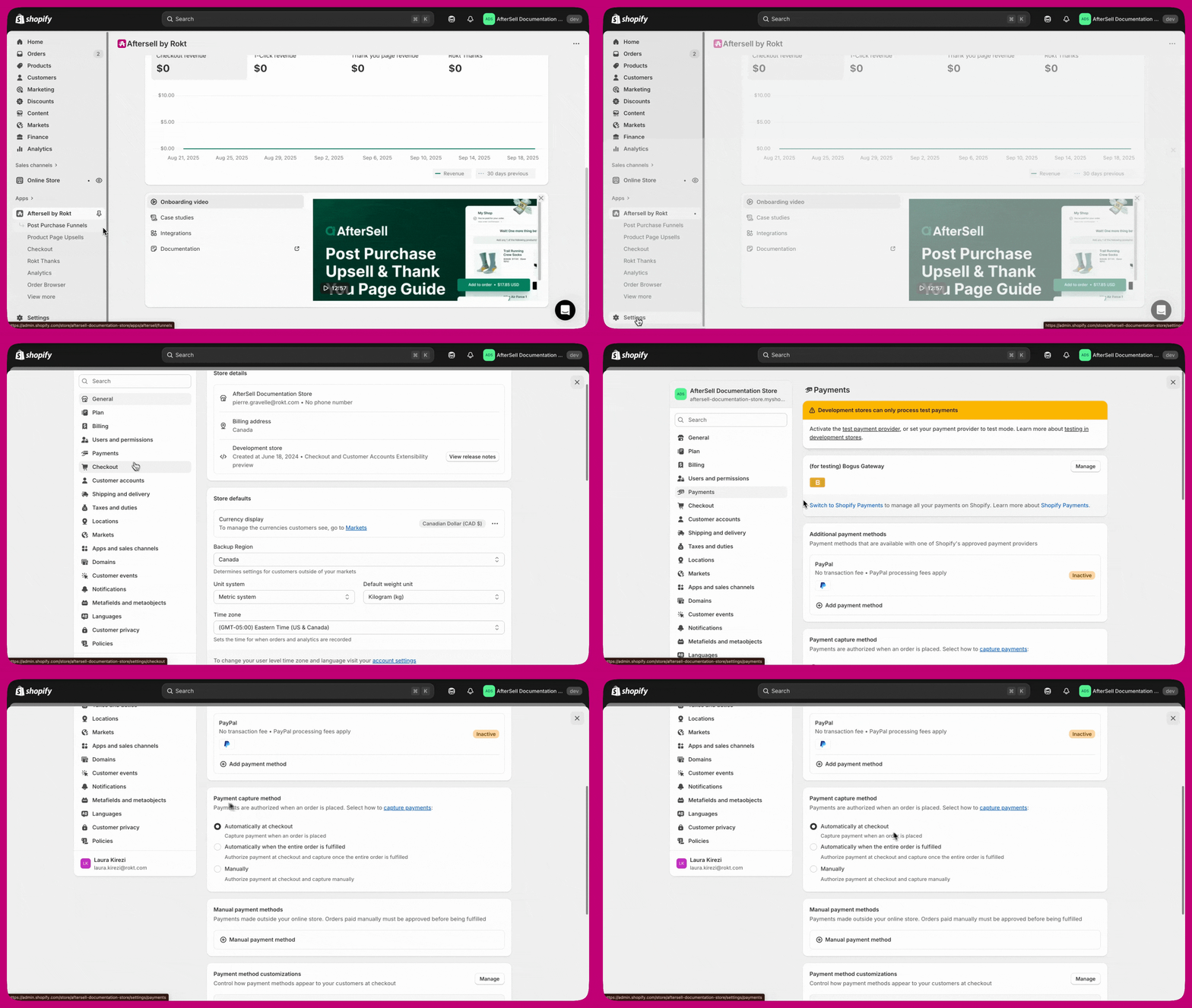 If you aren't on Manual Payment Capture, the rest of this article doesn't apply to you. See [Partially Paid Orders](/aftersell/partially_paid_orders) for other causes.
## Why This Happens
The fraud detection app might not natively support post-purchase upsells. In these cases it will often capture payment for the order too early, before the post-purchase upsell is added. The post-purchase upsell payment will be authorized, but only the initial payment would be captured. Such an order would be shown as **Partially paid**.
Additionally, the timing of the fraud app's payment capture can interfere with Aftersell's item cleanup logic. If the fraud app captures the original payment **after** the upsell authorization fails, Aftersell may not remove the unpaid upsell item from the order as expected. This can result in customers receiving free product.
## Create an Order Transaction Flow
The simplest solution to ensure that all payments for an order are captured is to use a **Shopify Flow** like the one below:
If you aren't on Manual Payment Capture, the rest of this article doesn't apply to you. See [Partially Paid Orders](/aftersell/partially_paid_orders) for other causes.
## Why This Happens
The fraud detection app might not natively support post-purchase upsells. In these cases it will often capture payment for the order too early, before the post-purchase upsell is added. The post-purchase upsell payment will be authorized, but only the initial payment would be captured. Such an order would be shown as **Partially paid**.
Additionally, the timing of the fraud app's payment capture can interfere with Aftersell's item cleanup logic. If the fraud app captures the original payment **after** the upsell authorization fails, Aftersell may not remove the unpaid upsell item from the order as expected. This can result in customers receiving free product.
## Create an Order Transaction Flow
The simplest solution to ensure that all payments for an order are captured is to use a **Shopify Flow** like the one below:
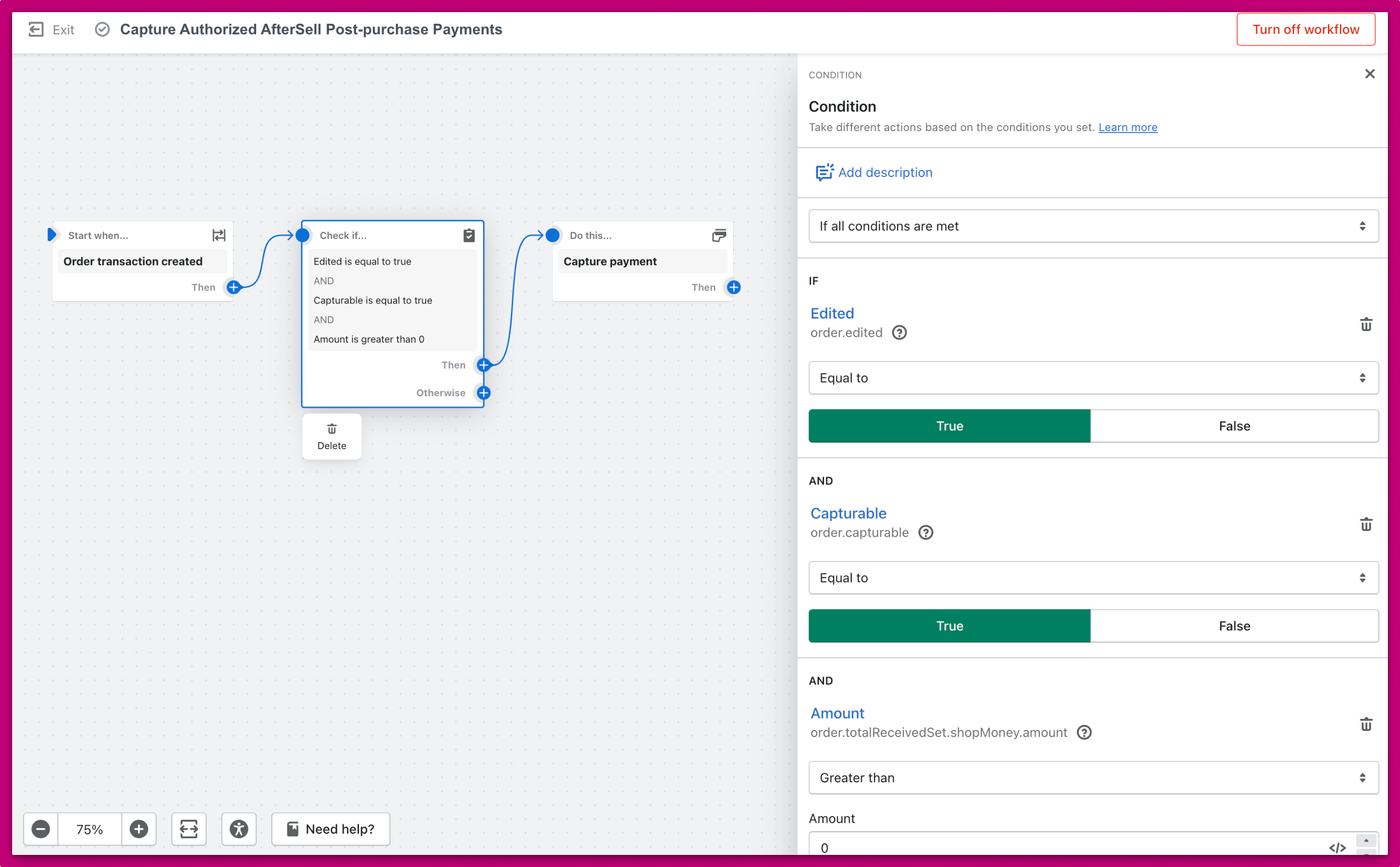 This flow has 3 steps:
1. **Trigger: "Order transaction created".** The flow only starts when an order transaction has been created. The first transaction for an order is created when the customer places the order. An additional transaction is created if the customer accepts the Aftersell post-purchase upsell. The goal is to capture payment on the second transaction, so the next step checks some conditions.
2. **Conditions.** The flow only continues if the transaction that was created is from a post-purchase upsell, and if payment for the original order has already been captured. This flow is only supposed to capture additional payment that was missed. If no payment has been captured yet, the flow does nothing and your regular payment capture system captures the full amount.
3. **Action: "Capture payment".** Once all checks have passed, the flow captures payment only for the extra amount from the post-purchase upsell.
If you use external fulfillment services, make sure this payment capture flow doesn't have unintended effects on your fulfillment. For more details, see our [Fulfillment Documentation](/aftersell/fulfillment).
## Frequently Asked Questions
When a customer accepts a post-purchase upsell but the upsell payment authorization fails, Aftersell should remove the unpaid item from the order after a set amount of time (configured in **Aftersell > Settings > Fulfillment and Payment > Partially Paid**). However, if your fraud app captures the original payment at a specific point in the sequence, it can interfere with Aftersell's cleanup logic, causing the unpaid item to stay on the order and get fulfilled for free.
The [order transaction Flow](#create-an-order-transaction-flow) helps by ensuring payment is captured promptly. You should also review your Partially Paid auto-removal settings and your order hold settings to prevent fulfillment before payment is confirmed.
The flow only captures the extra amount from the post-purchase upsell. If payment for the original order hasn't been captured yet, the flow does nothing and your regular payment capture system captures the full amount.
No. Aftersell is not involved in payment authorization or capture. Aftersell tells Shopify to add the upsell product to the order via Shopify's post-purchase API. Shopify handles the rest of the payment process. The Shopify Flow described in this article is the recommended way to ensure payment is captured.
See our [Partially Paid Orders](/aftersell/partially_paid_orders) article for details on what causes Partially paid orders and how to resolve them.
This flow has 3 steps:
1. **Trigger: "Order transaction created".** The flow only starts when an order transaction has been created. The first transaction for an order is created when the customer places the order. An additional transaction is created if the customer accepts the Aftersell post-purchase upsell. The goal is to capture payment on the second transaction, so the next step checks some conditions.
2. **Conditions.** The flow only continues if the transaction that was created is from a post-purchase upsell, and if payment for the original order has already been captured. This flow is only supposed to capture additional payment that was missed. If no payment has been captured yet, the flow does nothing and your regular payment capture system captures the full amount.
3. **Action: "Capture payment".** Once all checks have passed, the flow captures payment only for the extra amount from the post-purchase upsell.
If you use external fulfillment services, make sure this payment capture flow doesn't have unintended effects on your fulfillment. For more details, see our [Fulfillment Documentation](/aftersell/fulfillment).
## Frequently Asked Questions
When a customer accepts a post-purchase upsell but the upsell payment authorization fails, Aftersell should remove the unpaid item from the order after a set amount of time (configured in **Aftersell > Settings > Fulfillment and Payment > Partially Paid**). However, if your fraud app captures the original payment at a specific point in the sequence, it can interfere with Aftersell's cleanup logic, causing the unpaid item to stay on the order and get fulfilled for free.
The [order transaction Flow](#create-an-order-transaction-flow) helps by ensuring payment is captured promptly. You should also review your Partially Paid auto-removal settings and your order hold settings to prevent fulfillment before payment is confirmed.
The flow only captures the extra amount from the post-purchase upsell. If payment for the original order hasn't been captured yet, the flow does nothing and your regular payment capture system captures the full amount.
No. Aftersell is not involved in payment authorization or capture. Aftersell tells Shopify to add the upsell product to the order via Shopify's post-purchase API. Shopify handles the rest of the payment process. The Shopify Flow described in this article is the recommended way to ensure payment is captured.
See our [Partially Paid Orders](/aftersell/partially_paid_orders) article for details on what causes Partially paid orders and how to resolve them.