> ## Documentation Index
> Fetch the complete documentation index at: https://docs.aftersell.com/llms.txt
> Use this file to discover all available pages before exploring further.
# Checkout dashboard overview
The Checkout dashboard is your central hub for managing all Checkout widgets and pages, as well as monitoring general performance. This article covers the layout of the dashboard and what each section does.
For a detailed breakdown of how Pages and Standalone widgets work, including setup, configuration, block IDs, and placement - see [**Pages & Standalone Widgets: A Complete Guide**](#pages-vs-standalone-widgets).
 ***
## **Dashboard metrics**
At the top of the Checkout dashboard, you'll find a summary of your checkout performance across four key metrics:
* **Revenue**: Total revenue attributed to your Checkout upsells widgets
* **AOV**: Average order value of orders that included a Checkout widget
* **Impressions**: Total number of times your Checkout widgets were displayed
* **Conversion**: The Percentage of checkout sessions with widget impressions that resulted in a completed purchase
Use the date selector in the top-left to filter all metrics by a custom date range (e.g., last 30 days). This applies to all metrics on the Checkout dashboard, including those shown in the Pages and Standalone widgets tables.
***
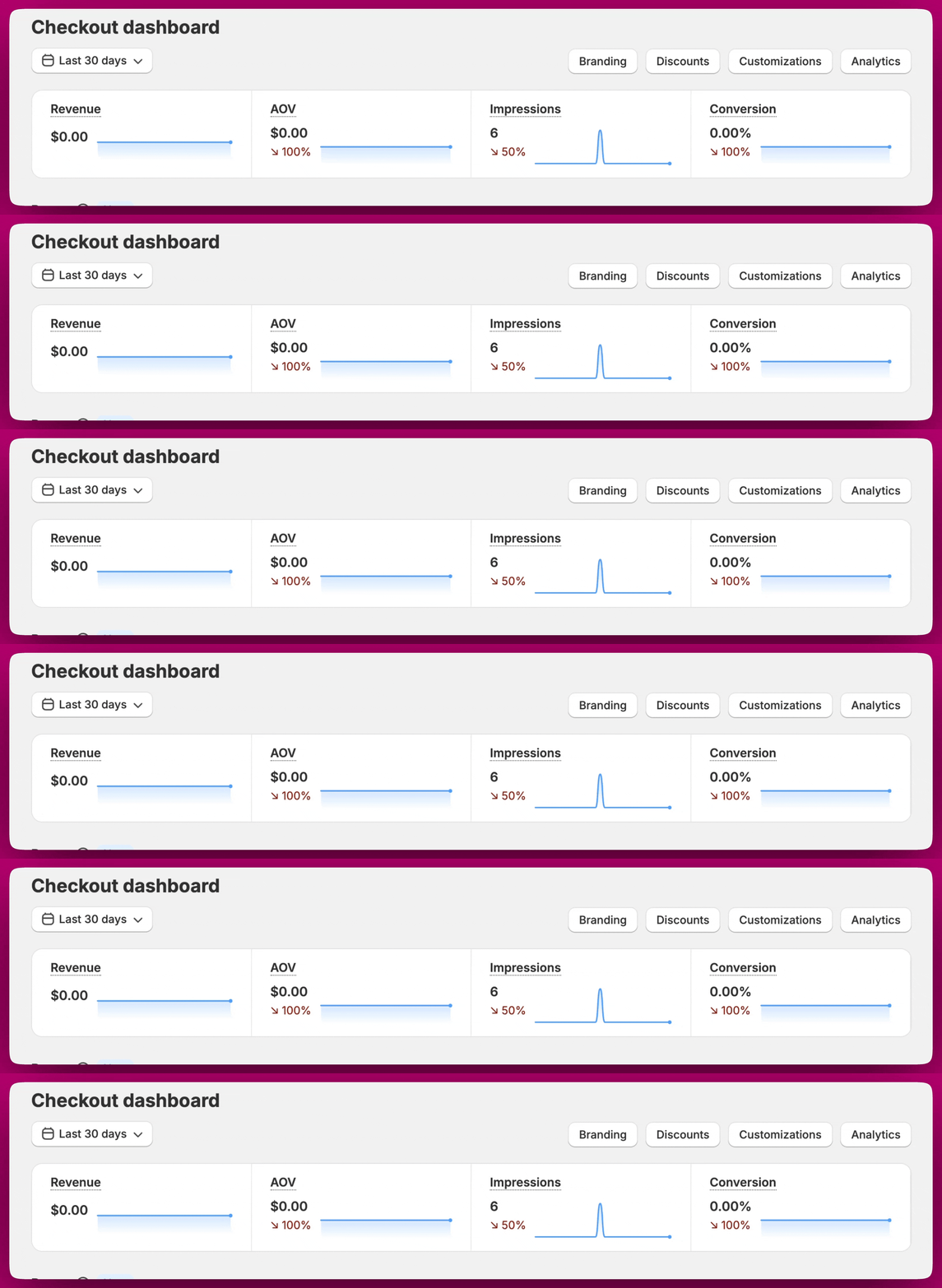
## **Dashboard metrics**
At the top of the Checkout dashboard, you'll find a summary of your checkout performance across four key metrics:
* **Revenue**: Total revenue attributed to your Checkout upsells widgets
* **AOV**: Average order value of orders that included a Checkout widget
* **Impressions**: Total number of times your Checkout widgets were displayed
* **Conversion**: The Percentage of checkout sessions with widget impressions that resulted in a completed purchase
Use the date selector in the top-left to filter all metrics by a custom date range (e.g., last 30 days). This applies to all metrics on the Checkout dashboard, including those shown in the Pages and Standalone widgets tables.
 ***
## **Pages**
A Page is a group of related widgets that are displayed together on your checkout based on a shared set of trigger conditions (which can include multiple conditions). While widgets are grouped within a Page and triggered at the same time, each widget still needs to be configured individually and requires its own app block placement. This setup helps coordinate when widgets appear, but does not eliminate the need to manage each widget separately.
The Pages section displays the following information for each page:
| **Column** | **Description** |
| :------------------ | :---------------------------------------------------------------------------------------- |
| **Priority** | The order in which pages are evaluated when multiple pages are active |
| **Name** | The name of the page |
| **Triggers** | The conditions under which this page is shown (or "Show to all" to show to all customers) |
| **Widgets** | Icons representing the widget types included in the page |
| **Impressions** | How many times this page has been shown |
| **Page conversion** | The conversion rate for this page |
| **AOV** | Average order value attributed to this page |
Each page has action buttons on the right:
* **Edit** (pencil icon): Open the page editor
* **View analytics** (bar chart icon): View analytics for this specific page
* **Duplicate** (duplicate icon): Create a copy of the page, including all its widgets and trigger configuration. The duplicated page is created in an inactive state with the name prefixed by "(Duplicated)" so it doesn't conflict with the original's display rules. You can then rename and activate it when ready.
Use **Manage priority** to control the order in which your pages are evaluated, and **Create page** to add a new page.
***
## **Standalone widgets**
Standalone widgets are individual widgets that function independently, each with their own triggers and priority configured at the variant-level.
The Standalone widgets section shows the following for each widget:
| **Column** | **Description** |
| :-------------------- | :--------------------------------------------------------------------------------------------------------------------------------- |
| **Name** | The widget name (e.g., "Default upsell", "Additional upsell 1") |
| **Variants** | The number of variants configured for this widget |
| **Active variants** | How many of those variants are currently active |
| **Placement status** | Whether the widget has been placed in your Shopify Checkout editor. Shows **Incomplete** (red) if placement has not been completed |
| **Impressions** | Total impressions for this widget |
| **Widget conversion** | Conversion rate for this widget |
Each standalone widget also has:
* **Edit** (pencil icon): Open the widget editor
* **View analytics** (bar chart icon): View analytics for this specific widget
**Note:** A maximum of **3 blocks** can be added for Standalone widgets. Each block can contain multiple variants, but no more than 3 blocks per widget can be created.
***
## **Analytics**
You can view analytics for any individual Page or Standalone widget directly from the dashboard by clicking the **bar chart icon** next to it. Analytics can also be accessed from within the page or widget editor.
This allows you to monitor and compare performance across your different widgets and pages to see what's working best for your store.
***
## **Pages**
A Page is a group of related widgets that are displayed together on your checkout based on a shared set of trigger conditions (which can include multiple conditions). While widgets are grouped within a Page and triggered at the same time, each widget still needs to be configured individually and requires its own app block placement. This setup helps coordinate when widgets appear, but does not eliminate the need to manage each widget separately.
The Pages section displays the following information for each page:
| **Column** | **Description** |
| :------------------ | :---------------------------------------------------------------------------------------- |
| **Priority** | The order in which pages are evaluated when multiple pages are active |
| **Name** | The name of the page |
| **Triggers** | The conditions under which this page is shown (or "Show to all" to show to all customers) |
| **Widgets** | Icons representing the widget types included in the page |
| **Impressions** | How many times this page has been shown |
| **Page conversion** | The conversion rate for this page |
| **AOV** | Average order value attributed to this page |
Each page has action buttons on the right:
* **Edit** (pencil icon): Open the page editor
* **View analytics** (bar chart icon): View analytics for this specific page
* **Duplicate** (duplicate icon): Create a copy of the page, including all its widgets and trigger configuration. The duplicated page is created in an inactive state with the name prefixed by "(Duplicated)" so it doesn't conflict with the original's display rules. You can then rename and activate it when ready.
Use **Manage priority** to control the order in which your pages are evaluated, and **Create page** to add a new page.
***
## **Standalone widgets**
Standalone widgets are individual widgets that function independently, each with their own triggers and priority configured at the variant-level.
The Standalone widgets section shows the following for each widget:
| **Column** | **Description** |
| :-------------------- | :--------------------------------------------------------------------------------------------------------------------------------- |
| **Name** | The widget name (e.g., "Default upsell", "Additional upsell 1") |
| **Variants** | The number of variants configured for this widget |
| **Active variants** | How many of those variants are currently active |
| **Placement status** | Whether the widget has been placed in your Shopify Checkout editor. Shows **Incomplete** (red) if placement has not been completed |
| **Impressions** | Total impressions for this widget |
| **Widget conversion** | Conversion rate for this widget |
Each standalone widget also has:
* **Edit** (pencil icon): Open the widget editor
* **View analytics** (bar chart icon): View analytics for this specific widget
**Note:** A maximum of **3 blocks** can be added for Standalone widgets. Each block can contain multiple variants, but no more than 3 blocks per widget can be created.
***
## **Analytics**
You can view analytics for any individual Page or Standalone widget directly from the dashboard by clicking the **bar chart icon** next to it. Analytics can also be accessed from within the page or widget editor.
This allows you to monitor and compare performance across your different widgets and pages to see what's working best for your store.